
It is easy to lose track of files and end up with duplicates stored on the disk. They waste space and are confusing. Which one should you use? Use AllDup free to find them and delete them.
No matter how careful you are when saving, copying, and managing the files on your computer’s disk (HDD or SSD), sooner or later you will have duplicates of some files. It depends on how careful you are, and there may only be a small number, but there could be a lot, especially if you have been using the computer for many years.
This can happen when you transfer photos to your PC, and you might do it twice. You might make a copy of the images for editing or for use elsewhere. You may download a PDF document from the internet that you previously downloaded. A document could be saved with a slightly different name, and so on.
Tracking down duplicate files is an essential maintenance task that you should perform occasionally. Getting rid of the duplicates frees up space on the disk and avoids confusion when you open the wrong file for editing.
Related: Delete duplicates in Bitwarden and other password managers
Find duplicates with AllDup
AllDup is freeware and can be used on a Windows PC by anyone, personal or business. It has some unusual features that many other duplicate finders don’t have, and this makes it more powerful and flexible than alternatives. Let’s see how it works.
1 Select the source folders
Click the Source Folders icon in the toolbar, and a list of drives and folders is displayed. These are just suggestions, and any drive or folder can be added. Multiple locations can be selected.
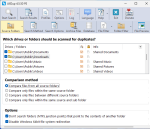
Below this is the comparison method, and you can simply compare all files regardless of their location. Alternatively, you can limit comparisons to the same folder or different folders.
2 Select the search method
Click the Search Method toolbar icon, and you can choose the attributes that are used when deciding whether files are the same. For example, they have the same filename, extension, size, content, and so on.

A good option to use is file content, which will identify identical files even if the filenames and creation or modified dates are different. An interesting addition to this is the option to ignore metadata in JPEG images, FLAC and MP3 audio files. Two JPEG images would be identical even if the metadata, like the camera info, was different, but the image is the same.
3 Compare files in archives
This is an unexpected feature, and AllDup can compare files within archives, like zip, 7z, rar and others. Select the Archive Files icon and tick the type of archives you want to include in the scan.
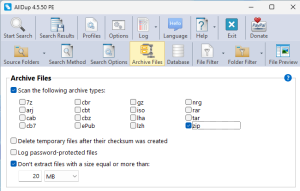
AllDup will compare regular files saved on disk with files stored within an archive like a zip. When you come to delete the duplicates, you can delete them even if they are stored in archives.
If you have a lot of archives on the disk, it will obviously take longer to compare files and find duplicates, but it is great to have the option of searching within them.
4 Search and browse results
After performing a scan, the left panel shows groups of files and the duplicates. Each group can be expanded to show the duplicate files, and they can be selected to preview them.

You might want to do this with images, for example, but you can also preview Word files, web files, and any media VLC can play (if you have VLC installed on your computer).
5 Delete duplicate files
Files in the search results panel have checkboxes, and you can select the ones you want to remove. Right click a file in a group of duplicates, and you can select all other files in the group, delete all other files, or move them to the recycle bin.
It would be tedious to manually select duplicate files for deletion, and there are extensive options for automatically selecting them. In fact, there are more than 20 different ways to select files, like selecting all files in a duplicates group except the smallest, largest, first, last, newest, oldest, and so on.
You can also protect folders on the disk to prevent files from being deleted from them, which is useful in case you accidentally select the wrong files in the scan results. You can also choose which file duplicate groups are processed, like only highlighted groups, all expanded or collapsed groups, and several more options.
Files are not permanently deleted from the disk; they are moved to the recycle bin. They can be recovered from there if you discover that you have accidentally deleted something you need.
Summing up
AllDup is a great free utility for finding and deleting duplicate files on Windows PCs. It has more features than you can imagine, including a lot that I had never even considered.
I have barely scratched the surface of this app, and there is a lot more than I have covered here. You really need to try it yourself. For example, when comparing images, it can find not only identical images, but similar ones, like 90% similar, and so on. I didn’t have great success finding similar images, but there are many methods and settings, so I think I need to explore them more.
The only minor criticism I can think of is that the large number of features, functions, and options is overwhelming when you first use AllDup. This is not a utility for novices. It is a powerful tool for expert users who need to clean up PCs and know what they are doing. Spend time getting to know it, and you will probably come to love it.
 RAWinfopages
Leave a Reply