
There is nothing worse than getting a huge bill from your mobile operator because you have used more data than you realised. Avoid them by setting high data usage warnings and restrictions.
Mobile phone connections are becoming faster with 4G common and even 5G in many models. These are so fast that they enable you to consume a whole month’s data allowance in just a few minutes and it is a shame that the limits are not growing as fast as the speed.
To make matters worse, every app seems to want to access the internet to back up, sync, store settings, share things and so on. The apps we use are becoming increasingly heavy internet users and the amount of data we consume is rising rapidly. The charges for using more than your allowance can be very high, but a data monitor can help you to avoid unwanted costs.
Whatever your data allowance, whether it is 1 GB, 2 GB, 5 GB or more, you need to monitor your usage. Dig around in the Android settings on many mobile phones and you can find out how much data you have used. It is buried so deep that some people don’t know it is there and those that do find it awkward to access.
Let's take a look at how to monitor the data on an Android phone. An immediate problem is that there are several different versions of Android in use and sometimes phone manufacturers impose their own menus and features on top.
I will be using Android 10 on a budget Samsung phone for this. If you are using something else, you might find slight differences in menus and features, but you will probably have something similar.
Open Settings
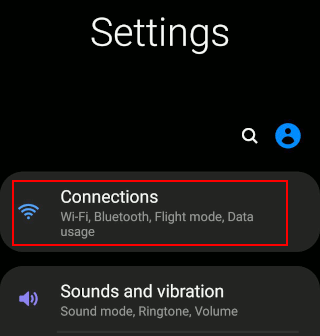
Pull down from the top and tap the gear icon or go to the all-apps screen and tap Settings. Connections is right at the top of the list of settings. Press it.
Connections options
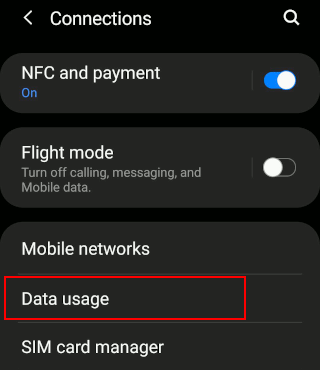
Among the options is Data usage, press it. On other phones with different versions of Android, it may be in a different position or located under another submenu, so look for it.
View data usage
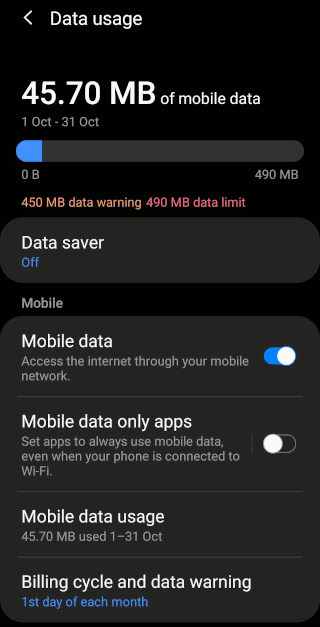
This screen is packed with useful information and settings. Right at the top is a simple bar showing how much data you have and how much you have used so far in this billing cycle. Enable or disable mobile data with the switch. Do not enable Mobile data only apps unless you have unlimited data and a 5G connection. Wi-Fi is fast, free and unlimited and should be used whenever it is available.
Press Data saver to cut down the amount of data the phone uses.
Save mobile data
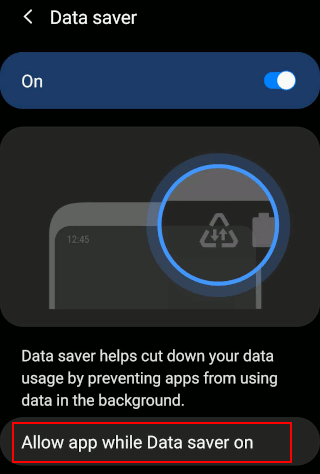
Data saver stops apps in the background from using mobile data. It is useful to enable this feature if you have used a lot of data and are near the limit on your phone contract. Apps like Facebook, Twitter and others will not be able to check for new posts when not on the screen. They work normally when you are actually using them.
There are certain apps that are important to you, such as email, text messaging and maybe one or two more. Press Allow app while Data saver on.
Apps allowed to use data
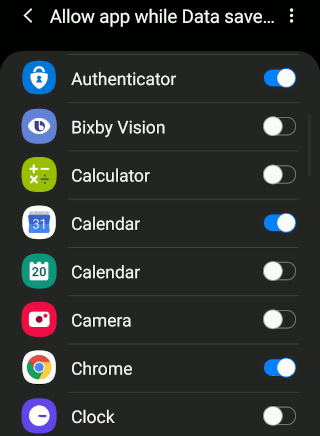
Use the switches to choose which apps are able to use mobile data in the background. This does not affect them when running in the foreground on-screen.
Set the billing cycle
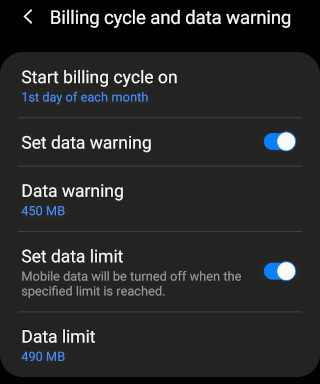
Return to the Data usage screen and press Billing cycle and data warning down at the bottom. There are several useful options here.
Start billing cycle on: What day does your phone operator start each billing cycle? What day do you get a new bundle of data? It can be any day of the month, so press this and set it.
Set data warning: Enable a data warning so that when you near the limit of your data, you are notified.
Data warning: Tap this and choose when you want to be warned about using too much data. You could set it to 100 MB less than the limit, when 3/4 has been used or whatever you want.
Set data limit: Mobile data is turned off, preventing apps from accessing the internet when you have used all your data. This prevents you from running up data bills by going over your allowance.
Data limit: Press here and choose when to turn off mobile data. Don't set it to the exact limit, set it to just under because there may be a slight difference between what the phone says has been used and what the phone operator says has been used. The difference isn't huge, but if your data allowance is 1 GB and you set the limit at 1 GB, you could actually use a megabyte or two more and be charged for an extra block of data.
Other data monitors
There are many data monitor apps in the Google Play Store and there are often advantages to them. For example, some are able to put a widget on the home screen that shows a live update of the data used and data remaining. This is useful and Data counter widget: Data usage manager / monitor is one example. It has a great score on the store and is highly rated.
My Data Manager - Data Usage is another useful app with a home screen widget. It is by App Annie, a highly rated website and service that provides information on app usage on phones, so it collects data, with your permission.
Glasswire Data Usage Monitor is another popular app that has been around for years and there are many more.
- Details
- Written by Roland Waddilove
- Created: 20 October 2020

