

The iPhone’s camera does not have as high a resolution as some phones, but it takes excellent photos and the Camera app has some clever features. Here are some you may not have discovered.
It is very tempting to simply point and shoot with a phone camera and sometimes this is because we simply don't have the time to spend setting up a shot. However, a great photo is much more valuable than a hurried shot that is poorly frames, has bad lighting, is out of focus and so on. Take your time.
Another reason why we point and shoot is that mostly the default settings are fine and work in many situations. However, this does not mean that they are the best settings. You might take better photos if you used some of the features provided.
Finally, a reason we point and shoot is that we are not aware of some of the features. The Camera app on the iPhone probably does more than you realize and by tweaking a few settings, you might take better photographs. Let's look at some of the basics.
Shoot smoother, sharper videos
The iPhone camera can shoot video clips at a resolution of 720p HD all the way up to 4k at a rate of 24 frames per second up to 60. Which is best? That depends on what you want to use the video for.
Go to Settings > Camera > Record Video. If your iPhone is short of storage space, choose 720p HD AT 30 fps because it uses the lease space. For most purposes, 1080p HD at 30 fps is fine and the video will look good on most TVs.
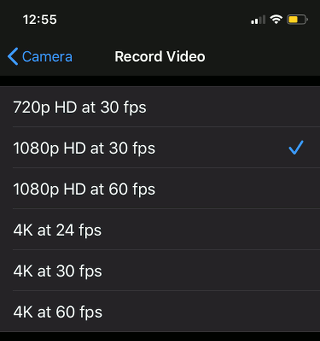
Set the default video recording format
Only shoot 4k resolution if you intend viewing the video on a 4k TV now or in the future. Why the odd 24 fps setting? It is the default for cinemas, so select it if you intend showing off your work on the big screen! Of course, another use for it is to save storage space when recording high resolution videos.
The higher the fps (frames per second), the smoother the video looks when panning and with fast action, both of which can cause fuzziness or blurring at low frame rates.
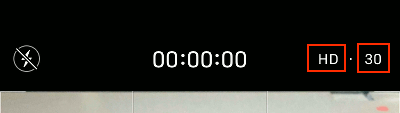
Tap the resolution and frame rate in the Camera app
Open the Camera app and select Video using the sliding mode bar at the bottom. In the top right corner is the video format, such as HD-30. Tap the resolution to switch between HD and 4k, and tap the frame rate to switch between 30 and 60.
When to QuickTake videos
Open the Camera app on the iPhone and it will probably open in photo mode, because that is the one you use the most. To take a video, slide the mode selector bar to video and then tap the record button.
This is time consuming and you may miss something in the time it takes you to get into video mode and start recording. Use QuickTake instead. Press and hold the shutter button to begin recording video. Lift your finger to stop or slide it right to keep recording without having to hold the button.
QuickTake always takes videos at 1080p HD at 30 fps. This is true even if you have set a higher frame rate or resolution in the Camera app settings. Do not use it if you want either 4k resolution or 60 fps.
That is the downside, but it also means you have a choice of video formats. Set the camera to record at 4k resolution in the settings, then select Video in the Camera app to shoot at 4K or hold down the shutter button to shoot at 1080p. No need to change anything in the settings.
Live Photo defaults
I am not a fan of Live Photo, which records a short video instead of taking a photo. If I want a video I will take one. Open the Camera app and there is a Live Photo button in the top right corner of the screen. Tapping it turns it off, however, you might forget and accidentally take a Live Photo instead of a static one.

Go to Settings > Camera > Preserve Settings and turn on Live Photo. This does not turn on Live Photo and instead, it remembers the last used setting, so if it was off last time, it will be off next time.
Capture the action
We have all seen incredible action shots in sport, dogs jumping up for frisbies and so on, but you may have been disappointed with the results. It is easy to miss the action either by shooting too soon, too late or by missing the subject by not framing correctly.
Open the Camera app before the action starts and point it at the place you expect the action to take place. Just before the action starts, such as a dog leaping into the air, press the shutter button and immediately slide it to the left and hold to take a burst of fast shots.
It takes around 10 shots per second and the number can be seen displayed on the shutter button. Don't hold it down too long because you can end up with dozens of shots. Let go as soon as the action is over.
Burst photos appear in the Photos app as one shot. Tap it to view it and then tap Select at the bottom of the screen to select which photos from the burst to keep and discard the others. Select them and tap Done.
Go to Settings > Photos and there is an option to Upload Burst Photos. Only your favorites (marked ones) are saved to your photos are saved otherwise. Turn on the Upload Burst Mode option to save every frame taken, but be careful, it's easy to take 20 or 30 photos without realizing in burst mode, which probably contains a lot of images you don’t need.
Slower slo-mo
There is a slo-mo mode in the Camera app that shoots video clips at either 1080p HD at 120 fps or 240 fps. When played back at normal speed, it looks like a slow-motion shot, which is great for capturing fast action videos.
Go to Settings > Camera > Record Slo-mo and choose the frame rate you want - 240 fps looks twice as slow as 120 fps. Open the Camera app and drag the mode to SLO-MO at the button.
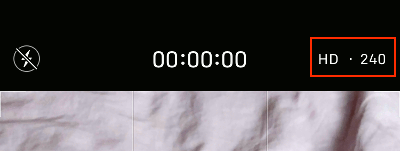
Tap or swipe the slo-mo speed in the corner to change it
In the top right corner of the screen is HD-120 or HD-240. Swipe right over it to switch between the two slo-mo frame rates.
Take sharper photos
Remember to tap on the screen to set the focus rather than leaving it to chance. Always focus on people eyes rather than any other parts of them when taking portraits. Press and slide up or down to make the picture or the subject brighter or darker.
A professional photographer will often set up their camera on a tripod and use a remote shutter release. This is so that the action of pressing the button to take a photo does not cause vibration and lead to slightly blurred photos.
You can do that with an iPhone too and there are many tripods for phones, big and small. Plug in wired earphones, then prop up the iPhone to take a shot, or simply hold it steady in one hand. Instead of tapping the screen to take a photo, causing vibration, press the volume up or down buttons on the earphones to take a photo. The result will be sharper images.
- Details
- Written by Roland Waddilove
- Published: 17 May 2020
