Our phones are essential for the notifications and reminders that make us aware of events and to never forget tasks, but what if they are not working on your iPhone? Here is the answer.
Are you not seeing any notifications at all or is it just some notifications, such as a for a particular app? In both cases the problem is likely to be a configuration problem. A setting somewhere is turned off, but finding where that setting is can sometimes be difficult because notifications have many controls.
Here I take a look at the many different settings for notifications and you should work through them until you find the problem is fixed.
1 Check for iOS updates
The problem could be a bug in iOS. Every year a new version is released and every year it is followed by several updates to fix bugs. In the past there have been occasions where there was a new update nearly every week.
Go to Settings > General > Software Update and see if there is anything available,. Install it if there is.
2 Turn off Do Not Disturb

Notifications are prevented when Do Not Disturb is enabled on the iPhone and it is possible that the settings are not configured correctly. Go to Settings > Do Not Disturb to check them. Turn off the Do Not Disturb switch at the top and either turn off Scheduled or check the schedule to make sure it is correct. Turn off Bedtime and see if it solves the notifications problem.
Scroll down to DO NOT DISTURB WHILE DRIVING and tap Activate. Set it to Manually and see if the problem is fixed. Perhaps your iPhone thinks you are driving when you are on a bus or train and is automatically preventing notifications.
3 Show full notifications
Go to Settings > Notifications > Show Previews. If you are not seeing full notifications, it may be set to Never. Select Always to show them on the lock screen or When Unlocked to only show full notifications when the iPhone is unlocked.
4 Check app notifications
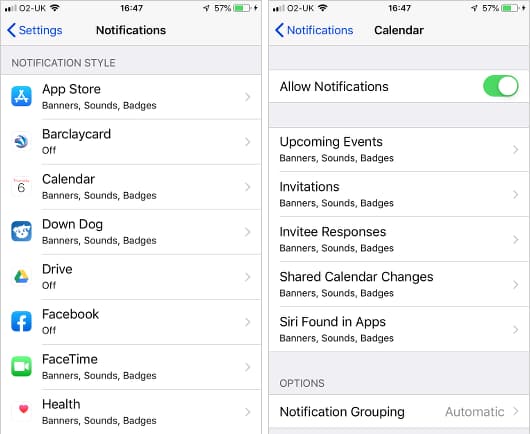
Each app has its own notification settings, so if you are seeing some notifications, but not all of them, go to Settings > Notifications and tap each app in the NOTIFICATION STYLE section.
Calendar is an example of an app with complex notifications. Tap it and there are separate notification settings for each type of calendar event. Are they all set correctly? Check each one.
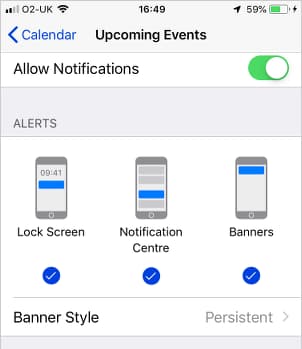
There is a master switch at the top, which should be on, then settings for upcoming events, invitations, invitee responses, shared calendar changes, and Siri found in apps. Tap each one and select whether notifications are shown on the lock screen, Notification Center, or banners.
When there are multiple notifications, they may be grouped, which means some notifications are hidden unless you expand the group. Turn off grouping to see all notifications.
5 Notification settings in apps
Apple apps and services all use the iPhone notification settings, but some third party ones have their own notification settings that are independent of the iPhone's settings.
For example, in the Google Drive app, open the menu on the left and tap Settings > Notifications. Turn this on to see notifications and choose which notification should be displayed with the switch below.
Some other apps have similar in-app settings for notifications, so check
6 Update iPhone apps
A problem with notifications in a specific app could be a bug in that app. Open the App Store, tap Updates at the bottom and update all apps. If automatic updating is turned on, they should be up to date anyway. It may take some time for the developer to acknowledge a problem and get an update out, so keep checking for app updates.
7 Turn on Bluetooth
Some devices connect to the iPhone using Bluetooth and if you are not receiving notifications from them, check that Bluetooth is actually switched on in Settings. Tap Bluetooth and make sure the device is listed and connected.
- Details
- Written by Roland Waddilove
- Published: 27 July 2019