Get a free clipboard manager and view your history on Apple Mac

What is the most used feature on your Apple Mac? Could it be the clipboard? Power up the macOS clipboard with a handy utility to manage multiple items and access the clipboard history.
Copy and paste are used all the time and you probably don't think about it because it just works. The question is, could it work better? Perhaps it could. The problem is that there is only one system clipboard in macOS and this imposes limitations on how it can be used. Often we end up using a note-taking app when we want to remember multiple items, such as the Apple Notes app or Stickies bundled with macOS, or maybe a third-party utility like Simplenote, Standard Notes or Turtl.
Sometimes people even open a new document window beside the one they are working on just so they can store multiple items when using Pages, Word, TextEdit and so on.
All this can be avoided and the solution is to boost the power of the macOS clipboard by increasing the number of items that it can store from one to many. When it is possible to store as many items on the clipboard as you need, note-taking apps are required much less and this means that they don't fill up with items you no longer need so quickly.
Clipber Mac clipboard manager
The Mac clipboard manager Clipber is a very useful tool for people that make heavy use of the clipboard and need to store multiple items. It not only stores as many items as you want, but it also enables you to view the clipboard history too. You can see all the items you copied to the clipboard and any of them can be selected used again.
Clipber is a free app in the Mac App Store and you just need to open the store app and search for it. Start the app and it runs in the background as you do something else, such as write a report, create a document, browse the web and so on. Any time you copy something, Clipber grabs it and remembers it.
There is absolutely no help or instructions with this free app, but I have discovered a few things through trial and error. There may be more features, but here are the most obvious ones.
View and use clipboard items
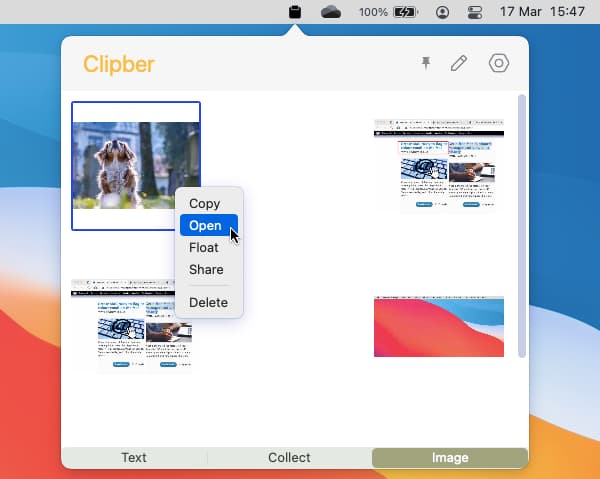
The app adds an icon to the menu bar and when clicked, it shows a small window with three tabs: Text, Collect and Image. Any text that is copied in any application, web browser and so on, is added as an entry on the Text tab. They are in order with the most recent first. Any images are added to the Image tab as a small thumbnail.

You can browse the list of text items or image thumbnails previously copied to the clipboard. The items show the time they were created and there is a star icon to favorite them.

Ctrl+clicking an item in the list shows a menu that allows the selected item to be copied to the clipboard, making it the current item. You can then paste it into whatever application you are using. It is simple, easy to use and it works OK.
The Collect tab, as far as I can tell without a manual or help, is for creating your own clipboard items. Click the pencil icon in the toolbar and a text editor opens and it looks a lot like TextEdit. There is a toolbar with formatting commands, font selection and so on. Anything you write is added to the Collect tab automatically and there is no need to save it, it just works. This enables you to quickly jot down ideas and snippets of text you can use later.
More features
Normally, the drop-down window showing clipboard items automatically disappears when you click away. A pin button enables it to be pinned to the screen, so you can have the clipboard history and your notes and images permanently visible. This helps when you are copying and pasting a lot of items.
A screenshot tool enables you to capture a part of or all of the screen to the clipboard. The Mac's built-in screen capture is pretty good, but it's there if you want it. It has some useful annotation tools that enable you to draw on the captured screenshot before it is copied to the clipboard.
Summing up
This is a simple free tool that is small (2 MB) and useful. It is not perfect, but for a freebie, it is pretty good. Try it, you might find it useful if you use the clipboard a lot.