
Clean the disk with CCleaner for a leaner, cleaner Apple Mac

Temporary files, caches, cookies, browser and app histories - there is a lot of personal and revealing information on your Apple Mac that is not strictly necessary. Can CCleaner erase it?
CCleaner is a very popular utility in the Windows world and it cleans the system of junk and clutter, erases personal information you want to keep private, and generally keeps Windows running smoothly. There is a version for the Apple Mac too and it is free to download and use, although there is a paid Professional version if you need more features. Most poeple will be happy with the basic freebie.
The app is small and it requires only 10 MB of disk space, so it is quick to start. Well, after the initial hoops you have to jump through courtesy of macOS security. Basically, you have to open System Preferences, Security & Privacy, Privacy. Select Full Disk Access and enable CCleaner.
Scan the disk for junk files
The most recent version of this app supports macOS Catalina and the Cleaner section of the app has two tabs, one for Mac OS X (it should say macOS of course), and one for Applications. On the Mac OS X tab is Safari caches, cookies and history, a System section with Trash, Recent Documents, Recent Places, Logs, and so on. There is a System Applications section with Software Update, Quick Look, HelpViewer, and other items.
On the Applications tab is the software you have installed on the Mac and and many bundled Apple apps. For example, Chrome browser caches, history, cookies, and other items. There is Automator, App Store, Calendar, Disk Utiliy, Music and more There is also a Miscellaneous Caches item.
Click Analyse and the disk is scanned for the selected items.

It is not obvious, but after analysing and producing a list of items to be cleaned, you can dig down into the results and see which files will be removed. Nearly all the items are caches of some sort, either system caches or application caches. Double click an item in the list to see a list of things that will be cleaned. You can then Ctrl+click items in the sub-list and select Reveal in Finder if you want to explore it or open it.

Caches are temporary stores of information and when they are deleted, they are automatically rebuilt. You can delete caches today and if you check next week they are back again, so is there any benefit? Sometimes caches can become corrupt and learing them out can sometimes cure a problem you are having with macOS or an application. Because of this, it may be beneficial to clear caches occasionally, maybe once a year.
Clearing caches is not something you should do on a daily basis because they are intended to speed up certain operations the Mac or apps have to perform. The exception is when you want to cover your tracks. Caches store recent activities, so if you want to hide them then clearing caches can help. Safari and Chrome caches for example, can be up to a gigabyte in size and can contain up to 100,000 items, basically everything you looked at on the web going back months.
It is advisable to have a backup before using CCleaner to clean junk. It is unlikely to cause any problems, but it is best to be safe. Although think twice about deleting things because sometimes caches, history, and cookies can be useful.
CCleaner tools
In the Tools section of CCleaner is an uninstaller that enables you to remove applications you no longer need. It sounds useful, but I compared it to AppCleaner (see Mac apps to help you uninstall software completely) and found that it did not remove all the files AppCleaner did. It left files behind, so thanks, but I will stick with AppCleaner.

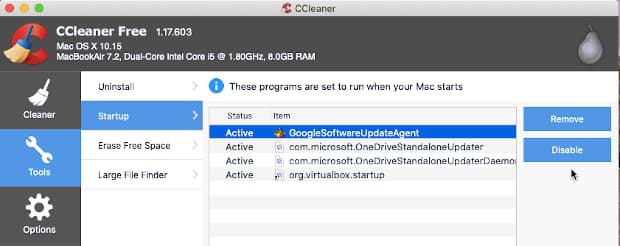
CCleaner can list the applications and services that start when the Mac is started. Not the ones that are listed in System Preferences > Users & Groups, but hidden ones. This is very useful and you can disable or remove ones you do not want. I found services from software I had removed, so I deleted them. That should help startup.
There is a tool to erase the free space on the disk drive by overwriting it, which is redundant with the solid state drives that are in modern Macs. However, you may use external USB drives that need cleaning before being disposed of.
The large file finder is useful and it scans the disk for files larger than a certain size. For example, you could list all files greater than 1 GB. I found a 5 GB file I had forgotten about and deleted it to recover the space.

For some odd reason, each file was duplicated and listed with two different paths, which initially caused a panic until it was realised. You can see it in the screenshot above.
Conclusion
Ccleaner is OK and it has some useful functions, but even after many updates, it needs to be better if it wants to dominate the Mac market as it does with Windows. The uninstaller is not as good as my regular utility, AppCleaner, and the cleaner is OK, but I prefer OnyX, which provides a greater degree of control and more tools. Ccleaner’s best features are its small size and simplicity.
Title: Ccleaner
Price: Free
Developer: Piriform
Size: 10 MB
Requirements: 64-bit macOS X 10.8 and up

Affiliate links

Add new comment