Microsoft OneDrive has been part of Windows for a while now and it works very well most of the time. However, some people have problems with it. Here’s how to fix it when it goes wrong.
New articles are posted
on rawinfopages.co.uk
Go Windows PC articles
If you have a Microsoft ID like an Outlook.com account, Xbox Live, Windows 10 and so on,, you have access to OneDrive online storage. You get 5 GB free from Microsoft these days (more if you are a long-time customer) in which to store your files. It is even baked into Windows 10 and you can access OneDrive from Explorer. Files placed in the OneDrive folder on the disk drive should be synced to OneDrive online and vice versa, but occasionally something goes wrong and one or more files won’t sync. What can you do?

Sometimes OneDrive never finishes syncing
Compare online and offline files
A file may appear in OneDrive online when viewed in a web browser, but not on the PC’s disk drive when viewed with Explorer, or a file in Explorer on the PC’s drive can’t be seen online in a browser. Open a browser and Explorer window side by side and compare them.
A manual check of every file and folder is not always possible and with 1 TB of online storage you could have tens of thousands of files. You can at least check a few of the folders you use most on OneDrive, such as Documents.

I found this weird folder in OneDrive online, but not on the PC. I don’t remember creating it. Delete anything you don’t need.
If you find the problem file/folder, rename it, delete it, move it out of OneDrive, whatever works. Drag it out onto the desktop. Wait for OneDrive to sync, then put it back afterwards. For some reason it then sometimes syncs.
Check the file icons
Click the OneDrive icon in the taskbar and see if it says it is syncing files at the top. If it is still syncing hours or days later, there is clearly a problem.
What is not clear is whether the fault is with files online or on the PC’s drive. However, you may be able to tell from the badges on the file and folder icons in Explorer.
In Explorer, files that won’t sync have an icon to indicate a problem. A green tick in a circle means the file is both on the PC’s drive and online. Anything else means you have sync problems and a padlock means that settings prevent the file/folder from syncing.
Select OneDrive in Explorer and see if everything has the green tick. You will need to open folders and subfolders to check all the files.
What if all the files and folders have green ticks? This may indicate that the problem is with one or more online files that cannot be downloaded.
Find hidden files
Sync problems may be caused by hidden files, so you should look for them and delete them.
- In Explorer, click View to open the ribbon/toolbar and click Options.
- Select the View tab in the next window
- Select Show hidden files, folders and drives
- A bit further down, clear the checkbox Hide protected operating system files
The strange file below now appears in Explorer and some people have found that deleting it cures their sync problem. Other people find deleting it does nothing. Right click the OneDrive icon in the taskbar and select Close OneDrive, then delete the file. Restart Windows.

Two hidden files here could be causing sync problems. Quit OneDrive and delete them.
Rename the file
Comparing files in Explorer with files on OneDrive using a browser may show the faulty files. If you can see a file that will not sync, rename it either on the PC’s disk or online. Right click it and select Rename. Delete the whole of the name and replace it with something simpler, like ‘test’.
Sometimes special characters are in the name and that are supported online but not offline, or they are supported offline but not online. Or if you have OneDrive on an Apple Mac and a filename on the Mac is OK, but Windows doesn’t like it. Rename it, give it a minute or two and if it now syncs you will know the fault was the name.
Check the search service
An odd thing about OneDrive that some people have found is that it will not work properly if the Windows Search service is disabled. Press Windows+R and enter services.msc. See if Windows Search is running. If it isn’t, double click it and set the Startup type to Automatic. Start the service using the Start button.
Reset OneDrive
If there are still problems syncing files with OneDrive, try resetting it. Press Windows+R and enter onedrive.exe /reset. You probably don’t need the full path, but here it is:
C:\Users\YourName\AppData\Local\Microsoft\OneDrive\OneDrive.exe /reset
Replace YourName with your account name of course.
This will not delete any files, but it causes OneDrive to check them all and sync online and offline storage. If you have hundreds of gigabytes of files, it could take a very long time and use a lot of internet bandwidth, but it is fairly quick and easy if you only have a gigabyte or two of files.
Use the troubleshooter
There is a OneDrive troubleshooter app at the Microsoft website. Download it and double click the file in the Downloads folder it if nothing has worked so far. Just click the Next button and follow the prompts to apply any repairs that are necessary.
Note: It is an old troubleshooter for old versions of Windows and OneDrive. It will not run on the latest version of Windows 10.
Check security permissions
Access to files and folders is controlled by security permissions and it may be that you do not have permission to sync a file/folder. Right click OneDrive in Explorer and select Properties in the menu. Select the Security tab and select System, Administrators and your name in the list. In the Permissions list below, all should have Allow access. If it says Deny, you need to edit permissions and change it.
Select your name in the Users list and click Advanced. In the Access column it should say Full Control. There is a checkbox, Replace all child object permissions… Select this, select your account name, and click Apply. This gives you full control of every file/folder in the OneDrive folder.
Unlink OneDrive
Unlinking OneDrive cuts the sync link between the folder on the PC’s drive with the online storage. Some people have found that reconnecting their account after unlinking it solves the sync problem, probably because it forces OneDrive to check all the files.
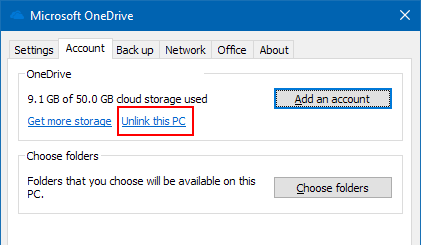
Right click the OneDrive icon in the taskbar and select Settings. Click Unlink this PC on the Account tab. Restart Windows and link it to your account again.
Problem solved?
To be honest, some people have tried everything and still OneDrive says it is syncing items. It just never stops. However, it rarely causes any problems and it can be ignored.
Hi restarting windows service worked for me.. this is really weird. Every day I shutdown my laptop and start the other day. Why isnt this service giving a prb? if i hibernate or sleep my pc, that must make sense, but I shutdown and start my laptop..
Every help article I find says to be sure skydrive.exe is running. I downloaded and ran OneDriveSetup.exe. In Task Manager I see OneDrive.exe *32 running. I have a separate hard drive with that has all the files I want to back up to OneDrive. When I ran the setup a new folder was created C:\users\name\OneDrive so I copied the files to be backed up to the OneDrive folder. I now have all the folders on the OneDrive storage site, but none of the files.
OneDrive can be slow to sync, so after setting it up and copying all the files, how long did you wait? It sounds like you have a lot of files and because upload speeds are 1/10 of download speeds, it takes a long time to upload. Give it a few hours or maybe leave it running all day and all night if there are gigabytes of files.
I realized after some time that it was syncing VERY slowly. We live pretty far out and our internet is not real fast to begin with. After 48+ hours 6.8GB of 14GB have uploaded. I assume that once the files are uploaded the first time future syncs will be much quicker. Is the OneDrive folder on the PC automatically synced with the online Onedrive when files are added or deleted?
Once the initial sync is complete, the OneDrive folder is automatically kept in sync with the online folder. There will be far fewer uploads and downloads and syncing will take minutes rather than hours or days.
Files can be kept online or offline, see http://www.rawinfopages.com/tips/2015/02/make-skydrive-available-offline/
A word of warning.
OneDrive for Business is the most faulty application I have ever seen.
I have installed it on 14 PC’s and 1 terminalserver, and have had every error in the book.
1. Cannot synchronize this offline library. No hint what so ever.
2. Cannot sync open files, and a long list of files. But there are no open files, and they
have never been opened during the session.
You can not use the repair function, because, of, yes, open files.
3. Syncing all the time, never finishes.
4. Some files are just not synced at all.
5. Cache is corrupt.
6. Asks for username and password, but does not accept either
To summarize solutions are
1. Do a repair using the repair function
2. Clear the cache
3. Restart PC.
4. Antivirus issue
5 Firewall issue
6. Uninstall and install OneDrive (Which is not applicable on a terminalserver.
Normally the private version of OneDrive works, but dont let you fool. OneDrive for business is a another story,
I have not able to identify just one single fault.
I am very embarrassed since I recommended the solution. 2-3 times a week I get a call from one
of the 14 clients saying it does not work AGAIN!.
So, all admins, dont buy this crappy software, you will defenately regret it.
Microsoft off course knows about these errors, but keeps the software on the market,
This information is far too long and exhaustive. I don’t know about other people, but most just want a quick list of things to do. Thank you for all your time you have put into it, but in the end, I will go to a simpler page with simple steps to follow.
I like my one drive .I like that I can use it on the go just as much as I do ins It makes such a big difference for me especially when I’m out at work. My computer is like my second pair of hands , so with that being said