The Windows 10 Photos app enables you to browse and view photos, and also to apply special effects to them. Here I look at the vignette effect and see how it can be used with your photos.
So what is a vignette? A vignette is basically a fancy border around an image. In the Windows 10 Photos app, it either fades the edges of the image to black or white. This gives them a soft appearance and it draws the eye away from the sharp edges of the photograph and towards the subject matter in the centre.
One example of the way that a vignette can be used is to artificially age photos. Take a look at this top one. A vignette was applied and then the image turned into black and white, all in the Windows 10 Photos app.
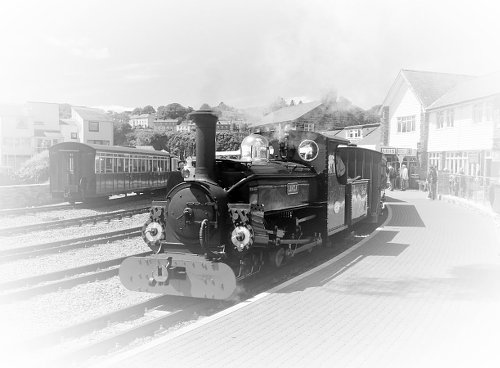
It is an interesting effect and when used occasionally, it can turn a dull photo into a much more interesting one. Let’s see how it works.
1 Load and edit a photo
There is more than one way to open a photo in the Photos app. Click Start and either click the tile or click Photos on the Start menu. Double clicking a photo on the disk may also open it in Photos, but sometimes other software changes the file association to something else. Right click a file in Explorer and select Open with and then Photos.
Once the photograph is loaded, click the Edit & Create menu and select Edit.
2 Apply a vignette effect
Click Adjustments at the top to show a panel on the right with various controls. Drag the Vignette slider all the way to the left to fade the edges of the photo to white. This can often be seen in old photos and the effect will suit a photo of a steam train.
Drag the Vignette slider all the way to the right if you prefer to have darker edges.
3 Remove the colour from photos
The colour saturation of the image is adjusted using the letterbox shaped preview under Colour in the right hand panel. Drag the vertical bar to the right to increase the colour saturation or drag it to the left to decrease it. Drag it to the left edge to remove all colour and make the photo black and white. This suits my aging effect.
There is also a Clarity slider and this is a blur/sharpness tool. I dragged it left a little to add a slight blur, which suits the aging effect, but some photos may benefit from a little sharpening, so drag the slider to the right.
If you get completely in a mess, click the Reset link in the top right corner to put everything back as it was.
4 Add a sepia effect or other filters
Old photos often go brown with age and this can be mimicked by switching to the Filters tab at the top of the Photos window and then selecting a filter effect in the right-hand panel. I chose the Zeke effect.
5 Save the photo
When you are happy with the effects, click the button at the bottom, Save a copy. This is the default action and you should never modify original photos in any way. Always save a copy because you might want the original for some other project or effect.
Vignette is just one effect and by saving a copy of the photo and re-entering edit mode, you can apply another effect, and another. Multiple effects are not required on every photograph, but sometimes they work well together.
Be the first to comment