
Many people spend hours each day staring at a computer screen and if the display is not perfect it could lead to tired and sore eyes. It might even give you a headache. You can make the display easier on your eyes by adjusting Windows ClearType settings in the Control Panel. The result is less tired eyes at the end of the day.
1 The Control Panel
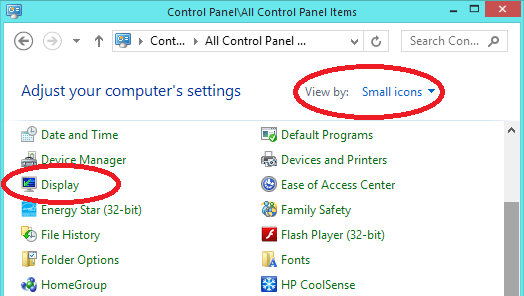
Right click the Start button in Windows 8.1 or left click it in Windows 7 and select the Control Panel. Set View by to Small icons so that you can see everything in the Control Panel in a list view. Click Display to open it.
2 Display options
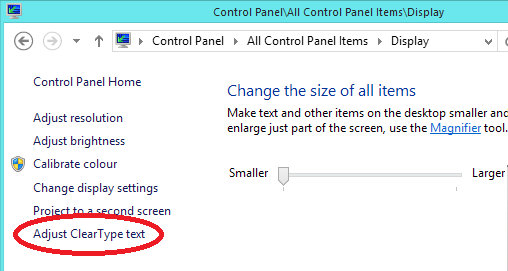
There is a list of links on the left and at the bottom is Adjust ClearType text. Click it to continue.
3 Enable ClearType
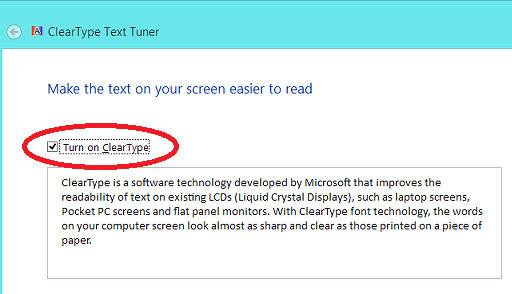
Turn on the ClearType option. ClearType is a method of drawing letters, numbers and other characters on the screen in such a way as to make them more readable.
4 Set the resolution
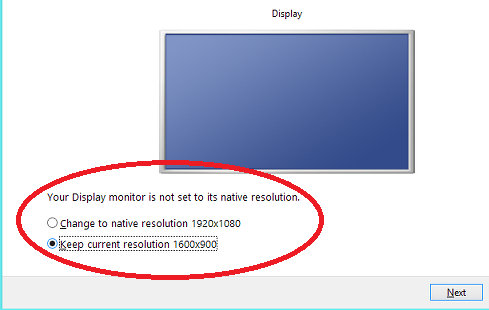
To produce the sharpest text the computer monitor or laptop screen should be set to its native resolution. Here it is set to 1600 x 900 instead of the screen’s native resolution of 1920 x 1080. I am using a laptop with a 15in screen and I find the text at 1920 x 1080 pixels is too small and the fonts are too thin. I have the resolution set at 1600 x 900 so that the text is a bit bigger and a bit bolder. It makes it ever so slightly fuzzy, but at 1920 x 1080 everything is just too small for my eyes.
If you find the native resolution of the monitor or laptop comfortable to use, you should select it. You can set up ClearType in any resolution though.
5 Pick the best
There are several steps, but each one is the same. Two to six passages of text are displayed and you click the one that you like the best. There is no right or wrong choice and it is whatever looks good to your eyes. You might like thinner text or bolder text, some text may look sharper or fuzzier, and so on. Just click the best.
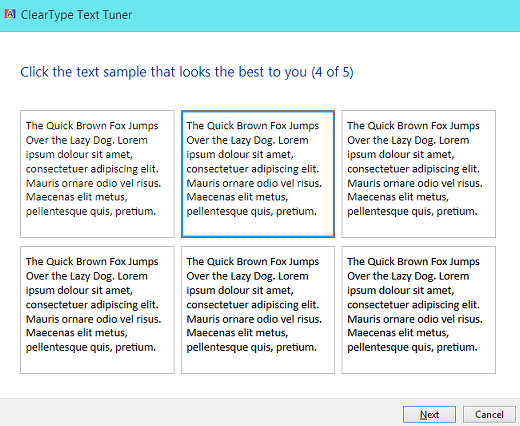
Continue by clicking the Next button at the bottom and selecting the best looking text on each screen. When you have finished, the screen display is optimised for you.
The brightness of the screen can affect your choices, so you might want different settings during the day, particularly if you sit next to a window, and different settings at night. Once you know where the ClearType settings are, you can whiz through them in a few seconds, so it is easy to switch from daytime to evening settings.
Be the first to comment