
Major Windows 10 updates arrive twice a year and there are many changes. Among them have been changes to power plans and potentially longer battery life from your laptop. Check it out.
Windows power plans have always been in the Control Panel in the Power Options section, but this was changed in a Windows update. In the past we had several different plans to choose from, such as Balanced, Power saver, High performance, and perhaps a manufacturer specific one.
If you look in the Control panel Power Options your old power plans may have disappeared with a Windows update and it can delete them. You may find that there is just the Balanced plan remaining and no option to select any others. Here is what Power Options in the Control Panel looks like for some people.

You can change the plan settings, but there are no other power plans. I had at least three here before.
However, if Create a power plan on the left is clicked, there are options to recreate power plans that were deleted by Windows Update.

Should you recreate your power plans? It does no harm and it just adds to your options when configuring your laptop for battery use.
However, Windows 10 is steadily replacing Control Panel functions with new settings and gadgets. (It will take years at the current slow pace of change though.)
Click the battery/power icon in the taskbar and there is now a simple slider for adjusting the power settings. Drag it to the left to increase battery life or drag it to the right to increase performance.

This is much simpler than before, but it does take a lot of customisation options out of the hands of expert users who could tweak the power settings for individual components. Now you just drag a slider. Is this an improvement?
Click Battery settings in this panel and the battery options in the Settings app is displayed. These haven’t changed much and there is the usual slider to determine when the battery saver feature automatically turns on.
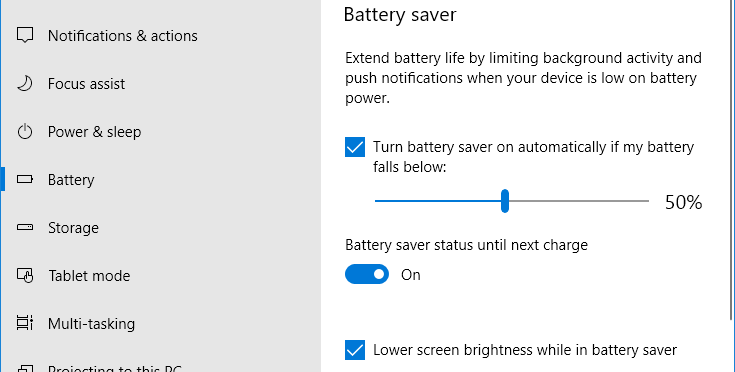
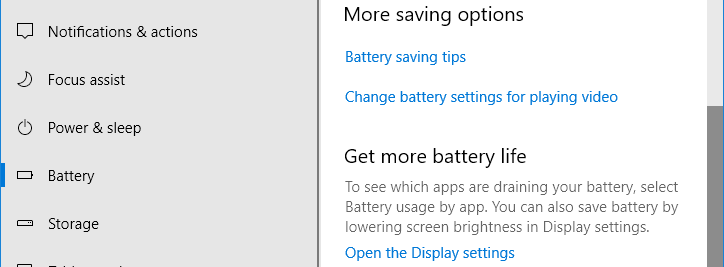
There used to be an option to save battery while watching videos, but this has moved. It is now in a different section and you get there by clicking Change the battery settings for playing video.
In the Video playback section there is a choice of optimising the video for battery life or for video quality. There is also a new setting and this is Allow video to play at a lower resolution when on battery.
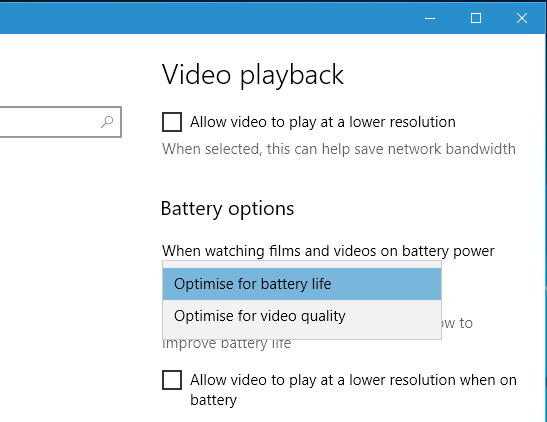
It is up to you whether you enable it or not. Tick the box if you prefer to maximise the life of the battery.
Related: Calibrate the laptop battery for a more accurate charge display
Related: Dig deep into Windows power settings to extend battery life
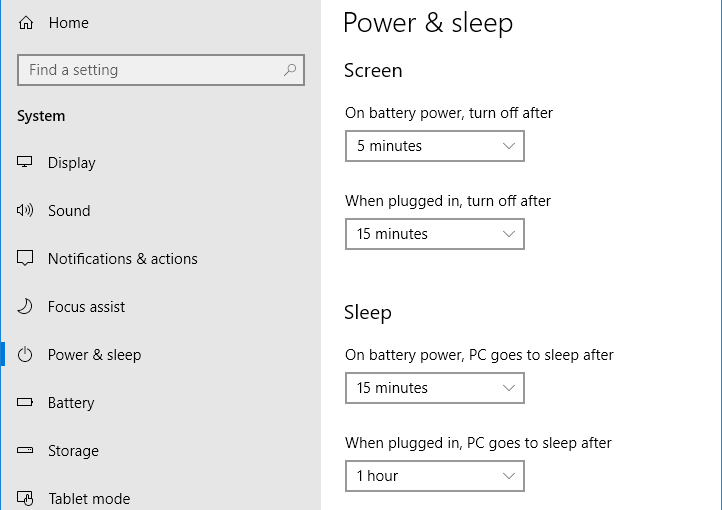
Set power and sleep
Another thing you can do to increase battery life is to automatically turn off the screen when the laptop is not being used. It can even be put into sleep mode and this saves everything you are working on and shuts down. When the laptop is restarted, it continues exactly where you were.
This great for saving battery power when you are on a break and away from your computer.
- Go to Settings > System > Power & sleep
- Set the screen to turn off after 3 or 5 minutes of inactivity
- Set the computer to sleep after 10 or 15 minutes inactivity
Battery life is improving (slowly)
The battery life with Windows 10 varies and with the version but it is certainly better now than it was with the first version of Windows 10. I ran a laptop for several hours each on the battery and this includes some heavy duty work that stresses the hardware. Even with running it hard, the battery seemed to last longer than it previously did.
On of my Windows 10 installations i s on a MacBook using Boot Camp so I can boot to macOS or Windows 10. The original Windows 10 release did not last anywhere near as long on the battery as macOS did. Apple’s operating system and software was way ahead of Microsoft’s on battery life.
Now though, it appears that Microsoft is catching up and has reduced battery drain and extended battery life quite a bit. The MacBook still lasts longer running macOS, but Windows 10 is closing the gap and becoming more energy efficient.
So in 1709 release I did lose the power profiles except for Balanced. But never gained the slider option, and Mobility Center still gives you the Performance and Battery Saver options? To me Microsoft just did a crappy job at implementing this in the Fall Creator. Frankly, its done nothing but slow my PC and I think its nothing more then aggressive throttling of the CPU. Probably why users like myself using a core i3 see this reduction in performance more so then a core i7 user. This is not being proactive about battery life, and making Win 10 more efficient. This is simply changing the CPU throttling to make it look like Win 10 is more efficient. Smoke and Mirrors I guess is Microsoft’s solution.
I doubt it has anything to do with the cpu as the operating system uses only one of the cores so having more is not a real issue in this instance in fact clock for clock single core there is minimal difference between the i cpus. But doing a crappy job yeah I would agree it seems that way. I personally dislike changes just because MS says so especially if you are not aware of them or the impact.
Just updated to this fall-update, and also my plan settings are gone.
But I also do not have the slider when I click on the battery icon. Is there some way I can enable it?
Thanks in advance
see related discussion here: https://answers.microsoft.com/en-us/windows/forum/windows_10-power/power-plans-missing/9885bdc8-b11f-4722-9e11-423ef77494a9?auth=1
Thank you!
Instead of moving the slider, how do I change the power plan in the command line? Do I still use powercfg?