
How to customise the menu bar with utility icons in macOS

The Apple Mac menu bar is taken for granted and given little thought. Customise it by adding new icons to access various functions and rearranging them into the most convenient order.
At the right-hand side of the menu bar on the Mac are a group of useful items like the battery/power indicator, the date, the Wi-Fi indicator, Siri, your account name and so on. They are very useful and display useful information, and common functions are a just a click away.
Have you ever wondered where they come from? It is actually quite interesting and there are additional items that can be placed on the menu bar that are normally hidden.
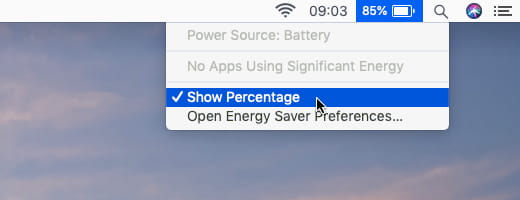
Useful information and access to functions from the menu bar
- Monitor system resources from the menu bar in macOS
- Add a menu bar tool to view calendars and appointments on macOS
Hidden Menu Extras
To find out where the menu bar items come from, open a Finder window and go to the Library. No, not the (hidden) Library in your home folder and not the Library in the root of the Mac’s disk drive. Go to the Mac’s disk, open System, then Library. (There are lots of Library folders in macOS.). Open CoreServices, and finally, open Menu Extras.
The /System/Library/CoreServices/MenuExtras folder contains lots of files and you can probably guess their function from their filenames. Most of them are fairly obvious:

Find menu bar extras in this folder
Look at the filenames and you will see that several of these items are already on the menu bar. The ones that are not present are easily added. Just double click the file and its icon appears in the menu bar straight away. Add the Eject.menu item if you want a way of ejecting drives and CD/DVDs from the menu bar. If you use VPNs, then add VPN.menu. Whatever you use, then add the icon by clicking the .menu file.
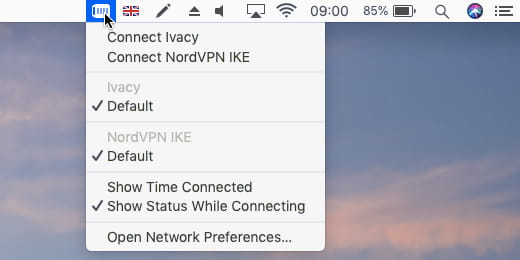
The VPNs menu bar icon
Using menu bar items is straightforward. Just click them with the mouse to display a menu. Holding down Option as a menu bar item is clicked will sometimes display different menu and is always a useful trick to access hidden functions. Try it with the W-Fi icon to see an example. Not all menu bar extras have hidden menus, but some do.
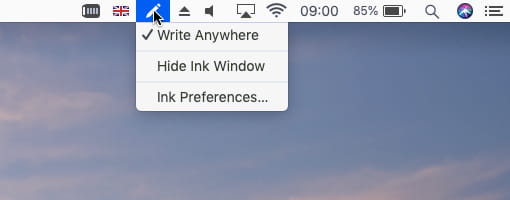
Menu bar icons are remembered and reappear when you next start the Mac
Remove menu bar extra
Removing menu bar items is easy if you know the trick, but it is not obvious. Just hold down the Command key and then click and drag the menu bar icon off the menu bar and drop it on the desktop. It is deleted and disappears.
Rearrange menu bar extras
The order in which icons appear in the menu bar is not fixed and they can easily be rearranged. Hold down the Command key and click and drag icons left or right to move them.
Use System Preferences
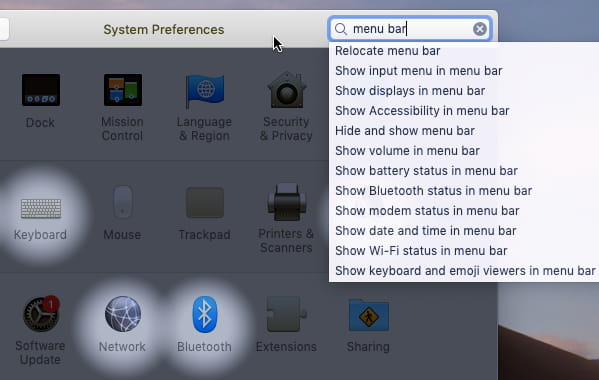
There is another way to find menu bar extras on the Apple Mac. Just search for them in System Preferences. Type 'menu bar' into the search bx and a menu is listed and icons highlighted. If you compare this list with the Menu Extras folder, there are nearly twice as many in the folder. System Preferences clearly does not list them all.

- Log in to post comments
Affiliate link
Recommended Mac software: CleanMyMac X
Use this multifunction tool to clean junk from the Mac, optimize it, run maintenance scripts, uninstall apps and left-overs and more. Use the realtime protection and a malware scanner to block malware. Click for more info
