
Does Apple Siri know too much about you? How to stop it watching you

Siri is a personal digital assistant that you talk to and get things done. However, it watches everything you do, analyses your actions, collects data and sends it back to Apple. Is this OK?
Many people do not realise the scope of what Siri does and it is not just a helpful assistant, it monitors your activity on Apple devices in a variety of ways. It gathers data about you, it listens to what you say, sees the information you enter into some apps, tracks your location, analyses your web browsing history and more.
Here is what Apple says:
"When you use Siri and non-Enhanced Dictation, the things you say and dictate will be recorded and sent to Apple to process your requests. Your device will also send Apple other information, such as your name and nickname; the names, nicknames and relationship with you (e.g. “my dad”) of your contacts; music you enjoy; HomeKit-enabled devices in your home (e.g. “living room lights”) and the names of your and your Family Sharing members’ devices; and the names of your photo albums and apps installed on your device."
That is a lot of personal information and you have to wonder why things like "living room lights", photo album names and other things need to be sent to Apple. Can't they be kept on the device?
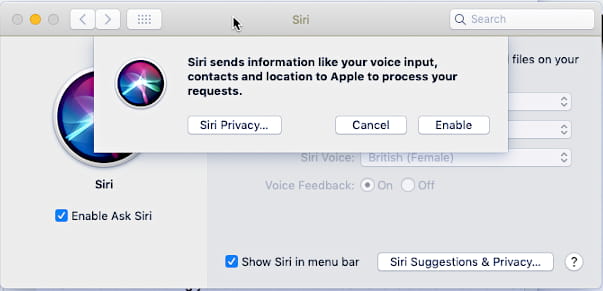
Are you OK with this?
Also bear in mind that when location services are enabled, which is the default, your location is also sent. There's more:
"To improve search results, words and phrases collected over time from common searches may be forwarded from Apple to a web search engine."
These days Apple is focusing on privacy and using it as a big selling point for its devices. Of all the big tech companies, it is the one I trust most with my data and it is a million miles away from Facebook and Google's information gathering and sharing activities, not forgetting the leaks of course.
However, the amount of information being collected by Siri is surprising could be a little worrying for some people. It depends how comfortable you are with constantly being watched and analysed, even by a privacy-first company like Apple.
Let's take a look at privacy issues relating to Siri and Spotlight on the Apple Mac, and see what information is being gathered and how to reduce it if it worries you.
Make files and folders private
Spotlight scans the contents of your personal home folder and its subfolders, but what if you have something in there that you don't want to be indexed and possibly sent to Apple? Just add a folder as a Spotlight exception.

Open System Preferences and click Spotlight. Click the Privacy tab to show a list of folders Spotlight will not index. It is empty by default, but you can drag a folder from a Finder window and drop it on the window to add it. There is also a plus button at the bottom to add a folder too.
Stop Siri sharing info with Apple
Siri sends all sorts of information to Apple. There is no suggestion that this is misused or that third parties have access to it, but it still worries some people. You can stop Siri sharing your personal information with Apple by going to System Preferences > Spotlight.

Deselect the tickboxes Spotlight Suggestions and Spotlight Suggestions in Lookup.
Stop Safari sharing info with Apple
Safari sends information to Apple when you type into the address/search box in the browser. Are you OK with this? If not and if you prefer more privacy, go to Safari > Preferences and select Search. Clear the tickbox Include Safari Suggestions to stop sharing your info.
Use enhanced dictation
There are two ways to recognised speech on the Mac and the processing can be carried out on the Mac or on Apple's servers. Use Siri in the normal way and your speech is sent to Apple, but if you use enhanced dictation, it is not and you may prefer what's on the Mac to stay on the Mac.

Open System Preferences and click Keyboard. Select the Dictation tab and then turn on Dictation. Also tick the checkbox Use Enhanced Dictation to keep your speech on the Mac.
Do you need location services?
It is easy to see why some apps need to know where you are and the Maps app is a good example, but do any other apps need to know? Here is what Apple says about location services and privacy:
"Location Services allows apps and websites to gather and use information based on the current location of your computer."
And:
"When you use Spotlight or Safari Suggestions in Safari, the location of your Mac at the time you submit a search query to Spotlight or Safari will be sent to Apple"
One again, there is no suggestion that location information is misused and Apple says that your privacy is maintained, but some people still don't like the thought of their location being used or monitored by someone. For a start, it is sometimes just plain wrong. For example, my MacBook thinks I spend a lot of time at a fire station, but that is about 50 yards from the cafe I actually go to and work while I have a coffee.

Choose what is allowed to use your location
Open System Preferences and click Security & Privacy. Select the Privacy tab and then select Location Services in the list. You could turn off location tracking completely by clearing the Enable Location Services checkbox at the top, or you could disable it for items you can live without, like Siri & Dictation and Spotlight.

Disable Location-Based Apple Ads and more!
Click Details next to System Services and a new panel appears. You definitely want to clear Location-Based Apple Ads, who needs that? You might also want to clear Location-Based Suggestions. It is up to you.
You 're not paranoid, you're being watched!
Many of the tech devices we use these days like computers, phones and tablets, track you, monitor you, and watch what you are doing. It is hard to completely stop them, so should we simply give up trying?
Apple is committed to privacy and tries harder than most companies to keep your activities either private or anonymous, but does that make it OK? To be honest, you sometimes have to trade privacy for features. Some things will not work as well if you enable all the privacy features listed above, so you might want to leave some or even all of them enabled. It is your choice. At least you now know where they are.

- Log in to post comments
Affiliate link
Recommended Mac software: CleanMyMac X
Use this multifunction tool to clean junk from the Mac, optimize it, run maintenance scripts, uninstall apps and left-overs and more. Use the realtime protection and a malware scanner to block malware. Click for more info
