Take control of your Apple Mac's sounds and customize them
The Apple Mac makes many sounds when you are using it, but what do they all mean? Why do you get one sound on some occasions and another at others? How can you select the sounds it makes?
Choose a FaceTime ringtone
When people call you using FaceTime when you are sitting at your Mac, the app will notify you with a ringtone sound. Like ringtones the iPhone, there are many different sounds available on the Mac and you can select a different one to the FaceTime default. Why be like everyone else? Customise the sound.
Associating a particular sound with a specific event will help you to identify it and a FaceTime call should sound different to a Messages message or a new email for example.

Start FaceTime, go to the FaceTime menu and then select Preferences. Select the Settings tab and down near the bottom is Ringtone. Click the currently selected ringtone and up pops a long lis of alternative sounds. There are three sections and in addition to the regular ringtones, there are Alert Tones at the bottom and a Classic section with some interesting alternatives like a dog barking, a duck quacking and others.

Select a sound in the list, turn up the audio volume and you can hear it playing. Choose a distinctive sound that you will instantly recognise as a FaceTime call.
Pick your Messages sound
When you receive a new instant message via the Messages app, it will make a sound to alert you (make sure the audio volume is turned up on your Mac). The notification sound it makes can be customized and there are lots of alternatives to choose from.
Start Messages, Go to the Messages menu and then select Preferences. Select the General tab and look for Message received sound.

Click it and up pops a menu that has Alert Tones at the top and Ringtones at the bottom. The difference between alert tones and ringtones is the length and ringtones that are used for incoming FaceTime calls are longer. An alert is short and simple. There is a Classic sub-menu that has some fun sounds like Choo Choo (train), Horn, and others.

If you receive lots of incoming messages, choosing the wrong sound might drive you mad if you are trying to work or concentrate on something. There is a None option right at the bottom of this menu. This enables you to quieten the Messages app without having to mute the sound on the Mac.
Configure macoS system sounds
As you have probably discovered, macOS X can play sound effects when certain events occur, such as moving files in Finder, scrolling down and hitting the bottom of a window, and so on. You can choose what sound is played and the volume at which they are played to either make them more noticeable or to remove irritations.

Go to the Apple menu and select System Preferences. Click Sound and there is a list of sounds to choose from on the Sound Effects tab. There is also a tick box to enable or disable system sounds. Do you really like sund effects or not? Clear the checkbox Play user interface sound effects and use your Mac in peace and quiet.
An alternative is to set the Alert volume to a quiet level - system sounds have their own volume slider that works independently of the main output volume used by music, movies and so on.
Select the audio output

If the Mac is not producing any sound from anything, perhaps the sound output is set to some other device which is either turned off or has the volume tuned down. For example, Apple TV could be set for the sound output, but the TV is turned off. Select the Output tab and make sure the right device is selected and the balance and volume are set correctly.
Sounds like you've got mail
Do you want to be alerted to an email arriving in your inbox? You can choose the sound to use and make it different to an instant message or a FaceTime call so you can recognize it by the sound alone. Open the Mail app go to the Mail menu and select Preferences. On the General tab is a New messages sound setting.

Notice that there is an option to play sounds for other mail actions. Clear the checkbox if you prefer to work in silience.
Select one of the sounds from the New Messages Sound menu. You can choose any of the sounds on the list or choose None at the top to stop irritating sounds with new mail. At one time there used to be an option at the bottom of the list to add or remove custom sounds, but not any more.
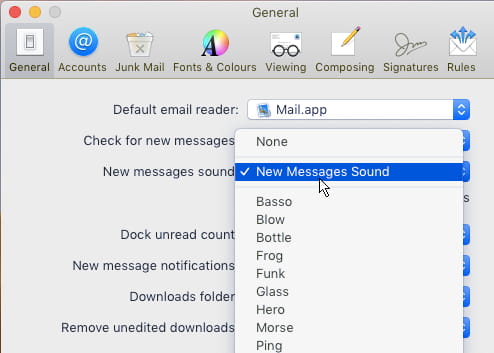
Try each of the sounds to hear them and pick your favorite.
Customise notification sounds
Apps can produce notifications and sounds can be associated with them. If you get a lot of notifications or if you find them annoying, you might want to disable sounds for all but the most essential notifications.

Go to System Preferences and click Notifications. Select each app on the left and choose whether to play a sound with the notification.
After customising the sounds for various events on the Mac, it will be easier to tell what event has occured without having to look for and read notifications on the screen or in Notification Center. Sometimes it is the little things that make using the computer that much easier.
You might like: Turn TextEdit into an HTML editor