Windows 10 has a built in backup utility called File History and it backs up your files every hour by default. It can use a large amount of disk space, but it can be recovered. Here’s how.
File History is set up in the Control Panel and it automatically backs up all your user files like documents, photos, music and so on (not the whole disk drive) to a second disk drive, like a USB drive. Every hour it checks for changed files and saves any it finds. (EaseUS ToDo Backup is better.)
The question is, what happens if the disk that File History uses, such as a USB disk drive, is not available? This can happen if you use a laptop away from home or the office, or you simply don’t switch on the drive or plug it in to your computer
File History continues to back up files, but instead of saving them to the external drive, it saves them to the internal drive when it isn’t available. So disk space on drive C: is used. How much though?
Check disk space used
Click in the search box in the Windows 10 task bar and type disk clean-up to open the search panel. Click Disk Clean-up in the search results. This opens the Disk Clean-up utility on the desktop.
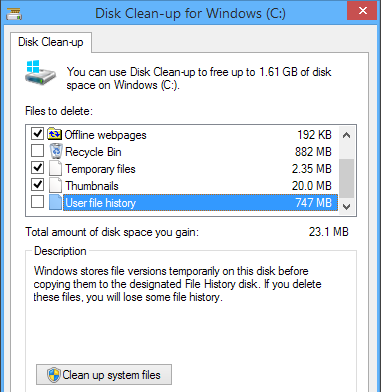
Select the disk drive to clean - drive C: - and afterwards it displays a list of files it can safely remove. Scroll down to the bottom of the list and you will see an item called User file history. This is the disk space being used to store backups of your files.
It stores versions of files so if a file changes, it saves that version. As you edit files it continues to save versions and these use up disk space. I haven’t plugged in the external drive for several days, so User file history is using 747 MB of disk space.
Recover used disk space
If you really need the space, you could select the User file history and clean up the disk. However, you will lose any versions of files that are stored. When you next plug in the drive, it will back up the latest version, not the ones created while the backup drive was offline.
If at all possible, do not clean up the User file history. Leave it. Plug in the backup disk drive whenever you can and let File History automatically run.
You can go to the Control Panel, open File History, and set it running straight away if you don’t want to wait for the next scheduled backup.
After File history has backed up all the files you have created or modified since the last backup, the internal disk space on C: drive that it was using is made free again. You can see this by running Disk Clean-up again. Here it is after running File History.
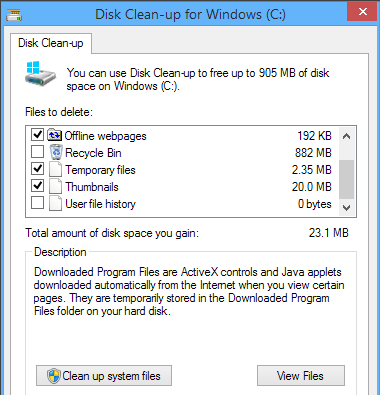
Notice that User file history is now zero with nothing to clean up. Disk space is only temporarily used and is then recovered, so it would only become a problem if you didn’t plug in your backup drive for a month.
File History not running
Some people have found that File History is a bit temperamental and it does not always automatically run when the backup drive is available. You must check it every day or two and make sure that it is working.
If the date of the last copy is not today, click the Run now link for start a backup. Once started, it seems to run for a while, but one day it will stop again, so keep checking. Try turning on the external backup drive before turning on the PC, so it is ready as soon as Windows boots up.
Recover File History space
File History stores your personal files (not the Windows operating system) and every time a file is modified, such as a document or photo, it saves it as a separate version. There will be multiple versions of files that often change and this means that File History backups grow and grow. They can use a lot of disk space.
If the backup drive is short of disk space and is nearly full, you can delete all the multiple versions of files and just keep the most recent backup of each one.
Open File History in the Control Panel and click Advanced settings on the left. Click Clean up versions on the right and select All but the latest one from the menu.
When this is run, it clears out the copies, leaving just one backup and the amount of disk space recovered on the backup drive is huge. It can save tens of gigabytes!
Be the first to comment