There are lots of scams on the internet and sooner or later you will come across them. They might not be exactly like these examples, but they will be similar. Start safe and avoid them.
A search for Windows tips at Google led me to a website that demanded instant payment from me or suffer dire consequences. Needless to say, I didn’t hand over any money and neither should you, no matter what they may say. Here is how to deal with this type of scam.
The browser warning scam
Among the search results for Windows tips was what looked like an interesting website with useful information. Clicking the link in the search results resulted in this message popping up in the browser though:
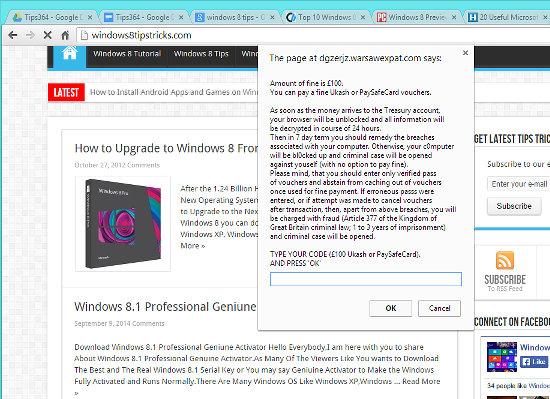
Here is a slightly larger version of the message in the middle of the browser:
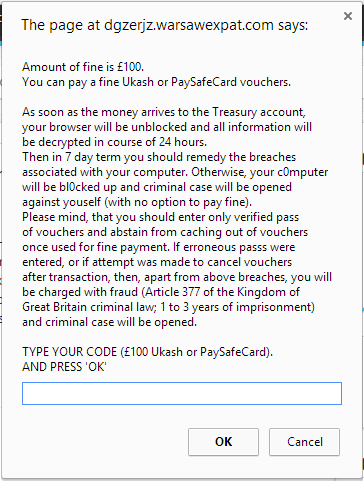
Apparently I have been fined £100, which I have to pay using UKash or PaySafeCard vouchers. These are online payment systems (neither of which I use), and only if I pay will my browser be unblocked and all information decrypted.
Scams come and go and the latest ones might not use this exact wording, but they are all very similar. They warn you that something bad will happen if you do not pay them straight away.
Whenever you get something like this in the browser, you should never click any buttons, not even the Cancel button because it may be a trick, you never know, and it might download malware to encrypt the disk drive. The best solution is to close the browser down without clicking anything on the page.
Unfortunately, in this case, the browser is frozen and will not respond. The tab will not close, the browser close button will not close and nothing works. Chrome is locked.
Windows is not locked though and right clicking the icon on the taskbar displays this menu with a Close window option:
Even more bad luck here and Close window does not work. The browser remains on the screen and will not close.
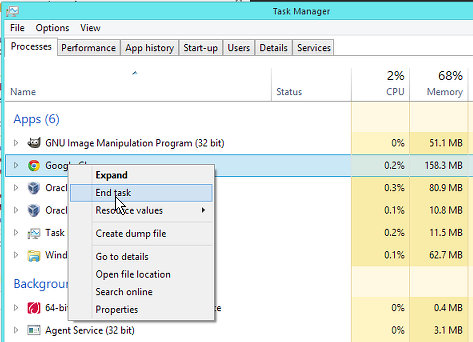
The next step is to right click the taskbar or press Ctrl+Alt+Del and select Task Manager. Find Google Chrome on the Processes tab, right click it and select End task.
This worked and Chrome closed down. If it had not worked, the next step would be to shut down Windows and if that didn’t work, hold down the computer’s power button until it switches off, usually after around five seconds.
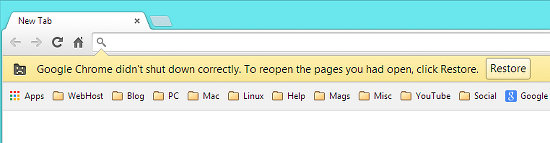
When Chrome is restarted, it detects that it shut down improperly and (un)helpfully offers to restore the pages. No way! That’s the last thing you want to do. If you are asked if you want to restore the pages, always decline the offer.
That solves the locked browser problem and scary message, but you should thoroughly scan the computer for viruses just in case anything has got onto the PC. In this case it hadn’t, but you should always check.
The type of popup scary warning message varies and scams come and go, but they are always similar. Never click anything, never pay anything. Close down the browser or even the whole computer.
Avoid bad websites
You might see a message like this from time to time. When you click a link to go to a website, the URL is checked against known bad websites that have malware or are malicious in some way. It may be deliberate on the part of the website, but the site could be the victim of a hacker who has inserted malware unknown to the owner.
The best course of action is to click the Back to safety button and to completely avoid the site. It is possible to ignore this warning by clicking the DETAILS link in the bottom left corner, but this is not advisable.
Improve browser security
Open the Chrome menu and select Settings. Click Security in the Privacy and security section. There are three levels of protection: Enhanced, Standard and No protection. Which are you currently using?
At the bare minimum, Chrome should be set to Standard protection, but Enhanced protection offers better security. There is a trade off here between privacy and security and some browsing data is sent to Google for security checks. The browser can’t check as thoroughly as Google. It’s your choice whether you go for Standard or Enhanced protection - it seems you can be safer or more private.
Be the first to comment