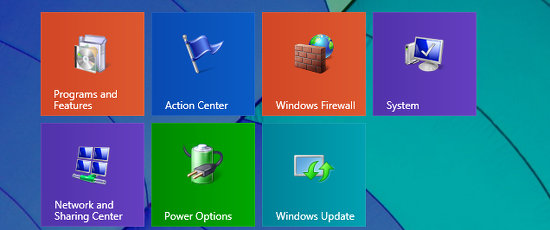
The Control Panel provides access to a lot of Windows configuration settings and it is frequently accessed. It is on the Start menu in Windows 7, but you must right click the Start button in Windows 8 to see the menu with it on. Then you must find the tool you want. You can make the Control Panel easier and quicker to use with a few simple tweaks.
Open the Control Panel and select Small Icons view in the top right corner. This lists everything in the Control Panel. What you may not have realised is that all of the items can be right clicked to show a menu. For example, right click Programs and Features, which is used for uninstalling programs you no longer want, and there is an option to pin it to the Start screen in Windows 8.
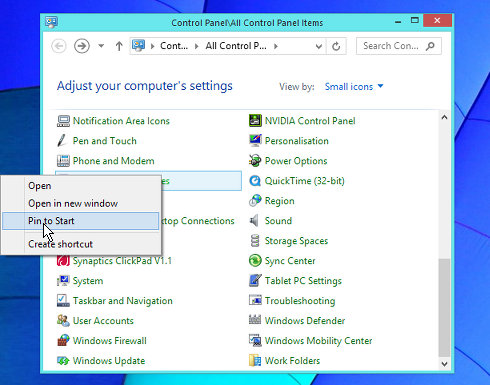
Many, but not all of the items in the Control Panel can be pinned to the Start screen and you might want to create a group of your favourites like this:
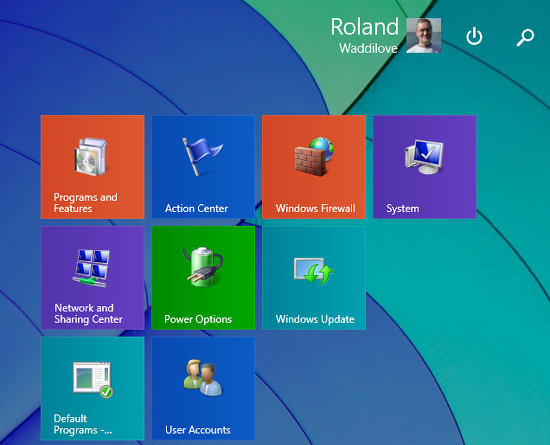
This enables key features in the Control Panel to be accessed with one mouse click or tap on the touch screen. It is fairly obvious that this is a group of Control Panel items, but right clicking an empty space on the Start screen and selecting Name Groups enables you to enter a title above it if you want.
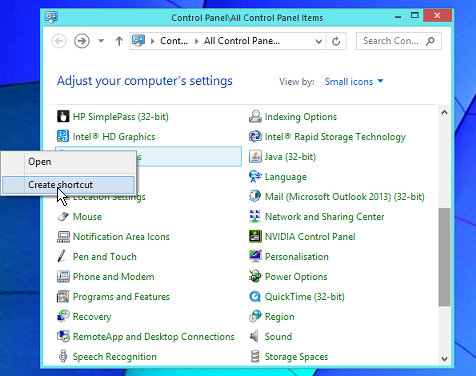
A few of the Control Panel items do not allow a Start screen tile to be added, but they do enable a desktop shortcut to be created. Right click Internet Options for example, and create a shortcut. A new icon appears on the desktop.
An even quicker way to create a desktop shortcut from a Control Panel item is to click and drag it out of the window and drop it on the desktop.
In the top right hand corner of the Control Panel window is a search box. Try entering a vowel, such as a, e, i, o or u. These are common letters that appear in a large number of words, especially a and e.
Enter ‘a’ into the Control Panel search box for example, and you get a list of almost every setting, feature and function available. That is because the letter ‘a’ appears in almost every title and description.
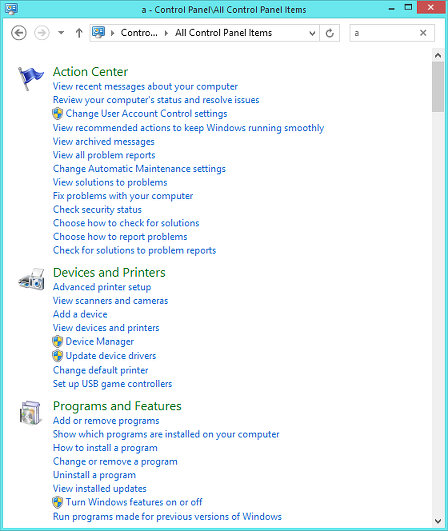
This is a great way to discover hidden and hard-to-find settings in the Control Panel. There are probably dozens of items there that you never knew existed.
Be the first to comment