When you update Windows 10 on it’s twice yearly update schedule, you may find that it runs more slowly afterwards. Why and what can you do about it? Perform these maintenance tasks to restore the speed.
Windows spring and fall updates are huge and they are basically a complete new version of the operating system. Almost everything changes and it can impact the performance of your PC. Instead of being fast and responsive, it could become slow and unresponsive.
Run Disk Clean-up
One problem is the number of files that are created during a major update. The update itself is around 5 GB but that is not the worst of it, a backup of the Windows folder is made and this could be over 30 GB on an old and well used PC. The total space usage could grow by 40 GB during and after an update.
Windows will eventually get around to cleaning up the system, but it could take up to a month and you don’t want unwanted files hanging around for so long.
One problem is that it could make the disk short of space and when space is low, Windows runs slow. Another problem is that the large number of files adds to the disk clutter. Mechanical disk drives work best when there is a lot of free space and a lot of PCs still have mechanical disks.

- Go to the Start menu
- Expand Windows Administrative Tools
- Click Disk Clean-up
- Click Clean up system files
- Select everything
- Click OK
Microsoft has been slowly moving lots of old tools, features and settings into the new Windows Settings app, so you’ll find similar features in Settings > System > Storage > Free up space now. Disk Clean-up is still better, but try both.
Replace updated drivers
The major Windows updates will sometimes replace drivers with newer versions, but occasionally those drivers are not as good as the ones you were using. After every spring and fall update I have to reinstall the manufacturer’s audio drivers because they are replaced by Microsoft and they do not work as well.
However, don’t replace drivers unless there is a problem. It is obvious with my audio drivers and you can hear the difference, so it might be an exception. It is useful to keep a copy of the PC’s original drivers just in case problems arise with Windows Update.
Check the disk for errors
Thousands of files are moved or created during a major Windows update and it is a good idea to check the disk for problems. This can be done by right clicking the C: drive in Explorer, selecting Properties, then the Tools tab and clicking Check.
I prefer the old command prompt method that has worked since the days of DOS. Right click the Start button and select Command Prompt (admin). You can also find Command Prompt near the bottom of the Start menu and right click it to run it as an administrator.
At the command prompt, enter chkdsk c: /f
It always says it can’t do it now, but will do it on the next restart, so close the command prompt window and restart.
Defrag the disk
If you have a PC with a solid state drive then defragging is not a concern. They cannot be defragmented and even if you did it, there is no benefit. However, many PCs still have mechanical disk drives and the large number of files that are moved, deleted, and written when upgrading an old version of Windows to a new version means that fragmentation is inevitable. Files become divided into small parts that are scattered across the disk drive and this makes them slower to access.
Windows 10 might seem fast, but maybe it could go even faster by optimising the disk contents after an update. Defrag after cleaning the disk because you don’t want to optimise junk!
For a while now, Windows has hidden the disk defragmenter and made it automatically run behind the scenes. It does a reasonable job of keeping the disk drive optimised, but that does not mean it is perfect and cannot be improved upon.
Open an Explorer window, select This PC on the left to show the disks attached to the computer. Right click the C: drive and select Properties on the menu that is displayed.
When the Properties window opens, select the Tools tab and click the Optimise button. As it says, optimising your computer’s drives cab help it to run more efficiently.
When the Optimise Drives window opens, select the C: drive and click Analyse. This shows the percentage of fragmentation.
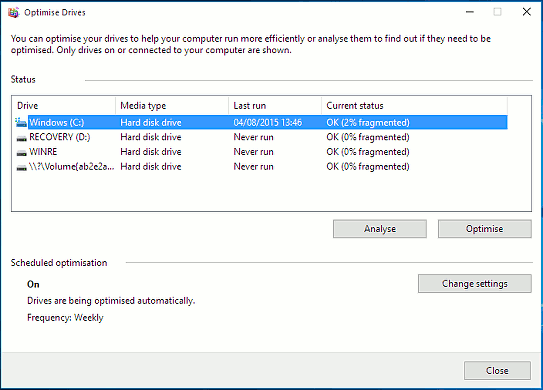
There is an Optimise button to run the disk defragmenter right now, but click the Change settings button instead. It is set to run weekly by default, but if you use your computer a lot, you might want to run it daily.

It will run more often, but it will have less work to do. It runs in the background when the computer is idle and you will not notice it. However, the disk will be more optimised than a weekly setting.
The Optimise Drives window shows the percentage of fragmentation, but what does that mean? It says the disk is 2% fragmented, but how many files is that, and which ones? Piriform Defraggler can show you. (Get the Defraggler portable version.)
Run Defraggler and click the Analyse button. Afterwards, select the File list tab and click the Fragments column header (twice if necessary) to sort the files with the most fragmented at the top.
Defraggler can be used to defragment the disk instead of letting Windows do it on its weekly schedule. However, it will not defragment files that are in use and pagefile.sys, a system file, could have a lot of fragments. This is always in use and attempting to defragment it will get you nowhere.
IObit Smart Defrag is another alternative to Windows disk defragmenter (get the free portable version) and it not only defragments files, but it also has a Boot Time Defrag.
This runs a defragmenter utility just after the PC is switched on and before Windows loads. Turn on all the tick box options and click Configure.
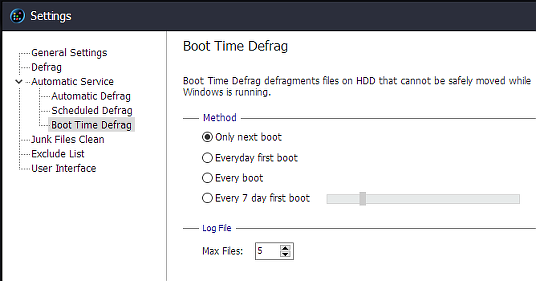
Select the Only next boot option, click Apply and then OK. Reboot the computer to defrag the system files that are in use.
Windows disk defragmentation is OK, but I always keep Defraggler and Smart Defrag around because they provide extra options and you can run them at any time to optimise the disk.
Be the first to comment