Windows monitors what you do and can report certain information back to Microsoft. This worries some people, but mostly it is unimportant or anonymous, and some settings are very useful. Here’s how to review the settings.
How General privacy settings affect you
Press Windows+I to open Settings, click Privacy and select General on the left.
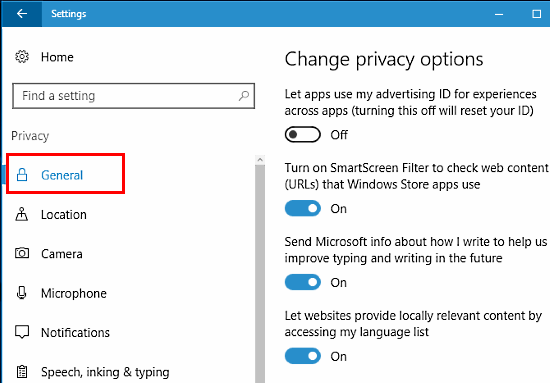
This section in Settings, Privacy is different to the others, which are mainly for allowing or blocking apps’ access to the PC’s hardware components like the camera and microphone, and Windows components like contacts and email.
Here are the general privacy settings:
Let apps use my advertising ID for experiences across apps: When this is turned on, your computer is given a unique ID. It does not reveal personal information, but it may affect which adverts are displayed in apps you use. Your apps, interests and adverts are associated with your ID. Advertisers use this information to display ads they think interest you Turning this off denies them that information and increases your privacy.
Turn on SmartScreen Filter to check web content (URLs) that Windows Store apps use: This prevents apps downloaded and installed from the Windows Store from accessing bad websites. Turn it on because it helps to block malware, phishing, scams and more.
Send Microsoft info about how I write to help us improve typing and writing in the future: Handwritten notes, such as writing on a tablet with a pen or your finger, can be recognised and turned into text. Text you type can be used to build a personalised dictionary or for text completion where as you type, suggestions appear Turn it off to increases privacy, but Windows ability to recognise writing and make typing suggestions is poorer On is recommended because it makes Windows better. Your writing and typing is not shared with anyone, it just helps Windows learn.
Let websites provide locally relevant content by accessing my language list: When this is On a website can tell which language you speak. This might be used to present content in your language, or prices in your currency. You are revealing a little about yourself, but it makes websites better. Turn it off for greater privacy, but websites might show less relevant information. It is recommended that you switch it on.
Let apps on my other devices open apps and continue experiences on this device: The purpose of this feature enable you to start something on one device, such as writing an email on a phone or tablet, and then continue it on the computer. A few people may find this useful, but if you don’t do this, turn it off.
Let apps on my other devices use Bluetooth to open apps and continue experiences on this device: See the previous setting. Turn it off if you never use it.
Microsoft advertising settings and personal info
At the bottom of the General section in Privacy is Manage my Microsoft advertising and other personalisation info. Clicking this link opens a web browser and takes you to the Microsoft choice.microsoft.com website.
On the right side of the web page are some settings. You can choose whether to have personalised adverts in the browser and when you use your Microsoft account, such as logging into Outlook.com to read your email.
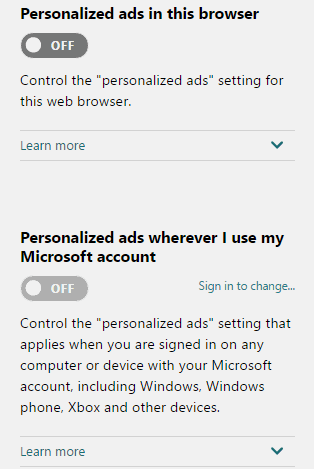
Off reduces advertiser tracking. It does not prevent adverts, but it causes them to be more random because you are unknown and your interests and habits are unknown.
Previous: Privacy settings - review app permissions
Course Contents: Windows 10 Security Guide
Be the first to comment