SmartScreen is a security technology that is built into Windows 10 which helps to prevent malware from getting onto your computer. It does this in several ways, which we will look at here.
This is part of a Windows 10 Security course
Go to the Courses Home Page
New articles are posted
on rawinfopages.co.uk
Go Windows PC articles
SmartScreen is used by Edge and Internet Explorer to block bad websites, bad software downloads, bad advertising, and other threats to your security or privacy. SmartScreen is also used by Windows to protect against bad software either downloaded or obtained through other means.
It is not important how it works, but basically SmartScreen accesses a list of known malware, PUPs (potentially unwanted programs), bad websites and bad advertising.
When you enter a URL into Edge to visit a website, SmartScreen checks if it is on the list and blocks the site if it is. (Chrome and Firefox do this too.)
When you try to download a program, SmartScreen checks if it is on the list. and if it is, the download is blocked.
SmartScreen is constantly maintained and updated to ensure it has the latest information about websites, downloads, adverts and other possible threats. It should be enabled, but it is a good idea to check that it is working.
Enable Windows SmartScreen
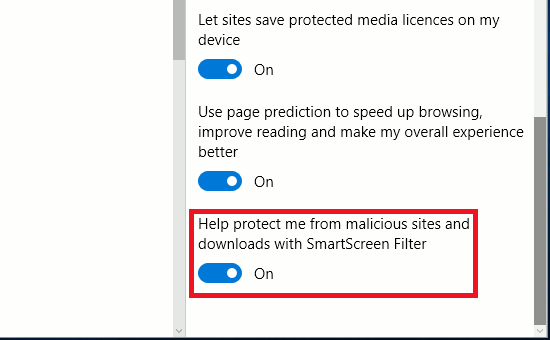
1 Edge SmartScreen settings
- Open Edge and click the three dots in the top right corner to open the menu.
- Click Settings.
- Click View Advanced settings.
- Down at the bottom, turn on Help protect me from malicious sites and downloads with SmartScreen Filter.
2 Windows Settings
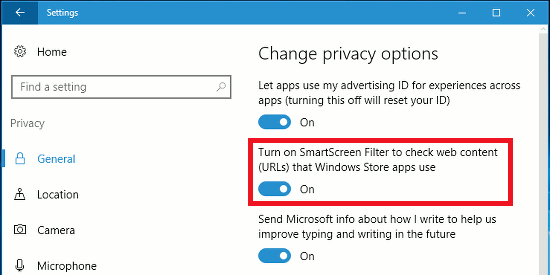
- Press Windows+I to open the Settings app and click Privacy.
- Select General on the left.
- Turn on Turn on SmartScreen Filter to check web content (URLs) that Windows Store apps use.
3 Control Panel settings
- Right click the Start button and select Control Panel.
- Set View by in the top right corner to Small icons and then click Security and Maintenance.
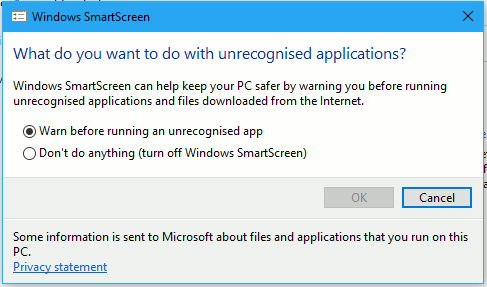
- Click Change Windows SmartScreen settings.
- Select Warn before running an unrecognised app.
SmartScreen in action
Here are some screenshots showing the sort of things you might see with SmartScreen enabled.
Phishing example
If you attempt to go to a website that has been associated with phishing, Edge displays a panel with options to report the site as safe or unsafe. SmartScreen is partly crowd-sourced - if lots of people report a site as bad, the information is made available to everyone.

Beware of bad websites reported as unsafe
This is a known bad website. Do not go there! Enter another URL into the address box of Edge.
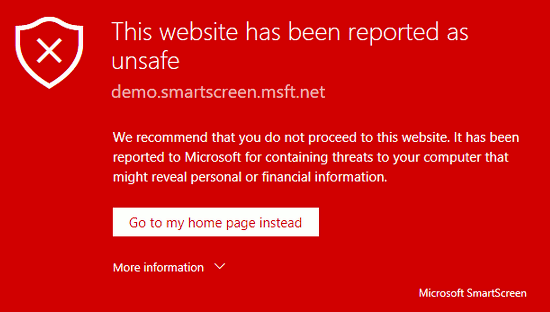
If you want to be reckless and ignore the warning (not recommended), click More information at the bottom.
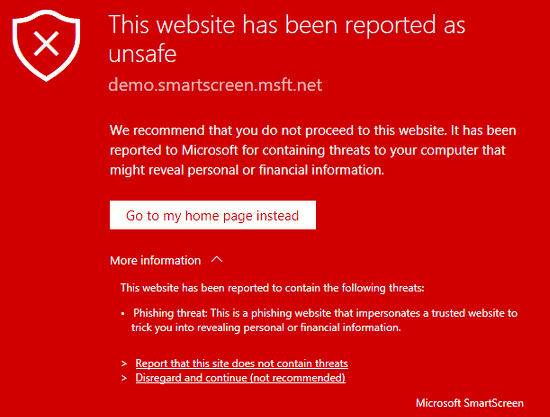
There are two options at the bottom: One enables you to report that the site does not contain threats (only click this if you are certain), and the other is Disregard and continue (not recommended).
If you click that second option, you will visit the website. You do so at your own risk and you have been warned!
Run an unknown program
There are tens of thousands and possibly millions of programs available for download on the internet and SmartScreen cannot possibly know about every single one of them.
For this reason, sometimes when running a program you have downloaded, a message like this appears.
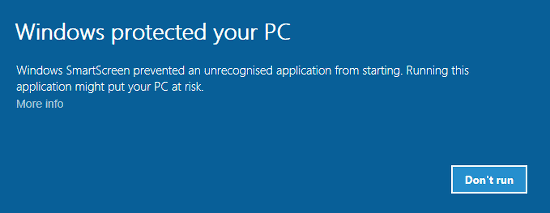
This means the program is unrecognised. SmartScreen does not know whether it is safe or malware. The decision to run it is yours.
The safest course of action is to click Don’t run.
If you are absolutely sure the program is safe, click More info under the text.
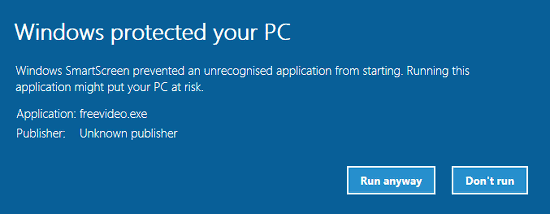
There is now a Run anyway button. Remember, this does not mean the program is malware, but there is a risk.
Run malware
Here is what happens when SmartScreen is certain the program is malware.
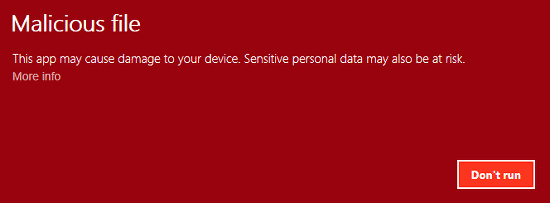
As before, there is a More info link. Do not click it.
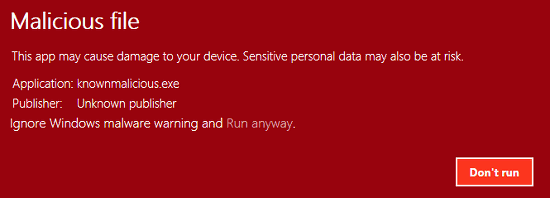
There isn’t a Run anyway button, but there is a text link. It is not advisable to click Run anyway.
Notice the difference between an unknown program (blue) and known malware (red). Don’t ignore red warnings, but ignore blue ones if you have good reason to believe a program is safe.
Go to Windows 10 Security course contents
Go to Courses Home Page
Be the first to comment