
A few people have asked how to save web pages to disk or a USB thumb drive using Microsoft Edge in Windows 10. This guide shows how to save pages and more in Edge, Chrome and Firefox.
Save web pages in Edge to PDF and JPEG
The default web browser in Windows 10 is, of course, Microsoft Edge. In Windows 10 S, the locked down version of the operating system, it is the only browser that is allowed. At least for the moment, although that may change in the future.
For a lot of people Edge is OK and it does everything they want, or almost everything they want. Some people want to save web pages to disk or to a USB flash drive.
Why would you want to do this? It might contain useful information you want to save for later, such as an article, contact details, a receipt or purchase confirmation page from an online store or service. When I buy a tickets online, I always save the page as an image so I have a record of the transaction.
Saving pages in Edge is possible, but it is not obvious how to do it.
If you are running Windows 10 you should have a Microsoft account and this means you also have access to Microsoft Office apps in Windows and the OneDrive website. You will need them.
Print web pages to PDF
Open Edge browser and go to the page you want to save.
Open the menu in the top right corner and select Print.
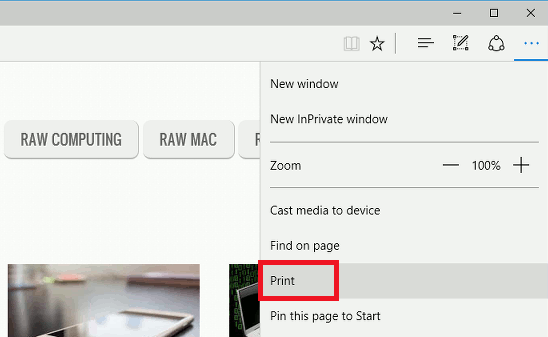
In the print window, set the printer to Microsoft print to PDF. You might want to adjust the margins and scale.

Click Print and you are prompted for a filename. The web page is saved to disk as a PDF file.
PDFs can be viewed by double clicking them. They open in Edge, which is actually a simple PDF viewer, but Adobe Reader and other PDF viewers can be used instead.
The results are not always perfect. They represent what you would get if the page was printed on paper, but that is not always how it appears on the screen.
Use this alternative method of saving a web page as a JPEG image.
Save web pages to OneNote
Click the Web Note icon in the toolbar.
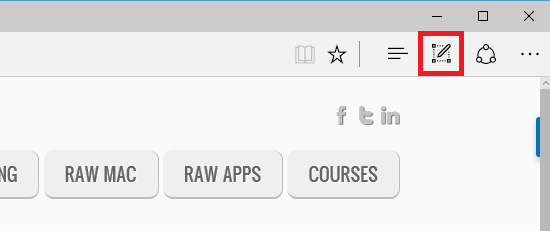
This tool enables you to draw on a web page. Without drawing anything, just click the Save icon in the toolbar that appears. Select Quick Notes and then click Save.
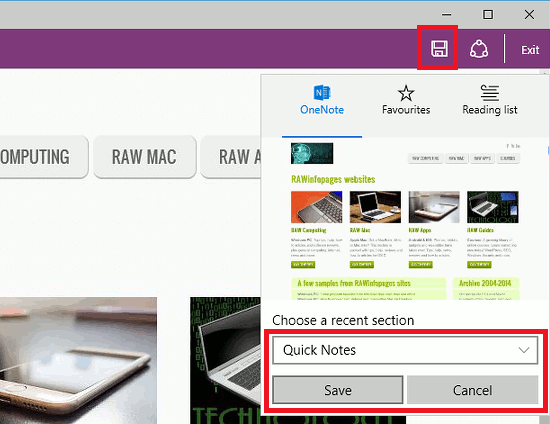
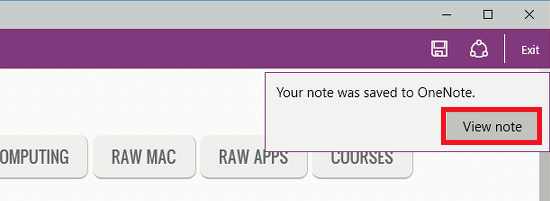
The web page is saved to a new page in Microsoft OneNote. It can be opened immediately by clicking View Note in the notification that appears.
However, it can also be viewed by opening OneNote from the Windows 10 Start menu or by going to the onedrive.com website and clicking OneNote on the menu.
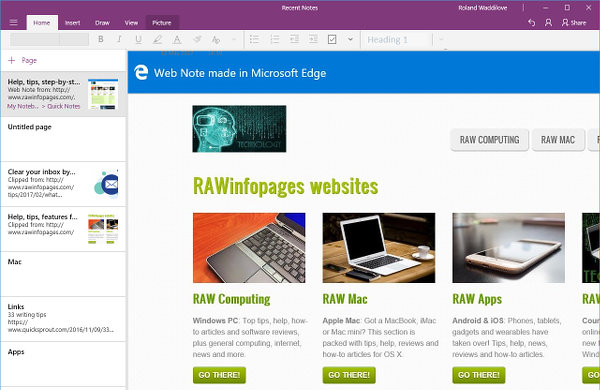
The web page is now saved in OneNote, which is as good a place as any to store it. To save it as a JPEG image on the disk drive, right click it and select Save As.
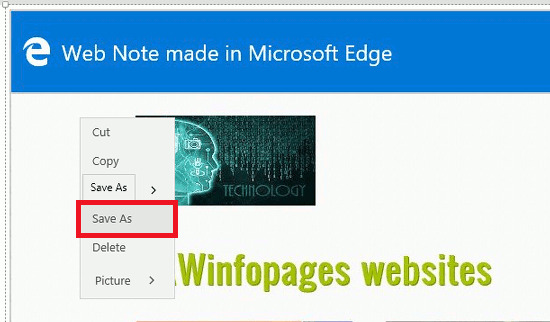
Choose the folder to save it in on the disk.
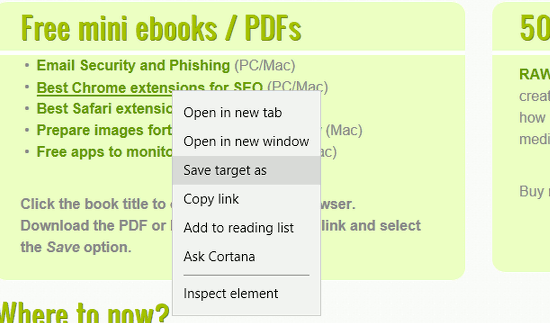
To save items on the page, such as programs, documents, PDFs, ebooks and so on, right click the link and select Save target as. It is placed in the Downloads folder.
Save web pages from Chrome
The best way to save web pages is from a web browser like Chrome or Firefox. Both use a similar technique and they save everything on the page that is needed to recreate it, including text, images, JavaScript and so on.
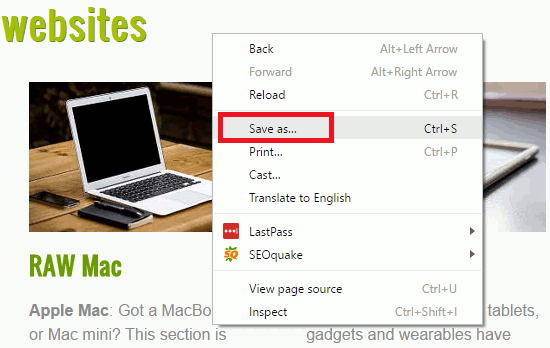
In Chrome, right click any empty space on the page and select Save as… or just press Ctrl+S.
In the Save As window that appears, select Web Page, Complete to save everything. If this is clicked there is an option to save Web Page, HTML only if you just want the HTML file. Usually the complete page is best.

To save programs, documents, PDF files, ebooks and so on, right click the link and select Save link as… Select the folder on the disk to save it to, such as the Downloads folder.

Firefox is almost identical to Chrome. Right click a page to save it, right click links to save the file linked to.
Both Chrome and Firefox can also print web pages and you can choose Microsoft print to PDF as the printer to create a PDF file.
Thank you but I do not get why they have removed the feature save as notepad. That was one of the only reasons I kept on using IE. I liked saving gamefaqs to my pc.