This is a comprehensive review of Stellar Toolkit for Data Recovery, a data care utility for enterprises, small and medium organizations, and end-users to help restore lost and deleted files from all kinds of Windows, Linux and Mac-based storage media devices, including corrupt partitions, formatted volumes, and RAID arrays.
New articles are posted
on rawinfopages.co.uk
Go Windows PC articles
Stellar Toolkit for Data Recovery is an innovative Windows data recovery software that consists of 4 (four) modules in a single toolkit. It is a complete data care package ideal for any organization and individual’s data recovery needs related to Windows, Linux, or Mac and advanced storage solutions such as RAID.
Since I have already tried and tested the software, I am going to list down my experience with the Stellar Toolkit for Data Recovery. But before I begin, let me quickly list down a few prominent features of the Toolkit.
Recovers data from all kinds of Windows, Linux, and Mac-based storage media devices
- Facilitates data recovery from corrupt and formatted drives, including RAID
- Reconstructs virtual RAID 0, RAID 5, and RAID 6 arrays with/without RAID parameters
- Repair damaged and corrupt photos and video files
- Recovers data from lost drive partitions and missing RAID volumes
- Monitors system drives’ health and SMART status
- Facilitates Disk Cloning option
Besides, Stellar Toolkit for Data Recovery promises to recover virtually any file type from any storage media.
I was skeptical when I read this, but then it does have an option to add support for more file formats. And it actually works!
You can either add a custom file type by adding sample files or dive deeper to define technical information about the custom file that you want to recover by using Stellar Toolkit for Data Recovery.
Here’s what I feel and found about Stellar Toolkit for Data Recovery
A data recovery software is like an ‘instabackup’ that helps you restore lost files in no time. But I highly recommend you to take a regular backup of all your important files even if they are on a RAID server.
Installation
The installation was simple, just like installing any other program in Windows. However, one noticeable feature of the installer was that you could choose your desired language during the installation.
And don’t worry if you skip choosing a language during installation, this can be done later on after installation via Settings.
The software supports English, German, French, Spanish, and Italian languages.
User interface
One of the best things about the software is its user interface. I have tried many data recovery software, but Stellar’s® user interface is highly intuitive and neat.
When you launch the software, it provides 4-modules to choose from as you can see in the following screenshot.

- Choose Recover Data to get back lost, and deleted files from Windows, Mac, or Linux drives, including deleted partitions, formatted drives, and broken RAID 0, RAID 5, and RAID 6 arrays
- Click Monitor Drive to check drive health status, including the SMART status of the drive that displays critical drive parameters. This module also allows you to clone disks
- Repair Photo and Repair Video are two different modules that help you fix corrupt photos and video files respectively
Below we have briefly discussed each module that we tried and software features so that you can leverage the software—when required, to its maximum capacity.
Data Recovery
Stellar Toolkit for Data Recovery helps you recover any file type in 3-steps. After launching the software, click Recover Data to start the data recovery module and then,
1 Select what files to recover
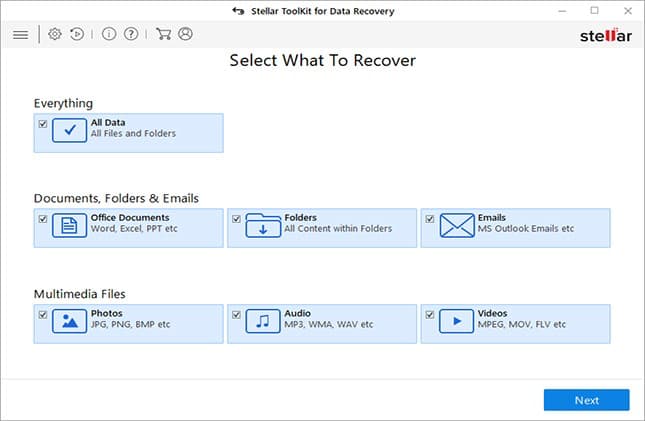
2 Choose the Linux, Mac, or Windows drive, folder to Scan

3 Select the files from the result and save them at your desired location
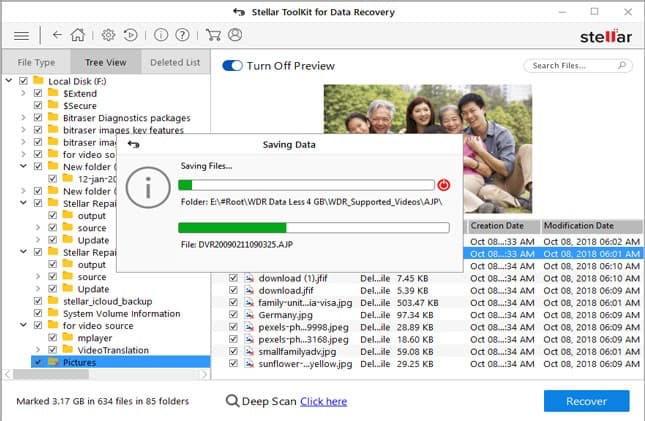
I personally liked the minimalistic design of the software that facilitates quick data recovery. And it supports all types of storage drives formatted as NTFS, exFAT, FAT (FAT16/FAT32), HFS, HFS+, ext2, ext3, and ext4.
It also facilitates a deep scan mode that locates lost files based on file-signatures and scans each drive sector for the traces of recoverable data.
With the deep scan mode, you can restore files from a corrupt or RAW drive volume and formatted Mac, Windows, or Linux drive partitions.
In my case, the deep scan automatically started after an initial quick scan. This happens when the software is not able to find many files in the quick scan.
RAID Data Recovery
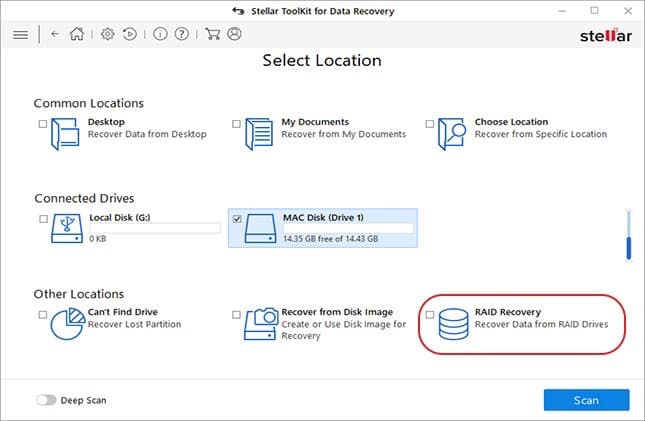
To recover data from RAID drives, you need to connect all RAID drives to your Windows PC via SATA. Alternatively, you may also use SATA to USB converter cables to connect RAID drives.
Then select RAID Recovery on Select Location screen and click Scan. This brings up a RAID Reconstruction window.
And here’s what I like the most about this software.
It can reconstruct a logically broken, crashed, corrupt, and inaccessible RAID 0, RAID 5, and RAID 6 array even if you don’t remember or enter the critical RAID parameters required for RAID reconstruction.
This is a neat and much-needed feature, often unavailable or ineffective in many RAID recovery software.
Missing RAID Volume Recovery
After virtual RAID reconstruction, you can view and scan RAID volumes. In case a RAID volume is not in found, you can search or deep scan the Virtual RAID construction for missing RAID volume(s).
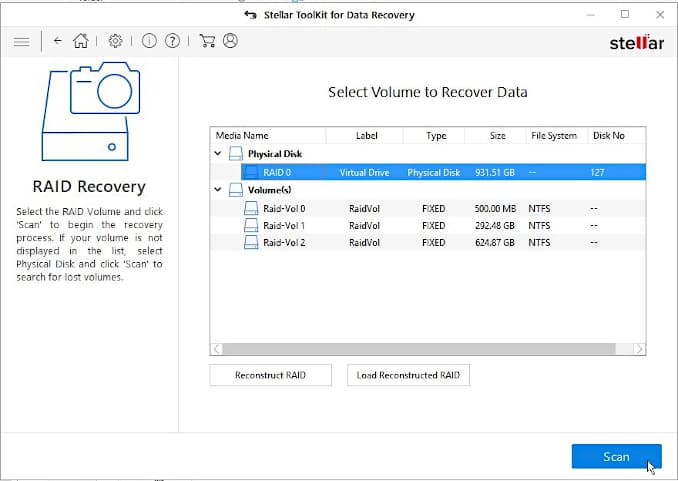
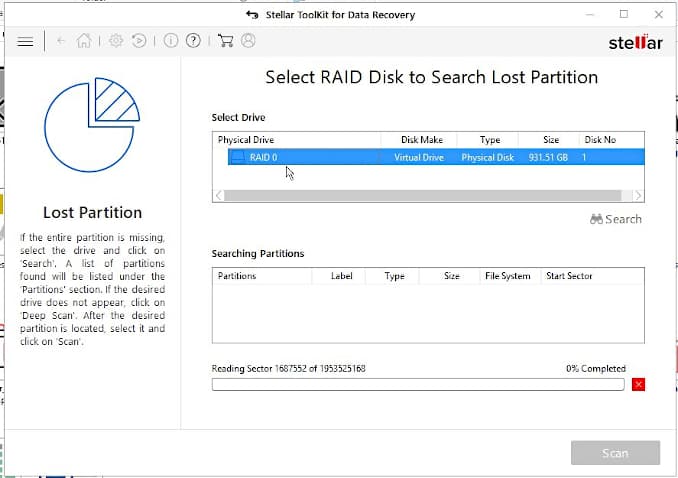
Photo and Video Repair
Stellar Toolkit for Data Recovery is the only data recovery toolkit that repairs photo and video files. You can repair all major photo, and video file formats damaged or corrupt due to virus infection, drive errors, and software or system crash.
You can also repair severely corrupt video and photo files. Following are the supported video and photo file formats that this toolkit can repair.
- PHOTOS: JPEG, TIFF, DNG, ARW, CR2, CRW, ERF, MRW, NEF, NRW, ORF, PEF, RAF, SR2, RW2, and SRF
- VIDEOS: AVI, ASF, WMV, MKV, FLV, DIVX, WEBM, MJPEG, MPEG, AVCHD, MTS, MOV, MP4, M4V, 3G2, 3GP, and F4V
Monitor Drive
It’s good to see a utility such as a drive monitor within a data recovery software. It makes complete sense, and here’s why.
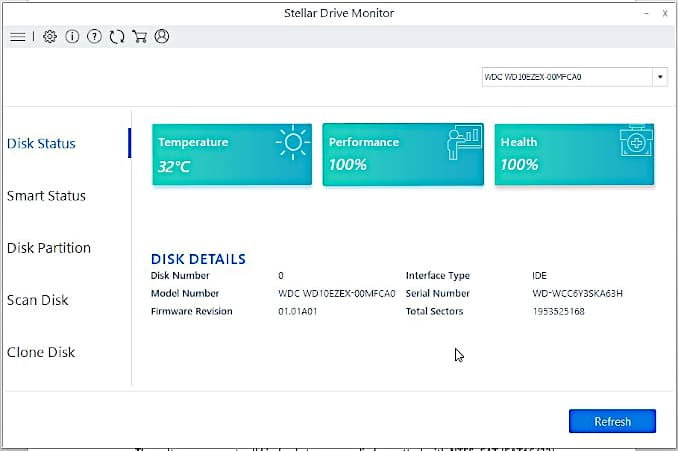
The drive monitor utility, besides proactive drive monitoring, helps you to check the health condition of an affected drive before scanning. But why would you do that?
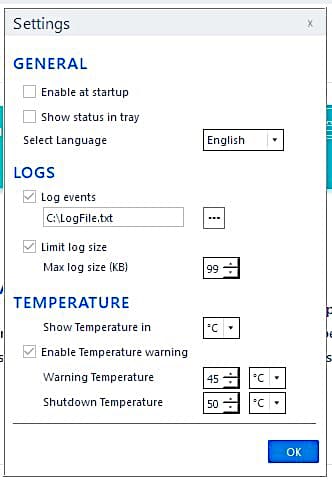
Scanning increases 100% disk usage and this could go on for a prolonged period, which may cause further wear & tear to the failing drive. The software may also get stuck or scan may take several hours (sometimes days) to complete if the drive is suffering from Reallocated Sector Count warning.
Thus, checking disk health prior to data recovery scan not only helps prevent permanent data loss situation due to disk failure but also saves time, resources, and money.
Pricing and Support
Stellar Toolkit for Data Recovery is free to download. The demo version of the toolkit allows you to explore all the features of Stellar Toolkit for Data Recovery in restricted mode.
For instance, you can rebuild the RAID arrays and scan them for data recovery but to save recovered data, you need to activate the toolkit.
You can purchase the license key for just $299 and install the toolkit on up to 3 different Windows systems - making it a value for money proposition.
Conclusion
Whether it’s your web server or an important document file, backup is important. You never know when your server or drive may fail or stop responding due to logical, mechanical, or physical errors that may occur due to various reasons.
Follow the 3-2-1 backup rule to ensure data availability and maintain business continuity. Also, equip your systems with ‘instabackup‘ tool such as Stellar Toolkit for Data Recovery. The toolkit will help you get back recently lost files and data from corrupt and formatted Windows, Linux, or Mac drives and RAID servers.
This data care utility will help you get back those ‘just’ deleted or lost files that might not be in the backup yet. And if you are a technician, corporate, or AMC service provider, this data recovery software toolkit is a must for you.
You can leverage this comprehensive data care package when backups are obsolete, doesn’t work as intended, or unavailable. Further, this toolkit can also repair damaged and corrupt photos and video files and monitors system drives to prevent data loss due to logical, physical, and mechanical disk errors.
With regular backup and an ‘instabackup’ utility, you can ensure data availability while saving much resources and time.
Be the first to comment