
If you are having network problems, like connecting devices, or if you use a Windows laptop with public Wi-Fi, make sure Windows Firewall is set up correctly. It can help to solve problems.
The firewall in Windows has two modes of operation and it can be set to public or private networks. If it is set to the wrong one, it might make it difficult to connect devices on the same network, like a laptop and printer, or the computer and some other network device.
If you use yourlaptop computer with public Wi-Fi hotspots, you need better security and protection than if you were using it at home on your own Wi-Fi or at work in an office. If the Windows Firewall is incorrectly configured, the security settings may be insufficient, which could lead to security issues, maybe even hack attacks on your laptop.
Public network: Windows Firewall can be set to Public network and this does not mean that anyone can access it. Quite the opposite in fact, and more security is applied because Public is used when using a laptop in public, like a cafe, hotel, airport and so on. Public Wi-Fi needs extra security.
Private network: When Windows Firewall is set to Private network, security is still there, but it is relaxed slightly. It can be used with your home Wi-Fi or even at work. The Private setting makes it easier to connect to network devices or for them to connect to the computer. For example, there is only you and your devices on your home network and it is password protected (I hope), so that no-one else can access it. It is therefore safer to lower security a little so devices can communicate with each other.
Let’s see how to check whether you are using Public or Private network settings and how to switch from one to the other. I am using Windows 11 for this, but you can probably work out how to do it in Windows 10.
Related: How to browse the web securely with Microsoft Edge VPN
Open Windows Security
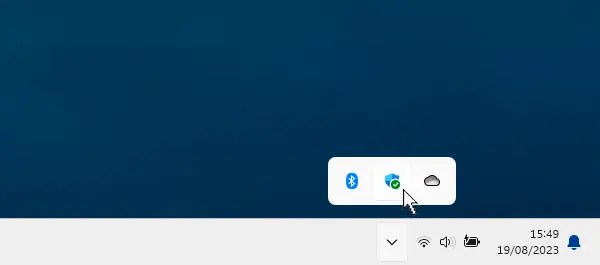
There is more than one way to open Windows Security to check the Firewall status. You could click the Start button and type the name or find it on the apps menu, but I prefer to click the icon at the right side of the taskbar. It is the shield with the green tick.
Windows Security home
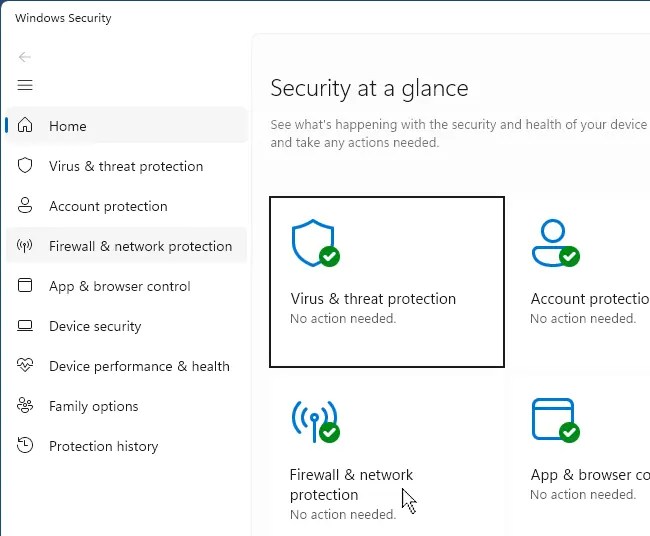
The Windows Security home screen appears and there are many security features. We just want one of them. You can either click Firewall & network protection in the sidebar or click the tile on the right.
Active security
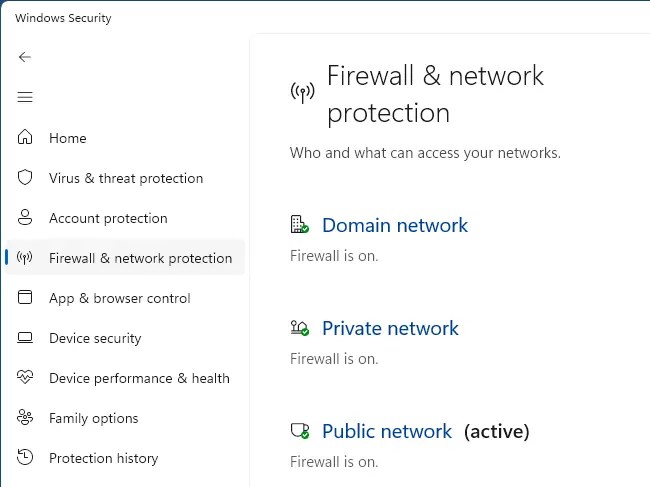
The different firewall modes are displayed and normally, if everything is working correctly, it will ay that the Domain, Private and Public networks are all on. This does not mean they are being used. Look for the active network.
In the screenshot you can see that Public network is active. However, I am currently on a home network. This does not need so much security and Private network would make connecting to devices easier, but how do you switch networks?
Quick Wi-Fi settings
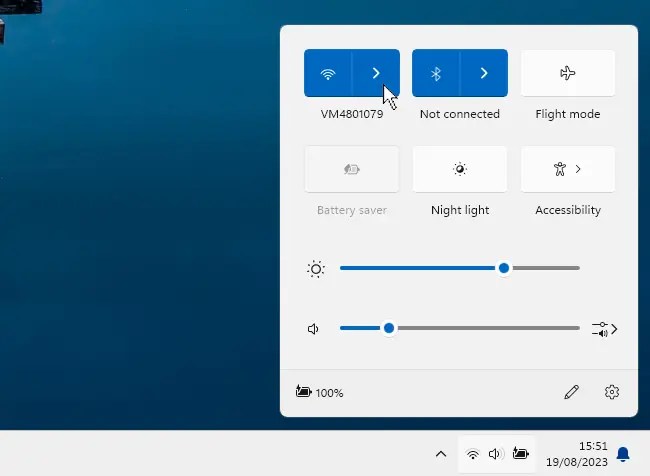
There is more than one way to access network settings, here’s one method. Click the Wi-Fi icon at the right side of the taskbar to display a panel containing useful settings. In the top left corner is a Wi-Fi on/off button. Click the arrow button to the right of it.
See Wi-Fi info

The wireless networks in range are listed and it shows the one the computer is currently connected to. On the right is a small i button. Click it to see more information about the network.
Windows Wi-Fi settings

The Settings app opens and shows the current Wi-Fi settings in the Network & internet section. Displayed here are Public network and Private network settings. If you are using your computer in a public place like a cafe, hotel, airport and so on, select Public network for best security.
If you are using your computer in a safe place, such as on a home or work network, select Private network. You don’t have to and Public network will work fine at home, but if you want to connect your computer to other devices or let them connect to the computer, Private network is best.
Active firewall mode

In public, the computer is not discoverable on the network, in private it is. Make sure you are on the right firewall mode wherever you are. If you return to Windows Security and look again at Firewall & network protection, you will see that Private network is now active.
 RAWinfopages