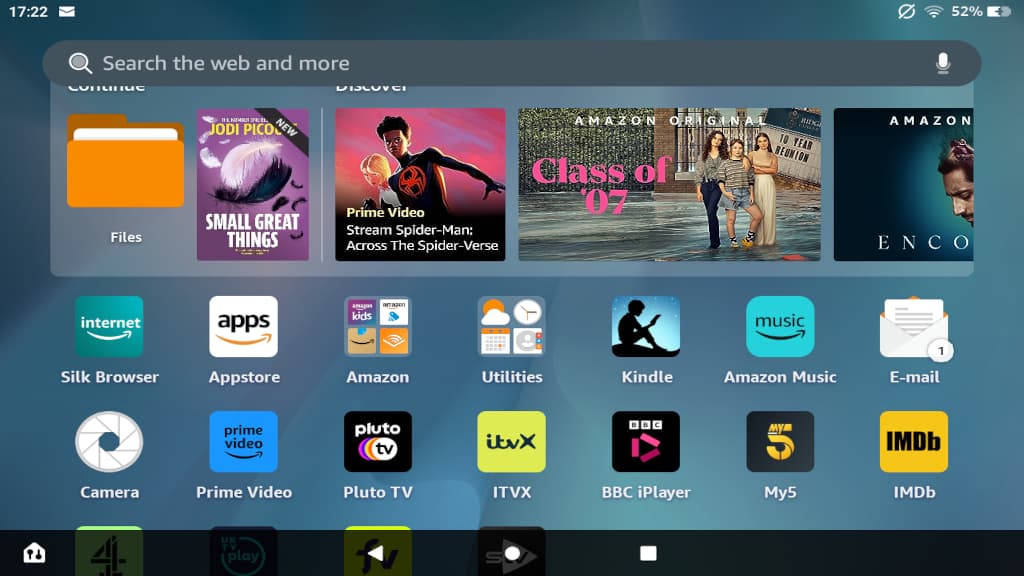
How do you take screenshots and save them on the Amazon Fire HD tablets? Where are they stored? How do you transfer them to a PC or Mac? Here are easy answers to all these questions.
Amazon Fire HD tablets are a popular alternative to the Apple iPad. It is not because they are more powerful, faster or have more apps, they don’t. The main advantages are price, build and features. They are very affordable and are a fraction of the price of iPads. They are solidly built to last, and they do what most people need from a tablet.
You might want to take screenshots to save something that is on the screen, like a website showing the checkout as proof of purchase perhaps. You might want to screenshot a game you are playing and share it with friends. You could screenshot something and send it to someone to help them. There are many more uses of screenshots.
Take a screenshot on an Amazon Fire tablet
The Amazon Fire tablet is basically an Android device and the most common way to take screenshots on Android devices is by pressing the volume down button and the sleep/wake button at the same time. Hold them down for a second and the screen flashes to confirm that a screenshot has been taken and saved.
If the screen goes off, you pressed the sleep/wake button first. If the volume control appears on the screen, you pressed the volume button first. Press and hold them down at the same time.
Where are screenshots saved on Amazon Fire tablets?

Find the Files app, which is bundled with the Amazon Fire tablet, and open it. It may display Documents folder by default, but that is not where screenshots are saved. Press the hamburger button in the top left corner of the screen.

All the folders on the device are listed, like Images, Videos, Audio, Documents and more. Select the Images folder because screenshots are images.

If you have taken photographs with the camera in the Amazon Fire tablet, they will be displayed here. If you have taken screenshots, there will be a Screenshots folder. Press it to open it.
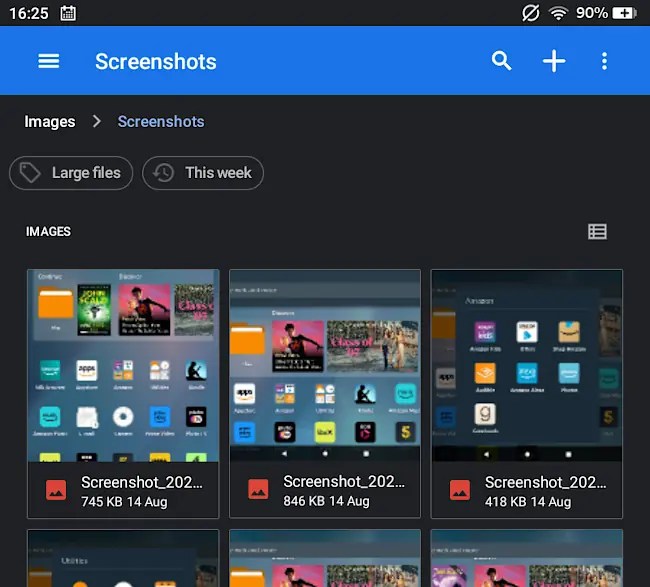
In the Images > Screenshots folder are your screenshots displayed as thumbnail images. Press them to view them full screen if you want to see what they are like.
Transfer Amazon Fire screenshots to PC or Mac
Now we know where the screenshots are, how do we transfer them to a computer like a Windows PC or Apple Mac? There are several methods and one is to use the sharing features. The options available depend on what apps you have installed and you could share screenshots on social media or send them using email. However, we want to transfer them to a computer.
Microsoft supports Amazon Fire tablets with multiple apps for it. Install OneDrive from the Amazon Appstore and when you first run it, it asks if you want to turn on camera upload. Enable it. If you already have the app, but didn’t enable it, press the Me icon on the left (fifth icon down) > Settings > Camera upload.
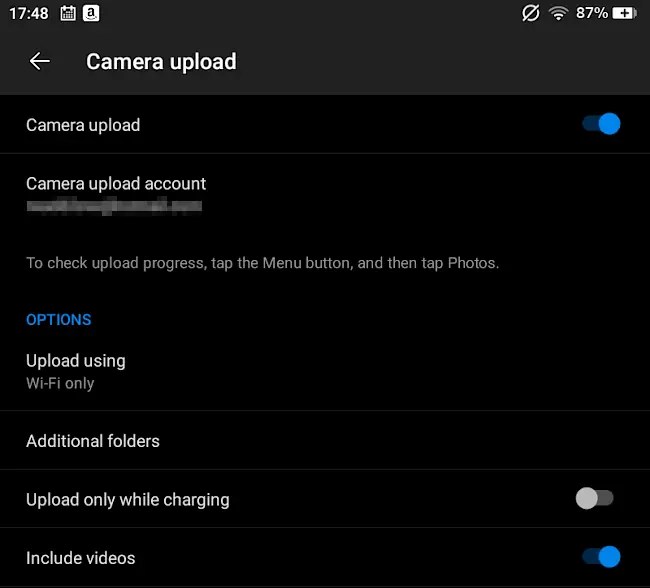
Anything that is added to the Images folder or subfolders within it on the Fire tablet is automatically synced with OneDrive online, on your Windows PC, or even your Apple Mac if you have the OneDrive app for macOS installed. Take a screenshot on the Fire tablet and seconds later it is on your PC or Mac via OneDrive.
You don’t even need to think about transferring screenshots and it is all automatic. It’s how I transferred the screenshots for this article.
An alternative way to transfer files to your computer is to long press a thumbnail in the Images folder and then press the Share button. The E-mail app is one of the options and there may be other apps listed depending on what you have installed on your Amazon Fire tablet. You could create an email, attach one or more screenshots and send it to yourself or o someone else.
An Amazon Fire tablet can be plugged into a Windows PC or Apple Mac using a USB cable, just make sure you have the right plugs on each end – USB ports come in different sizes and shapes. A Windows PC automatically recognizes the Fire tablet, just as it does with Amazon phones. Use Explorer to navigate to Internal Storage > Pictures > Screenshots and then drag the files over to the PC’s disk.
A Mac does not support Android devices by default, but install Android File Transfer and it can be used to view files on the Amazon Fire tablet and transfer them.
I don’t like messing around with cables and software, and simply let OneDrive sync them.
 RAWinfopages