Does your password manager have duplicate entries for websites, services and apps? They can cause problems when logging into places, so remove the duplicates and clean up your password database.
Duplicates in Bitwarden, LastPass, and other password managers me be a problem when you visit a website or online service and you need to login. It’s not so bad when the items are identical, but sometimes they are not, and then both you and the password manager don’t know which login to use. You end up trying one and it it does not work, trying another.
How do you get duplicates in password managers?
There are several ways this can happen and one is when the company changes its name and website URL. Web hosting company 1and1 rebranded as IONOS so both are in my password manager, but the old one is not used. Protonmail.com login became Proton.me. Maybe twitter.com will become x.com one day, who knows with Elon? X already redirects to Twitter and Twitter may eventually redirect to X.
Duplicates can be created when signing up for things because the registration page has a different URL to the login page. Register and your password manager saves the password. Log in and the password manager saves the login again because the URL is different. Password managers are semi-intelligent and sometimes realize the logins are the same, but not always and you end up with two entries for the site.
Another way duplicates are created is when importing passwords from elsewhere. For example, you may switch password managers by exporting from one and importing from another.
Are there any password managers that can find and delete or merge duplicates? I looked at Bitwarden and LastPass, and neither have any way to automatically manage duplicates. It is up to you and you must do it manually.
My guess is that passwords are just too valuable to let some automated tool merge or delete duplicates. What if two logins were almost, but not quite the same. Which login is correct? How should the logins be merged? Which information can be discarded? Imagine the problems if the merge or deletion went wrong. You might not be able to login to something important, like your banking.
I would not trust an automated de-duping tool. I would only ever do it myself. It is a pain, but you don’t have to do it all at once and it is something you can do every now and then.
Let’s take a look at Bitwarden. Don’t worry if you have another password manager because the process is very similar no matter what you use.
Related: Increase security in Bitwarden and keep passwords safe
Find and delete duplicate passwords
Log into the Bitwarden website (LastPass or whatever you use), and view your logins. They appear in a long list and as you scroll through them, you may notice duplicate entries.
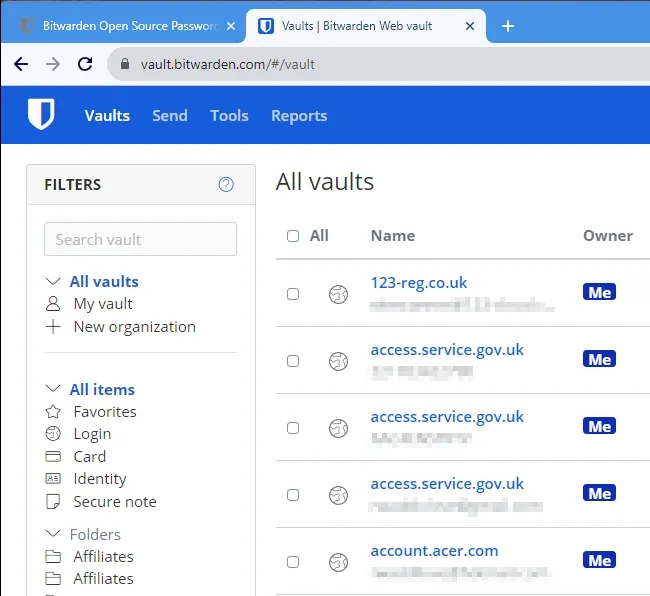
Sometimes duplicates are obvious, like the ones above and the moz.com entries below. Three moz.com logins! How did that happen?
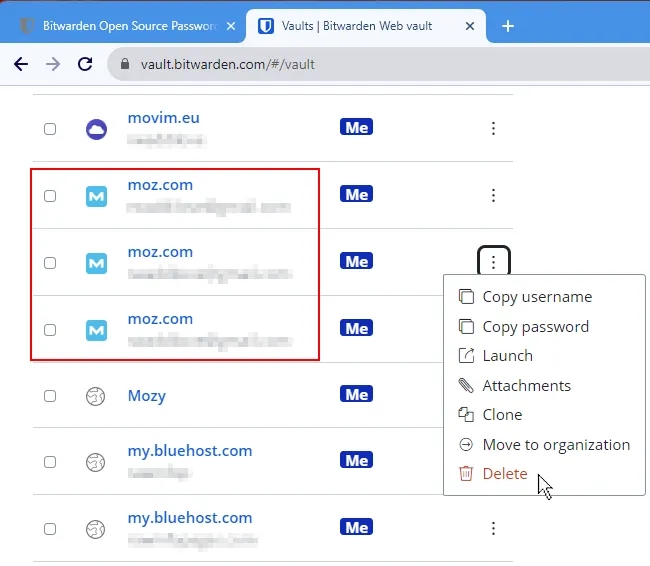
Click the three dots next to an item and there is a Delete option on the menu. However, before you do that, open each of the duplicates and check the details. If they are all identical, delete the dupes. If not, investigate.
Sometimes duplicate logins are slightly different and this presents problems. I usually open Notepad or another text editor and copy the login details and notes from each one into it. Then decide what information to keep and what to discard.
If there are two or more different logins, open an incognito or private browsing window and try them to see which one works. Delete the ones that don’t. Copy any notes or extra information out of the duplicates and paste them in the one entry you are keeping.
Sometimes there are multiple services and each might have a slightly different login URL. Selecting a different Match detection might enable you to have one login that works all the URLs.
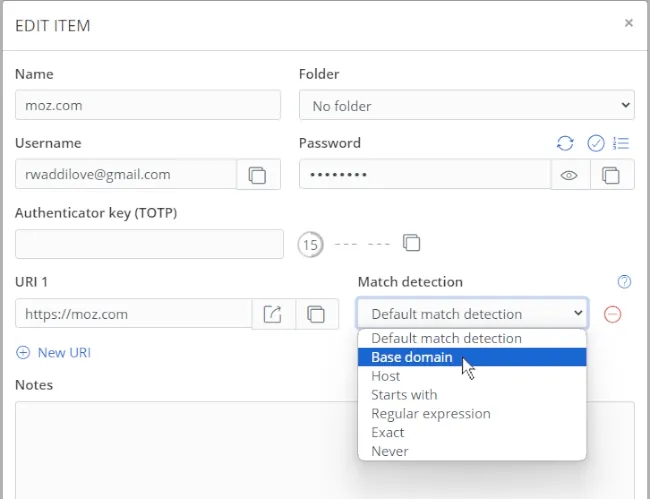
For example, Proton Mail login is account.proton.me/mail, Proton Drive login is account.proton.me/drive, and Proton Calendar is account.proton.me/calendar. All use the same username and password, but a different entry could be saved by your password manager for each one because of the different URLs.
It won’t do any harm to have separate logins for each of these URLs, but if you select the Base domain or Starts with options, you might only need one entry that works for all URLs that start with https://account.proton.me/.
As well as duplicate logins, I also have logins for sites and services I haven’t used for years. Sometimes the sites no longer exist. Delete them if you spot them while looking for dupes.
 RAWinfopages