Sometimes you need to need to remove a user from the Apple Mac, delete all their files and recover the disk space. How do you do that? Here is how to clean up the disk and remove users.
You should not remove someone that is actively using the computer of course, but there are occasions where you might want to remove an account. For example, people often pass old devices to children and teens for school work.
When you buy a new shiny Mac with the latest specifications, you can give your old Mac to your child or teen. It will be perfectly usable for several more years to come, even if it is not the latest model. You might want to keep your old account on it, but on the other hand, you may want to remove it. You don’t want your files on their computer.
If you are on the receiving end of a used Mac, or if someone else used to use your computer, but no longer do, you can remove their account and their files. The disk space they were using, which could be quite a lot, becomes free for use.
Where are a user’s files stored?
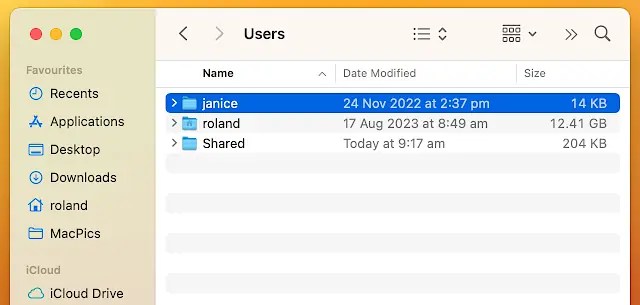
Open Finder, click Macintosh HD or whatever your drive is named, then click Users. Each user has a home folder that contains all of their personal files, like Documents, Pictures, Desktop, Music and so on. What we want to do is to remove the user account from the system and delete the folders and files that are taking up space on the drive.
Delete a user and their files

Open System Settings and select Users & Groups in the sidebar to see a list of all the users with accounts on the Mac. There is you, Guest User (an optional account), and other users. Each user is listed and on the right of their name is an i button. Click it.

A window appears that contains some useful functions, like resetting the password, or allowing them to administer the computer. Click the Delete Account button in the bottom left corner if you are sure you want to remove this person.
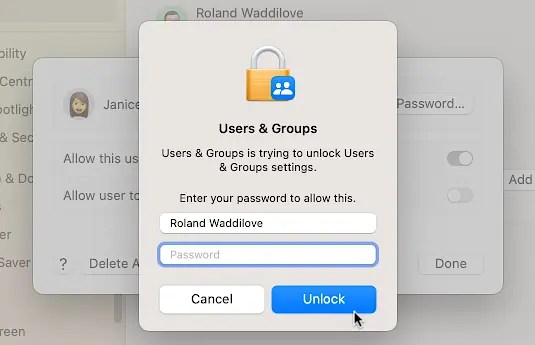
You need to be an admin to remove someone else from the system and you will be asked to enter your password to unlock the Delete Account function.

This is the last step, but don’t be too hasty to click the Delete Account button just yet because there are three options available that need careful consideration:
- Save the home folder in a disk image: This saves all the user’s files in a .dmg file. It will not free up any space unless you delete it. It can be useful if you want to archive a user’s files on an external drive or move it somewhere else.
- Don’t change the home folder: The user’s home folder and files are kept. The user will not be able to log on because they have no account, but it is useful if the user has files you need to access. Keeping their home folder will not free up disk space, obviously.
- Delete the home folder: Select this option and the user’s home folder and all the files it contains are deleted. Remember to check the Bin afterwards and delete any files there to really free up disk space.
It is a good idea to restart the Mac after deleting a user account and files.
Delete a file or folder that won’t delete
If you find that you cannot delete a file or folder, there are several possible solutions. Select it in Finder and press Cmd+I to open the Info window. Expand the General section and clear the Locked box. Close the window and try deleting it again.

If that does not work, open the Info window again and expand Sharing & Permissions at the bottom. Click the padlock to allow editing (you must be an admin). If your name does not appear in the list, click the plus button and add yourself, then click the Privilege and set it to Read & Write. Delete the original owner by selecting them and clicking the minus button. Close the Info window and delete the file or folder.
Still having problems deleting files and folders? Press Cmd+space and type ‘terminal‘, then open the app. Type ‘sudo rm ‘ with a space at the end. Drag one for more files from Finder and drop it on the command line, then press Enter to remove the file.
To remove folders, use rmdir (remove directory) instead of rm (remove). Warning: Mistakes cannot be undone!
 RAWinfopages