
Are you getting too many emails from your wordpress.com website? Choose the events you want to be notified about and stop unimportant notifications from cluttering up your email inbox.
This article is aimed at wordpress.com users and if you use self-hosted WordPress, some things are different. The former is a customized version of WordPress with slightly different settings and features than plain WordPress.
By default, every little thing that happens on your website can trigger an email. For example, if someone adds a comment, likes a post, follows you, a comment is withheld for moderation, and more. You can even get an email every day reminding you to post something.
Email notifications can be useful when you start out with a website, but as visitor numbers increase, it can result in dozens of emails every day. They become too much and you will wish they could be stopped. Let’s see how to do it.
WordPress notification settings
There are some general WordPress settings that control certain notifications and these should be set first. (This works in self-hosted WordPress too.) Log in to your wordpress.com website and click Settings in the sidebar. It expands to show several items in a list below. Select Discussion.

In the top right corner of the page with a wordpress.com site, click View and select Classic view to switch to the standard WordPress view of Settings > Discussion.

Scroll the page to get to the bottom and there are three options that need your attention titled Email me whenever. There is no right or wrong setting for these and it is up to you to decide whether you want an email every time someone likes your site, reblogs a post or follows your blog.

It is interesting for the first few times you get an email, but when the novelty wears off, you will want to clear the checkboxes. You can find this information elsewhere in the admin interface if you need it.
Scroll through the discussion settings and there is another setting titled Email me whenever.

Do you want to be emailed whenever anyone posts a comment or one is held for moderation? If you get a lot of comments, you will get a lot of emails, which can be irritating. Clear the checkboxes to stop them. Just log into your site once a day and check the Comments section in the sidebar to see what’s new.
Don’t forget to click the Save Changes button at the bottom of the page after making any changes.
Personal notification settings
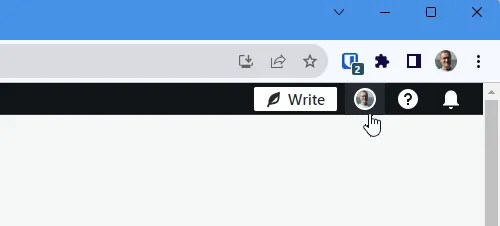
In addition to the WordPress settings, there are extra settings in your account. Click your account picture in the top right corner of the page when you are logged into your site.
Your profile appears and there is a Notification Settings section in the sidebar. Select it.
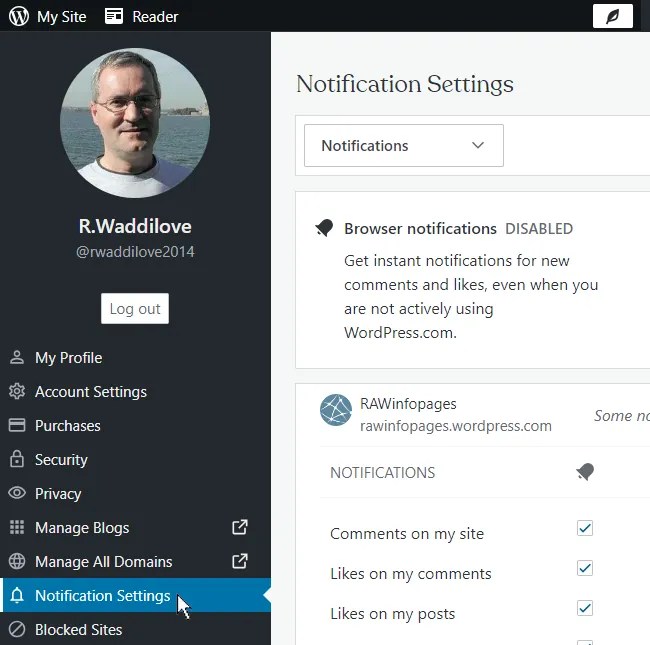
There are two types of notifications, browser notifications and emails. Use the checkboxes in the email list on the right to choose which emails you want to receive.

Email updates are fun at first, but when your site starts getting a lot of visitors, you end up receiving a lot of emails. You might want to enable them at first, then return and clear the checkboxes when the emails become irritating. All the information, like likes, comments and so on, can be seen elsewhere.
At the top of the notifications page are browser notifications. Whenever your web browser is open, and it does not need to be on your website, you can be browsing elsewhere, the items in the column under the bell pop up onscreen. It is personal preference whether you allow them. I prefer not to have them.
If you disable Email me whenever anyone posts a comment in Settings > Discussion, but have Comments on my site enabled in your profile, do you get emails? No. WordPress settings overrule personal settings. Both need to be enabled to receive emails and if one is off, you will not receive them.
 RAWinfopages