
Whether it is just for fun or to make important notes stand out, add a colorful background image to a Google Keep note. It looks good and makes it easier to find notes you need in the app.
There are several ways to make Google Keep notes stand out and color has been available right from the early days of the app. Make a note red, blue, green or any of several other colors and it stands out from the rest so that you can easily find it. Color can also be used as an organisational feature and a specific color could be used for all work notes, only personal notes or important ones you don’t want to forget.
Picture backgrounds to notes can be used in the same ways as plain colors. Use them to make notes stand out from the rest, or as an organisational feature by using the same background for notes relating to a particular project or topic. Labels are used to categorise and filter Keep notes of course, but adding a specific background image to a category makes them easy to see.
Google Keep is available multiple devices and the web, and it is the same everywhere. I will be using an Android phone, but everything works just the same on an iPhone too.
Open a Keep note
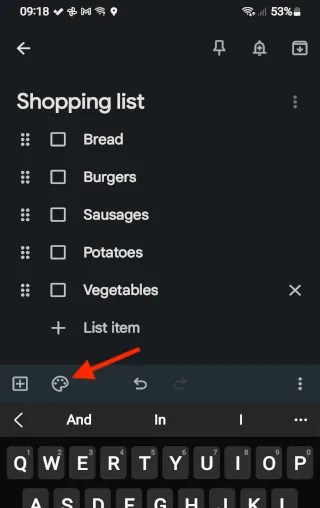
You can add a picture background to a new note or an existing note in the same way. Open the Keep app on your phone (iPhone or Android) and then open a note.
Colors and backgrounds

A toolbar appears at the bottom of the screen in view mode or above the keyboard in edit mode. Press the paint palette icon to add some color to the note.
Add a background to a note

There are two options and one is to select a solid color and the other is to select an interesting background. There are more items than will fit on the screen, so swipe left and right over the two rows to see more colors and backgrounds to choose from.
Select a background by tapping one of the thumbnails at the bottom. The leftmost item removes the image. This note is a shopping list, so I selected a food background. Choose whatever background is appropriate for the subject.
View your note

Tap in the note to hide the color/background picker tool and you can see the note and background. If it seems dark, this is intentional because you need to have sufficient contrast between the text and background image to be able to read it. A bright background would make the text too hard to read.
Notes with backgrounds in the feed

Here is Google Keep with two notes with backgrounds. They look great and they really stand out from the rest of the notes when scrolling through your feed. This is a great feature that you should be using more often.
I would not over use it though. Reserve its use for special notes that you want to stand out. Use it to categorise notes, if you collect recipes for example, give them all the same food background to make them easy to find.
 RAWinfopages