You get 15 GB of storage space with a free Google account, but although it sounds a lot, you’ll run out of storage for emails unless you clean up, clear out and optimize your inbox. Here’s how.
Google storage is shared between emails, photos, documents and other things (some apps back up to Drive), and this means that the storage space is easily used up. You could simply pay for more space and you can have terabytes if you need it and don’t mind the cost.
Why not simply upgrade your storage? A lot of people prefer to stay on the free plan, but even if you pay, it is still a good idea to keep your Gmail inbox organized and clutter free.
Delete old emails
If you have been a Gmail user for a long time, you will probably have emails from years ago that are no longer needed. I have emails that are over 11 years old in my inbox, and that is after I cleared out even older ones. Ask yourself whether you really need to keep them.
Open Gmail in a browser and select the inbox. At the top on the right is the number of emails displayed and the total. In the screenshot you can see that 1-50 of 7,404 is being displayed.

The default view is to list emails sorted by date with the most recent first. Click the number of emails and a menu is displayed. Select Oldest and the display order is reversed. Now the oldest messages are at the top.
This enables you to see emails that are probably no longer needed. I can’t remember when I needed to refer to an email from 2012 and some of the companies, people and services I have messages from are either no longer around or I moved on and no longer use them.
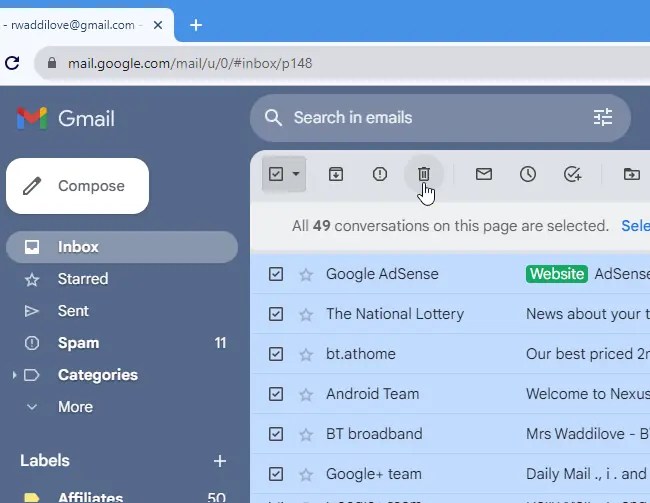
Click the checkbox in the top left corner of the inbox listing to select all emails. Before you click the Delete button, quickly look down the list of selected messages and clear the tick next to any that you want to keep (none in my case). Then delete them.
I check emails every now and then, and delete any that are over 10 years old, but it is up to you.
Find and delete large emails
Text emails take up so little storage space that it is hardly worth the effort of finding and removing them. When you are running short of storage space, finding and deleting large emails results brings the most storage benefits.
Click in the search box and type ‘larger:5M to search for large emails. How large? Use 1M for 1 MB, 2M for 2 MB and so on. You could start big and search for 5 MB emails, then if you need to free up even more space, search for 4M and so on. I was surprised to find 20 emails that were 5 MB or more.
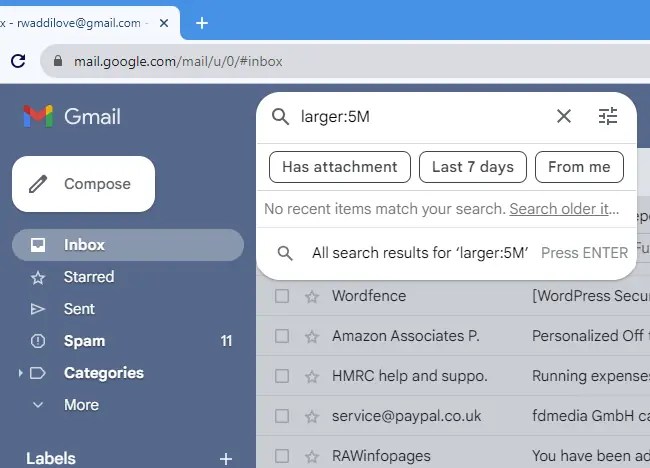
Look at the emails found and select and delete the ones you do not need. Big emails are often big because they have attachments. Save the attachments to disk if you need them and delete the emails.

Emails are often large because of attachments. Type ‘has:attachment‘ into the Gmail search box, or click the suggested button, and all emails that have attachments are listed.
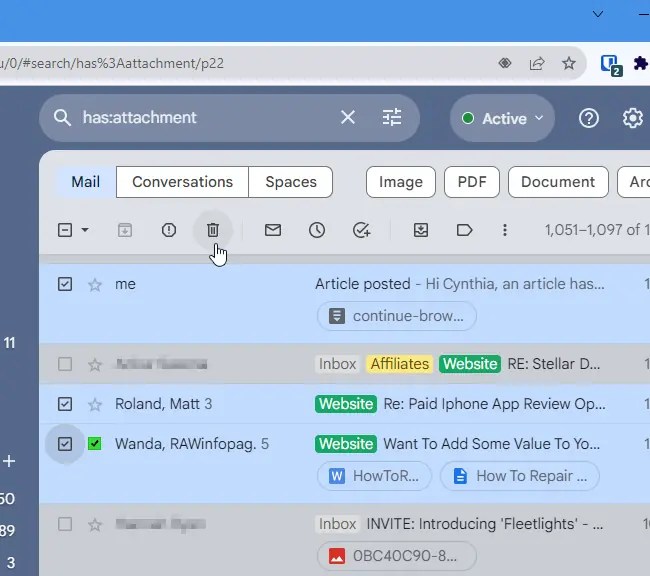
Save the attachments to your computer if you need them, and then delete the emails to free up storage space.
Unsubscribe from newsletters and updates
Are there too many newsletters and other emails in your inbox? Do you spend too much time deleting them? Do they get in the way of more important emails? You need to get rid of them.
We often sign up for newsletters and updates, but then never read them. Sometimes we are forced to receive them because they come with signing up for an online service. A social network might update you with every little thing that happens, for example.
It is best to keep on top of newsletters and when you see one in your inbox, open it, ask yourself whether you really want to keep receiving them and click the Unsubscribe link if you don’t.
Sometimes we don’t have time to deal with them or we simply delete them and they build up over time. You can end up receiving a lot of emails you don’t read and don’t care about. Find them and delete them.

A quick and easy way to find newsletters and mailing lists is to simply search for ‘unsubscribe‘. It is a bad idea to click unsubscribe links in spam, junk and phishing emails of course, but Gmail is good at filtering them out. Any emails in your inbox should be OK. Unsubscribe links in most emails work, so use them.
After searching, use the > button at the top of the results to go to the oldest emails. You will find newsletters from years ago that are no longer relevant or needed. Select them and delete them to free up storage space and clean up Gmail.
 RAWinfopages