
The URL of a post on a website is important because it has an effect on SEO and people. It affects search ranking and can put off potential website visitors if it is not memorable or is complex.
The default URL for a post published with WordPress is like https://www.example.com/?p=123. That does nothing for SEO and is meaningless for people because it tells you nothing about the post or page.
There are two parts to a URL and the first is the domain name, which is like http://www.example.com or whatever your site is called. The rest is added by WordPress when a post is published.
You may already know how to set the URL scheme or permalinks as it calls them, and even change the URL of a post or page after it has been published. But do you know how to set the URL before a post or page is published?
There is a sneaky trick to do it and it solves the problem of changing a URL after a post has been published. As soon as you publish a post, it may be submitted to a search engine like Google or Bing. Changing the URL after it has been submitted should be avoided and you can do this by changing it before publishing and submitting.
Set the WordPress permalink structure
Log in to WordPress as an admin, Click Settings in the sidebar and then select Permalinks. Among the settings are the options below. Never select Plain or Numeric because they are the worst for SEO and for people.
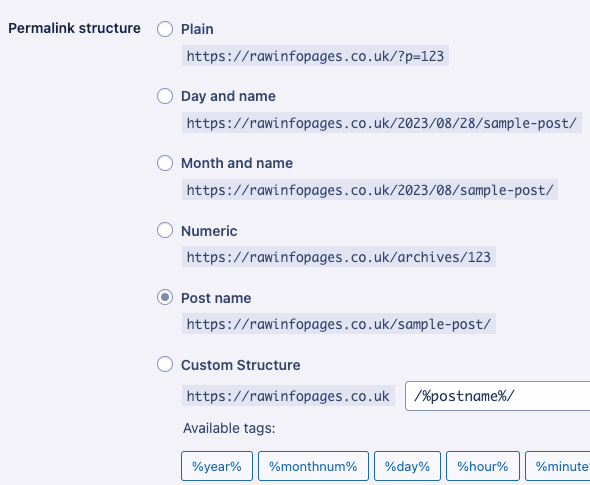
The best options are Day and name, Month and name or simply Post name. Do you want dates in the URL or not? They could be useful for a news site or a blog where it is important when an article was written, but Post name is best if you have evergreen content that is relevant no matter what the date.
It is best to select the right setting when a WordPress site is created because search engines and backlinks from other sites will not be able to find posts if you change the format of an existing site. For example, if sites or search engines link to example.com/2023/8/12/post-title, they will break if you change the URL scheme to example.com/post-title.
You would need to add complex redirects on your site to take people from the old URL to the new URL. Don’t do it on an old site unless you are an expert. Stick with your current permalink scheme.
Edit a WordPress post URL after publishing
The same problems occur if you change the URL of an already published post and any links to it will be broken. However, if you change the URL of a just published post, then there shouldn’t be any backlinks and search engines probably have not got around to indexing it yet.
It is still not a good idea to change an already published post though. Some SEO plugins immediately inform search engines as soon as a post is published and it can confuse them if they then cannot find the post because you altered the URL.
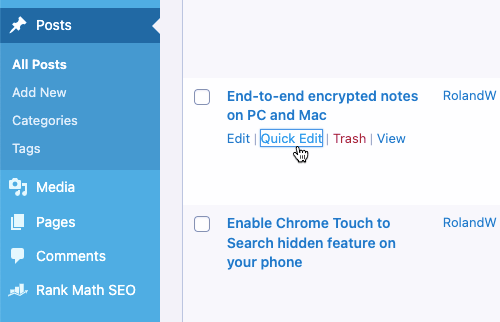
If you really want to edit a post URL, select Posts in the WordPress sidebar, move the mouse over a post in the list and then click the Quick Edit link that appears below the title.
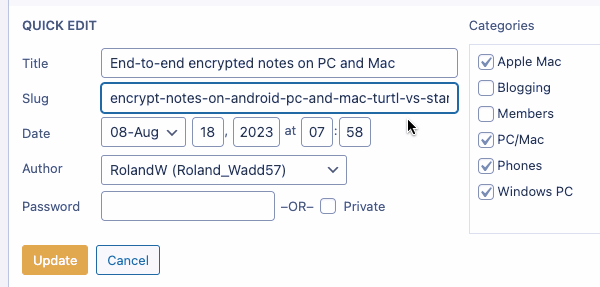
The editable part of the URL, which comes after your domain name like example.com, is displayed. If it is too long, too short, or does not contain the keywords you want, click in the Slug box and edit it. Use dashes (minus signs) instead of spaces, no punctuation, and all lowercase.
Edit a WordPress post URL before publishing
Changing URLs after publishing a post is a bad idea as we have seen. It is far better to set the right URL before publishing. However, before clicking the Publish button in the top right corner of the editor, the URL looks like the plain permalink option.
The example below is typical and the URL is ?p=264 ignoring the domain name. Do not click Publish, click Save draft at the top of the page instead.
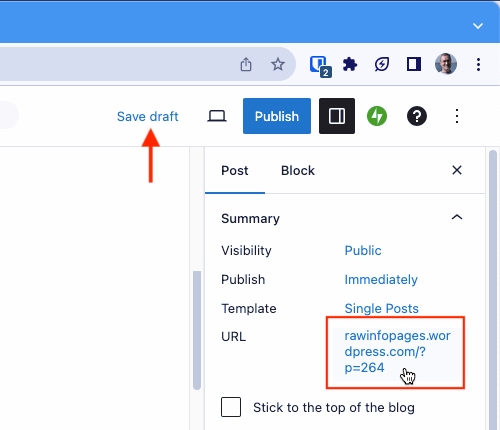
When a draft is saved, the plain URl is replaced by the real URL that will be used on publishing. It depends on your permalink scheme whether there is a date or not, but the part after that is made from the title of the post.
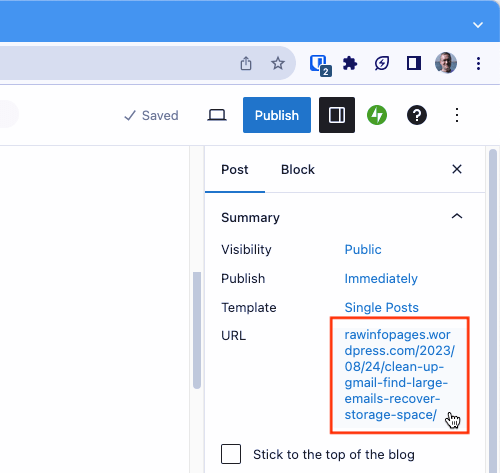
Click the URL and a URL editing box appears in which you can edit the permalink and change it to whatever you want.

Often the URL is a bit long and wordy because it comes from the title. Shorten it if possible, cut out unnecessary words and add keywords if needed. Make the URL short and snappy. Use dashes instead of spaces, no capitals, no punctuation.
When you now click the Publish button, the article is published with your chosen URL, which you will have optimized, and if your SEO plugin submits the new post to search engines, it will be right first time and won’t need to be changed. This is good for SEO.
 RAWinfopages