
Are you happy with the default color scheme in Windows 11? Would you like to choose your own colors? Here’s how to select the color of the taskbar and it’s easy when you know how. Try it!
What color is the Windows taskbar and Start panel on your PC? Is it beige? Whatever color it is called, it is certainly very bland and you might wish you could change it for a more exciting color. You can, and no software is needed. You just need to configure the right Windows settings.
However, there is one drawback to changing the color of the taskbar and Start menu, and this is that you have to change the color of everything before you can change the color of those two items. It is an odd situation, but that is how it is.
Let’s see how to set Windows colors. It is easy to experiment and easy to reset everything back to normal if you change your mind.
Windows personalization settings

Press Windows+I on the keyboard to open the Settings app in WIndows 11 and select Personalization on the left in the sidebar. Among the options on the right, click Colors
Use Windows Dark mode
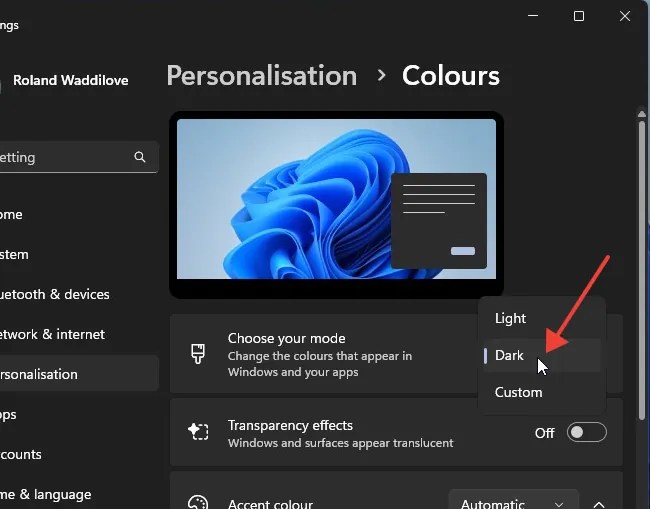
In the Settings > Personalization > Colors section, look for Choose your mode. The default setting is Light, but in order to change the color of the taskbar, you must select either Dark or Custom. It will not work with the default Light mode selected.
Select an accent color
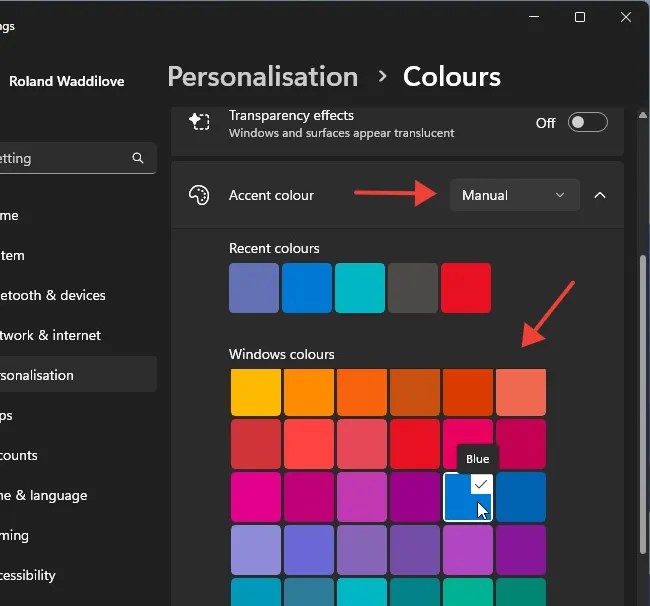
Scroll the Colors section a little and further down is an item called Accent color. Normally, it is set to Automatic, but click it and select Manual in the menu that is displayed. The accent color can be applied to certain Windows components.
Below are recent colors and Windows colors. Click the color tile of the one you want to use for the taskbar and Start. I have selected blue, but you need to choose a color that suits whatever desktop wallpaper image you are using. Some colors will look good, but some may clash.
Show accent color
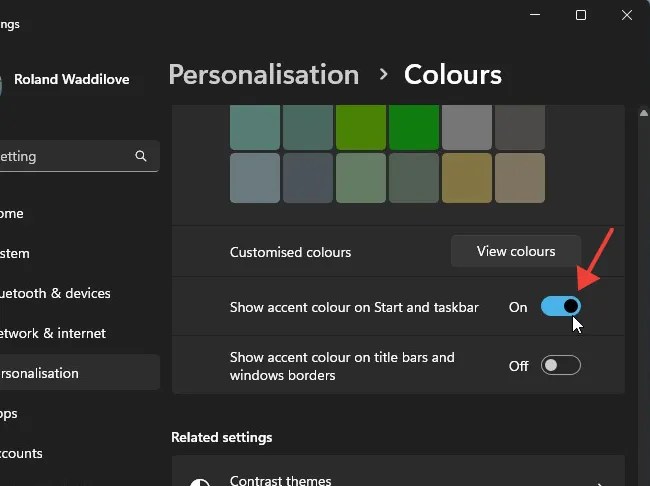
Scroll down the Personalization > Colors section even further and below the colored tiles is a setting called Show accent color on Start and taskbar. Turn the switch on to apply your selected color to these items.
Below this is another setting, Show accent color on the title bars and window borders. This is optional and it is up to you whether you select it or not. Try it with and without and see which you prefer.
View the taskbar and Start panel
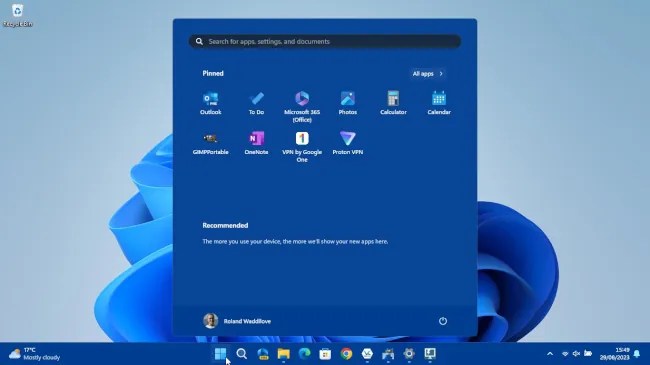
Close the Settings app and take a look at the newly colored taskbar. Click the Start button to open it and see what it looks like. If you find that the color isn’t what you wanted, return to the Settings app and pick a different color.
Windows does not have to be boring and a dark theme and custom taskbar and Start menu colors are just a few clicks to change.
 RAWinfopages