
View the clipboard history in macOS and see everything you have copied. Select any item and paste it. These free tools extend the capabilities of the clipboard on the Mac, making it more useful.
The ability to store multiple items in the clipboard on the Mac should be built into the operating system and it is a fundamental need that has never been met on the Mac. Windows PCs have it, so why not Macs?
Although Apple has not yet added this feature, and there is no sign that it will, there are plenty of free and paid apps in the Mac App Store that add multiple clipboards. Search for ‘clipboard’ in the store and the results list goes on and on.
There are dozens and I selected five for this software roundup. There are many more, but these are good and don’t come with adverts or payment. They are free, so you can install them all and try them yourself, but I have a favorite.
ClipTools
ClipTools îs a free app in the Mac App Store. It is only 2.1 MB installed and when it is run, it adds an icon to the menu bar. After allowing it in System Settings > Privacy & Security > Accessibility, it is ready to use.
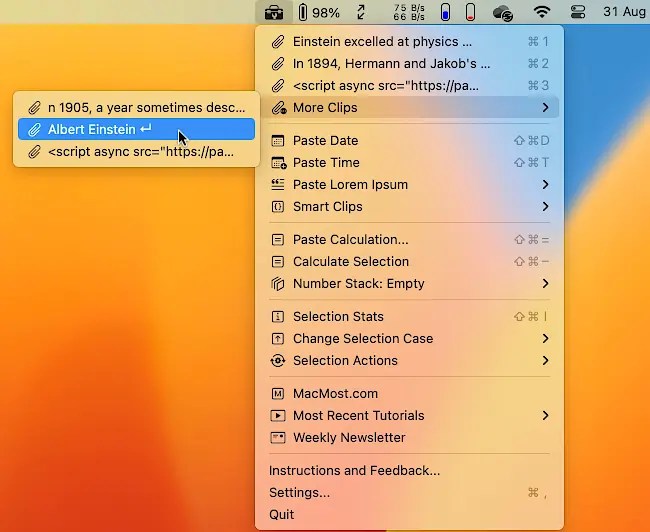
ClipTools remembers any text that is copied to the clipboard and stores it in a history list. It does not remember images, files, and other non-text items. This is a limitation, but if you mainly want to store multiple text items on the clipboard, this is a great tool.
Text copied to the clipboard is added to a list in time/date order. The most recent three items are shown and a More Clips menu is used to access the rest. The number of recent items can be increased in the app settings.
Click an item in the clipboard history list and it is made the current item and it is pasted into the current app. There are nine options to change the case, like uppercase, lowercase, capitalise first letter and so on. There are also nine actions that can be performed, like removing extra spaces, stripping tags, change quotes and more.
ClipTools can paste the date and time, Lorem Epsom text, perform calculations and paste the results. You can also create your own clipboard items by entering text, with no need to copy it from somewhere.
Clipboard Doctor
Clipboard Doctor is a free clipboard tool in the Mac App Store that provides a good range of features. Run the app and it begins storing whatever you copy to the clipboard.
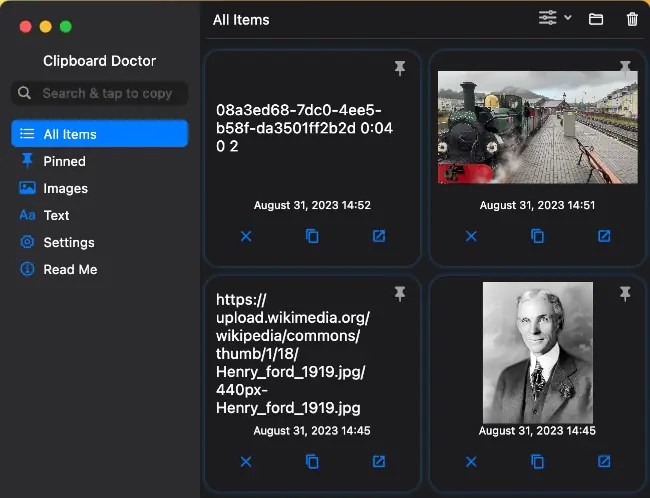
The app shows the clipboard history as a collection of tiles sorted by oldest or newest first. Both text and images copied to the clipboard are stored and thumbnails of the images enable you to see exactly what they are.
There are three buttons at the bottom of each clipboard tile. The first deletes it, the second copies the item to the clipboard to make it the current one, and the third previews the text or image. It actually opens images in Preview.
Any clipboard item can be pinned to the top and you can view only images or only text items. The clipboard tiles look good when there are images and lots of text, but I thought the tiles wasted screen space with short clipboard items like a few words or a URL. A list view would be useful.
That’s about it feature-wise. It simply stores clipboard items and lets you make any previous item the current one.
Copy Me (Clipboard Manager)
Copy Me is a free clipboard manager in the Mac App Store that is useful if you want to organise your clipboard items. Run it and it appears as an icon in the Mac’s menu bar.
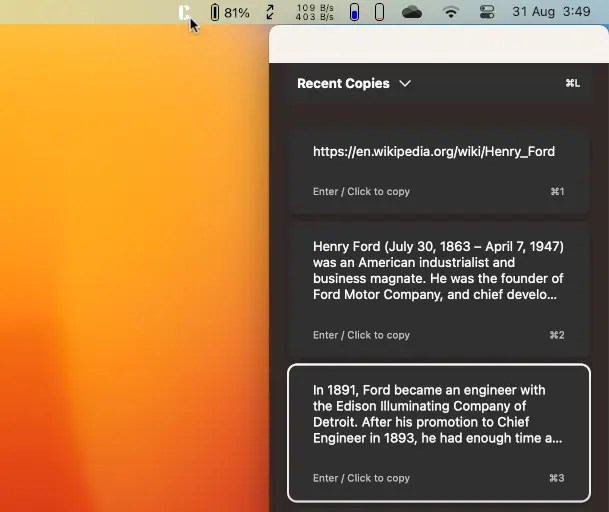
As you copy items from apps and web pages, each item is saved by Copy Me. Click the menu bar icon and a panel appears on the right that contains a history of all the items. Clicking any item makes it the current one.
It only saves plain text clipboard items, but it enables you to create folders and assign a color to it. Any item in the clipboard history can be dragged and dropped into a folder. This makes Copy Me useful if you want to build up collections of text clips, such as for a project or programming clips.
I found the interface confusing. There is no help in the app, so it was a bit of a struggle at first. I couldn’t even work out how to quit it for example. However, once I had worked out how to use it, it was easy enough. Try it if you want to organize text clippings.
Clipboard Extension
In the Mac App Store, this is called Clipboard Extension, but it is when installed on the Mac it is called Clipboard Plus. Whatever its name, it is a free utility that lives in the macOS menu bar.
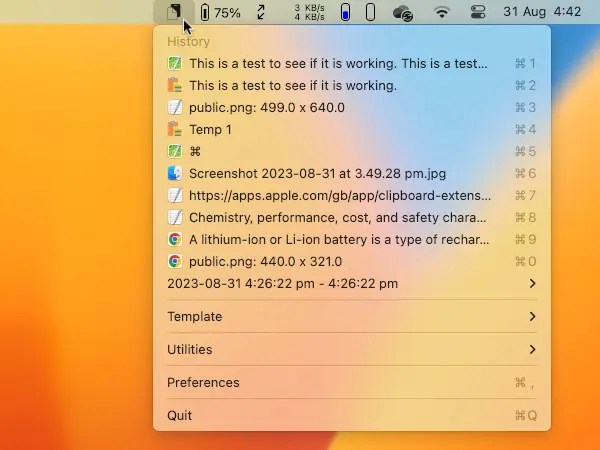
Copy items to the clipboard, click the Clipboard Plus icon in the menu bar and a list of clipboard items is displayed. Images and text are saved and the menu is in date/time order.
A nice feature is that a preview pops out at the side of the menu displaying the item the mouse is hovering over. It is especially useful when there are images on the clipboard and you can preview them and make sure the right one is selected.
Another useful feature is the menu to insert special characters like Command, Option and other Mac key symbols. You can also create templates. It doesn’t say what they are, but they seem to be manually created clipboard items. You could create a collection of your favorite code snippets for example.
Overall, Clipboard Extension or Plus, whatever it is called, is quite a useful clipboard tool.
ClipVault – Clipboard Manager
ClipVault is a clipboard utility in the Mac App Store. It is free of charge and only 1.5 MB installed, which is almost nothing.
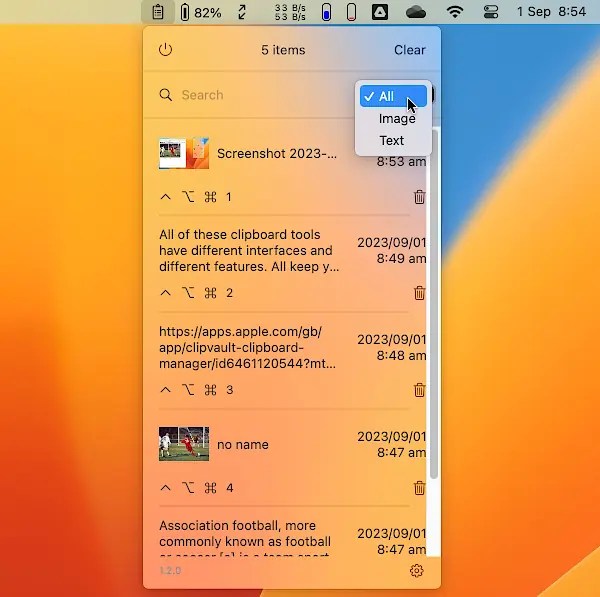
ClipVault adds a menu bar icon and when clicked, it shows a menu that lists everything you have copied to the clipboard. It copies plain text, images and even files. Other clipboard managers simply copy the filename from Finder, but with ClipVault you can select the file on the clipboard and then paste it.
There are no settings, no options, just a menu that shows the clipboard history. Click an item on the menu and it is moved to the top and becomes the current item. A trash can next to each item enables you to remove it. There’s just one more item and that is image or text filter for the menu.
I linked this clipboard manager the best because it is simple, easy to use, and records more than the others on test. It has a minor bug and sometimes clipboard items are duplicated. However, it is easy to remove them.
Conclusion
All of these clipboard tools have different interfaces and different features. ClipTools has useful extras, like changing the case of clipboard text, inserting calculation results and more. Copy Me is useful if you want to organise clipboard items into folders or libraries. Clipboard Plus/Extension and Clipboard Doctor store images as well as plain text.
My favorite clipboard manager is ClipVault. It stores text, images, and files, and makes items easy to browse and select from a menu bar icon. I like the simple interface, and features.
 RAWinfopages