
Which browser do you use on your Android phone? Chrome is the most popular by far, but is it really the best? If you have not tried Edge, you’re missing out on a great mobile browser for the web.
Different web browsers suit different people and my favorite may not be your favorite, but here I will list some of the reasons why I like Edge the best for my Android phone.
Looking at browser usage statistics, Edge does not even register. It’s usage must be so low. Don’t let this put you off because 50M+ downloads on the Google Play Score and a rating of 4.6 from users means you should take a close look at this browser. Chrome, which has 65% share of mobile browsing is rated only 4.0.
1 Prevent tracking on the web
The most highly rated mobile browsers on Google Play Store are the ones that focus on privacy. Edge for Android has useful tracking prevention features that helps to improve privacy and speed up the web.
Open Edge, press the hamburger icon in the bottom right corner and then press Settings. Select Privacy and security followed by Tracking and prevention.
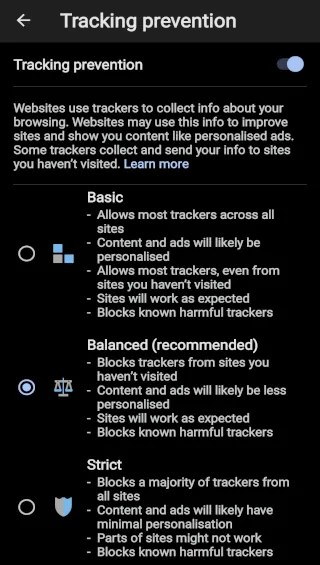
There is a master on/off switch at the top and below are three levels of privacy. The Strict option provides the most privacy by blocking the majority of trackers on websites. However, it may occasionally cause problems with certain sites. The Balanced option is recommended.
Go to the bottom of this screen and press Exceptions to add websites that are not blocked. This is useful for fixing sites that don’t work or where you want to allow tracking.
Edge is owned by Microsoft and some browsing data will be passed on to them, but since I have a Microsoft account, OneDrive, To Do, Office, Outlook and a Windows PC, I am not giving up much using Edge too. It’s good to block third party trackers.
2 Block ads on websites
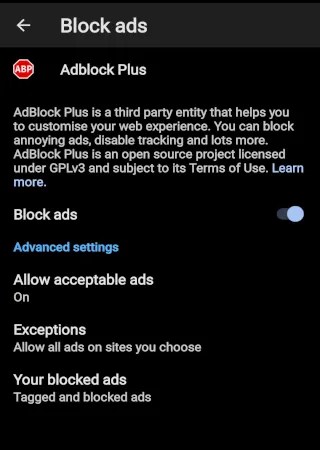
Return to Settings > Privacy and security and press Block ads. AdBlock plus is built into Edge for mobile and turning it on gives you a clean ad-free browsing experience. There is an option to show or hide acceptable ads and it is up to you whether to enable it or not.
I am not against ads and I do not mind the occasional ad on websites. However, some of the websites I visit are almost impossible to view because of all the ads and popups that appear.
I find that news sites are among the worst, and I really want to keep up with the news. If I run the website for the local newspaper where I live through GTmetrix speed test, it fails. GTmetrix either times out taking too long to load the site, or it runs out of memory and displays an error message. Using Edge, the site is fast and clean, and I can read the latest news in my town.
I ran a typical page from the Daily Mail website through GTmetrix and it reported “GTmetrix tried to analyze the page, but it took longer than 2 minutes to finish loading.” That is the desktop site. The mobile site is a bit better, but it is still bad. In Edge it is fine thanks for ad and tracker blocking.
I’m not a Daily Mail fan, and I only mention it because it illustrates the problem some websites present and how Edge fixes them.
On this screen, press Exceptions to add websites that are not blocked. This is useful for where you want to allow ads. For example, sites with a few non-intrusive ads where you want to support the site by allowing them.
3 Block malicious websites
Go to Settings > Privacy and security and press Smartscreen. Turn it on and Microsoft Defender Smartscreen protects you from malicious websites and downloads. This is not a feature unique to Edge and other browsers offer protection from bad websites.
4 Summarize articles using AI
If an article on a web page is long and complicated, and you don’t have the time or inclination to read it all, Edge can summarize it for you. Press the B button in the toolbar at the bottom of the screen and there is a button to summarize the page. Sometimes it goes straight to the summary.
AI is used to analyze the page content and after a second or two and summary is displayed that can be quickly read and more easily understood. It often boils it down to just a few bullet points.
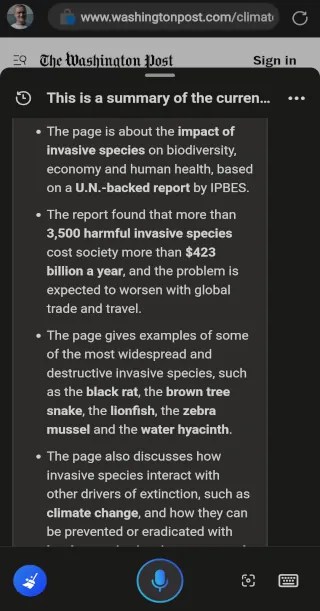
Highlight a word or phrase on the page and an option appears at the bottom of the screen, Ask me about the selected text. Press it and a panel opens. It may show part of the article summary, but there are also action buttons and the selected text can be sent to chat.
Bing AI chat that is. You are asked what you want to do with the text, such as explain it, revise it or expand it. Select Explain and the AI can produce anything from a dictionary definition to a long explanation. It is not a general explanation like you might get in a dictionary, but is based on the context it is used in the article. Related web articles may be listed too. This is excellent and very useful.
Reading mode
Most web pages contain unnecessary or unwanted items that get in the way and make it harder to read articles. There are popups, ads, related content, banners, notices and more.
Edge displays a small icon, like a book, in the right side of the URL box. Press it and all the web page clutter is removed, leaving a clean and easy-to-read article with just text and the relevant images. Anything not relevant is removed. There is even a button to have the article read out to you.
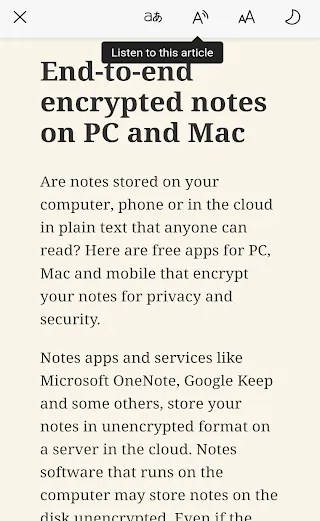
The style of text in reading mode can be customized, such as the font size, font type, alignment, spacing and background color.
This is not unique to Edge, and Chrome does it very well too, but I would not use a browser that did not have it. It is not available on every web page because some are not suitable, but when it is, it is brilliant. It makes a huge difference to the readability of web articles.
Edge has plenty of other features, some of which may be useful to you, like Collections, Drop, Send to devices, Translate, Microsoft rewards, syncing with Edge on the desktop, and others. I have just highlighted the ones that are important to me and why Edge is the my favorite mobile browser.
 RAWinfopages