
A 404 error on a website means a URL does not correspond to anything on the site. A special page is displayed that is deadly boring. Make your 404 page exciting by customizing it in WordPress.
A 404 error is displayed on a website when page or post cannot be found for a URL. It is the page shown when no match is found to the URL in the address box of the browser. There is no matching page, post, or image. Customize your website or blog 404 page by adding your own text or images to it.
All websites generate a 404 page and it is a basic built-in function. If you want to see yours, enter something like http://www.example.com/fkashjdk. Adding any random letters after your website’s URL will generate a 404 error and so it displays the special 404 page – not found.
How do 404 pages occur?
When posts or pages are deleted or moved on a website, any links to them from external sources like social media and other websites will be broken. Someone that clicks a link to visit the site will get the special 404 error page because the URL no longer exists.
If someone types in the URL to a page or post on your website or blog and makes a typing slip, that post or page will not be found and the 404 error page is displayed instead.
It is possible to redirect incoming visitors to the new URL of a post or page that has moved, which is called a 301 redirect. However, any site that is not trivially small will usually have at least some 404 errors.
Examples of 404 pages
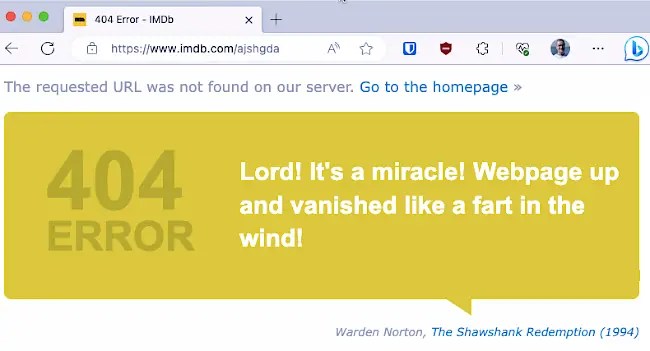
404 pages are boring by default, but they don’t have to be and they can be customized to make them helpful or even fun. Take a look at these by adding a few random letters after the URL: netflix.com, imdb.com, pixar.com and there are many more great 404 pages.

For this guide I am using WordPress 6.3.1 with the Twenty Twenty Three theme. This combination uses full site editing for block themes, which is different to the old way of customizing traditional WordPress themes. Full site editing can be confusing at first, so hopefully this guide will help. This works with self-hosted WordPress and wordpress.com websites.
Related: How to edit the WordPress post URL before publishing
Open the theme editor
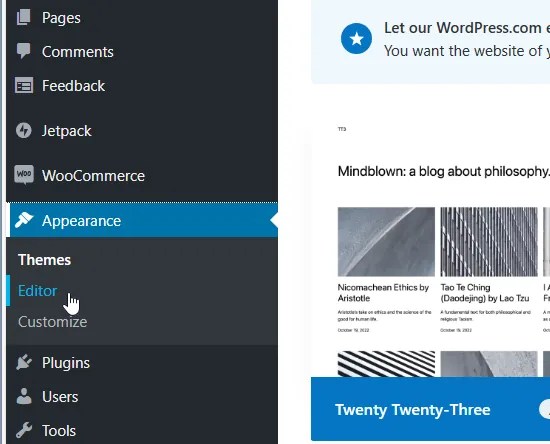
When you want to change some part of your website with WordPress and a theme that supports full site editing, click or hover the mouse over Appearance and then click Editor. (If you don’t see Editor, you don’t have a theme that supports it.)
Design templates
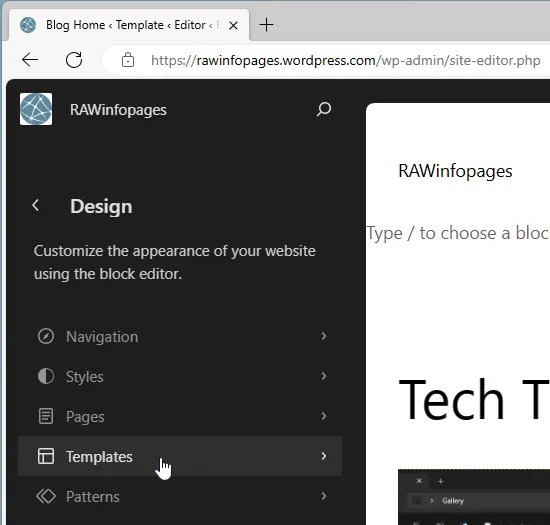
A new page opens with a preview of the homepage of your website on the right and a Design sidebar on the left that contains links to various sections. Click Templates in the sidebar.
Theme templates
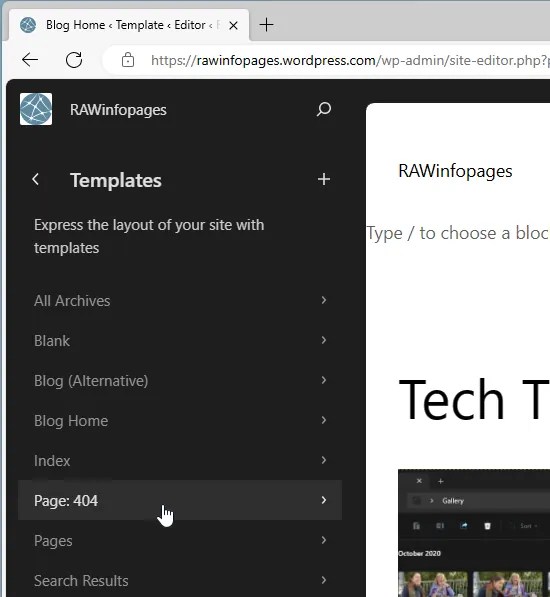
Different themes have different options, but with Twenty Twenty Three there are key pages listed in the sidebar, like Blog Home, All Archives, Blog Home, Search Results and, the one we want, Page: 400. Click it to open it.
View the 404 page template

Here is the default 404 page for the Twenty Twenty Three WordPress theme. It is very dull, says almost nothing, and duplicates the search box. Click in the page to switch to editing mode and click the Settings button in the toolbar at the top right of the page to show the panel on the right for setting block attributes like colors, spacing and so on.
Customize the 404 page

You can now edit or remove existing elements and add new items of your own. A couple of simple changes you can make is to edit the text and add a bit more explanation as to why your site visitor is seeing this page and what they should do next. An image can be added to add interest to the page too.
Save and view
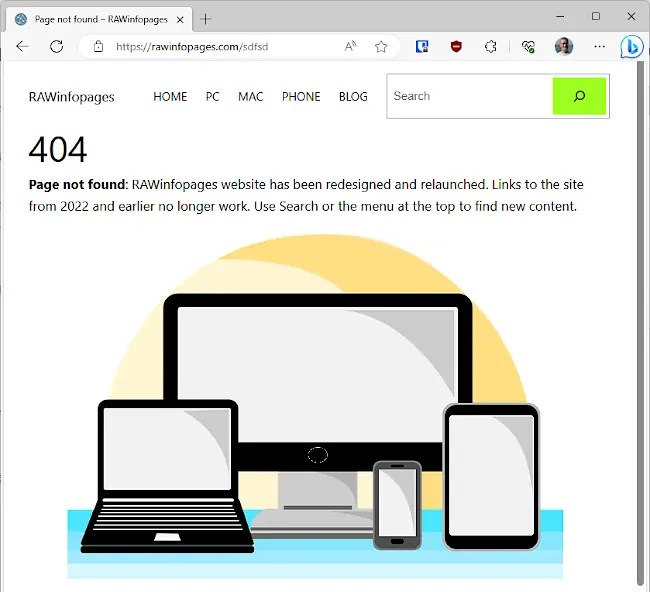
When you have customized the 404 page, click the Save button in the top right corner. If you want to view it live, enter your site’s url followed by some random characters, like example.com/abcxyz and it will be displayed. If it is not as you want, return to the editor and change it.
Here is the customized 404 page for this website. Compare it to the one a few screenshots back. It is much better.
 RAWinfopages