
Type or paste a URL in an Outlook email and a link preview appears. Is it useful or just an irritation? Whatever your preference, you can enable or disable it. Here’s how link previews work.
Web link previews in emails are an irritation to some people, but to others they are a great feature. People either love them or hate them. Outlook is not the only email service that has link previews and many Apple Mac users are very irritated by it because there is no way to turn it off in Apple Mail. You can in Outlook. Turn them on, turn them off, it is up to you.
Let’s take a look at the link preview feature in Outlook and see how to enable and disable it. I will be using Outlook in a web browser, not Outlook software installed on a computer. However, you may find the same options in the app.
Create an email
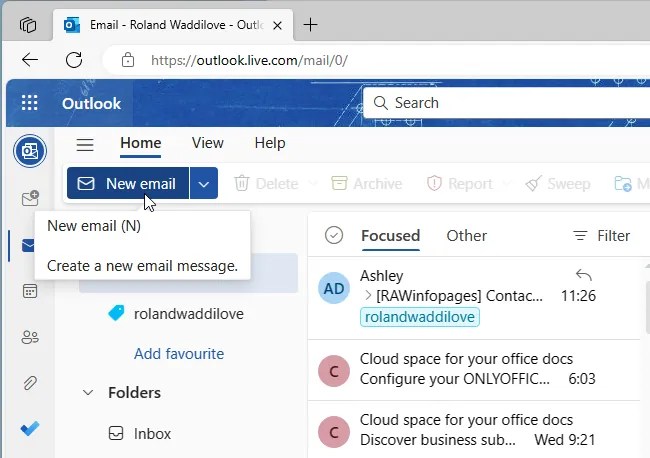
If you don’t know what I am talking about, open outlook.com in a web browser and then click the New email button in the top left corner to create a new message.
Enter the content

You don’t need to actually send an email to see link previews, so it is not important whether you address it or add a subject. Just enter some content into the email body.
Insert a web link
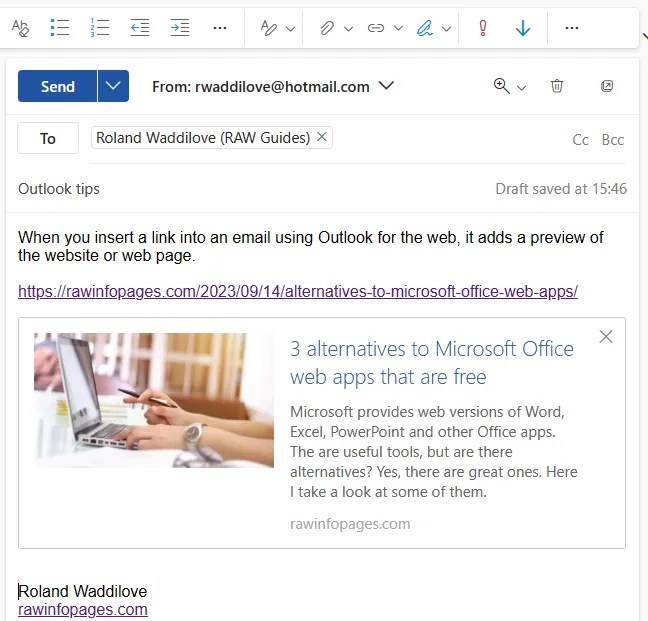
In the email body, either type in the URL of a website or paste a URL you copied to the clipboard from a web browser. About a second after typing or pasting, the link preview appears. It looks a lot like a social media share and it has the featured image, heading and description.
If you don’t see this, it just means the feature is turned off. We will see how to turn it on in a minute.
Is this useful or is it an irritation? Maybe you don’t want it and just want to email a URL to someone. If you had an email with a lot of web links, you certainly would not want it littered with lots of link previews.
One way to remove a link preview is to click the cross icon in the top right corner. This just leaves the URL that you entered or pasted.
Send plain text emails

Another way to avoid link previews in emails is to send messages in plain text format. Click the three dots at the right side of the formatting toolbar when creating an email in Outlook and select Switch to plain text. The link preview and any text formatting is removed.
To make plain text the default for new emails in Outlook, click the gear icon in the top right corner of the page and select Email > Compose and reply > Message format. Choose HTML for rich text formatting and link previews, or select Plain text for simple text without any formatting.
Enable or disable link previews
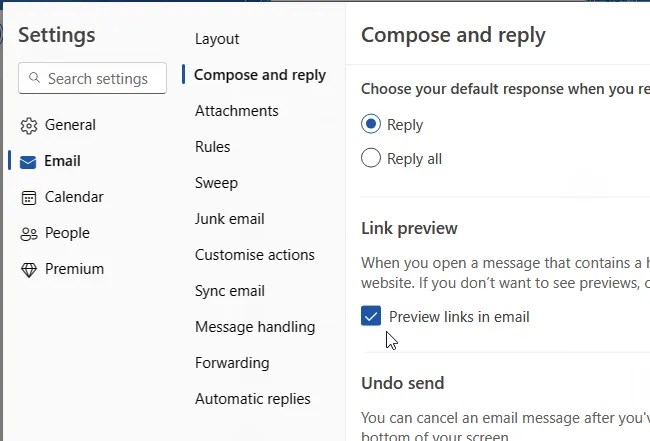
Suppose you want rich text emails with formatting features, but you don’t want link previews. To make this the default in Outlook, click the gear icon in the top right corner of the page and select Email > Compose and reply. Scroll till you get to the Link preview section and clear the checkbox.
If you have not been seeing link previews in emails and don’t know what I am talking about, tick the checkbox to enable link previews and try them.
Receive emails with link previews
If you go to the Link preview option in Outlook settings, it says that link previews are shown when opening emails. Well, sometimes they are and sometimes they aren’t. It depends.
If someone sends you an email in plain text or rich text (HTML), you will not see link previews in the message when you open it. Outlook does not turn ordinary URLs into link previews for received emails.
If someone sends you an email in which they inserted a link preview, and link previews is turned on in Outlook settings, you will see the link preview in their email. There is something special in the email code that specifies a link preview, so the sender needs to insert a link preview in order for you to receive it.
I have seen a complaint by an Apple user that their emails with link previews were being rejected as spam. It is extra annoying for Apple users because they cannot turn off link previews when creating emails. It was only one person and maybe Microsoft does it differently in Outlook, but it is something to bear in mind if you find your emails are being classed as spam.
 RAWinfopages