
New iPhones, new Apple Watches, new Macs are here every year, but what about your old devices? Have you removed them from your account? Here is how to do it. Clean up your devices list.
In the excitement of getting a new device, we often forget about the old one. It is put in a drawer or cupboard, given to someone else, or even binned if it is really old or not working. Yet these devices live on in your Apple account.
When you no longer use a device like an iPhone, iPad or Mac, it is a good idea to remove it from your account. This logs it out. This means that if someone got hold of the device, they could not access your Apple account information, iCloud or any of the files and information it contains. It cannot be used to approve logins to your account. It is recommended that you remove old devices for security.
Let’s see what devices are associated with your Apple account and how to remove old ones you no longer need.
Delete devices from your Apple ID
There is more than one way to remove devices from your account and here is the best one. Open a browser window and go to appleid.apple.com and sign in with your Apple ID/iCloud email and password. You can sign in with touch on a recent Mac.
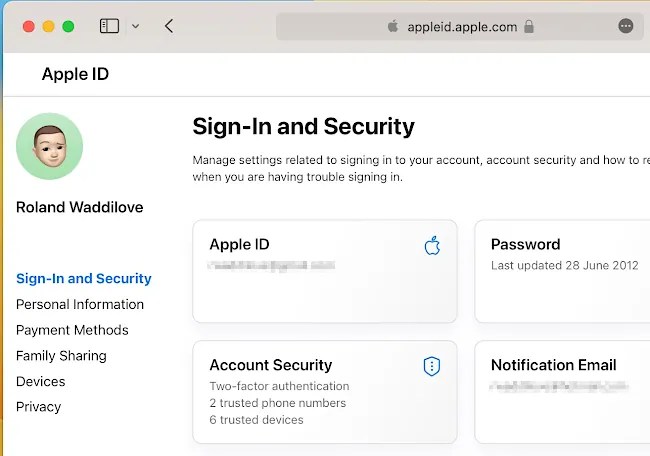
A Sign-In and Security page is displayed that contains a collection of cards. These enable you to access, view and configure various features in your Apple ID account. Click the Account Security card.

This shows your trusted phone number and trusted devices. These are all the devices that can be used to authorize a login to your Apple account. When you try to log in to your Apple account, or iCloud on new device or in a new browser, one or more of these devices will ask you to confirm that it is you. If it is you, you can allow it, but if it is not, you can block it.
If a hacker somehow got hold of your Apple email and password, they would still not be able to get in because they do not have one of your trusted devices to authorize it.

It is a bad idea to have old, discarded or sold devices on the trusted devices list. For example, in the screenshot you can see I still have an iPhone 6 as a trusted device. I know where it is and I haven’t turned it on for years, but there is no reason to have it as a trusted device anymore.
Click a device in the trusted devices list and then click the button at the bottom, Remove from account. Any device you dispose of or sell should be removed.
Delete devices from your Apple account on a Mac
Another way to remove old and unused devices from your Apple account is by using the the Mac. Open the System Settings app and then click your Apple ID at the top of the sidebar on the left.

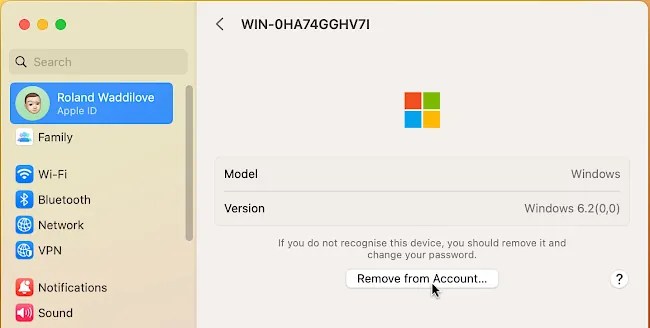
Look for the Devices section on the right. Mine is a bit of mess, and as you can see in the screenshot, for some reason I have a lot of Windows devices listed. You may have similar entries if you have ever used a PC to access iCloud or your Apple ID.

Scroll down a bit and the lists looks more normal, and my Apple devices are listed, like iPhones, iPads and MacBooks.
Click a device and the details are displayed. If you no longer use the device, click the Remove from Account button to delete it.

While I was here, I deleted all those Windows entries too. It looks like a list of every Windows computer I ever used to access my Apple account, ever.
The Apple account devices list is now much cleaner and no longer contains unused or disposed of items, which makes it safer and more secure.
 RAWinfopages