Bitwarden is a popular password manager and considering the private information it holds, you should do everything you can to make it as secure as possible. Make these changes and secure it.
Security changes over time and the methods and requirements that were acceptable a few years ago are not adequate now. For example, at one time only two pieces of information were required to lock a password manager: A username or email address and a short password.
It is no longer adequate to keep your account safe and extra security in the form of 2FA is required. This uses a second device to authorize access to your account. For example, log into a website or service on your computer and you must authorize it using your phone. Even if someone knew your username and password, they could not gain access because they don’t have your phone to authorize access.
Have you added 2FA to your Bitwarden account? I will show how.
A password manager encrypts the vault that is used to keep your passwords and other information private, and this involves many iterations of a complex mathematical formula. Cracking password vaults with a low number of iterations becomes easier and quicker as computers become more powerful. Increase the number of iterations and the password vault becomes much harder to crack.
Every so often you need to increase the iterations on your vault. Have you done this? I will show how.
I will be using a computer and a phone to increase security, but it does not matter whether you have a PC or Mac, Android phone or iPhone.
Related: Delete duplicates in Bitwarden and other password managers
Bitwarden backup
You should back up your Bitwarden vault before you do anything with your account. If something goes wrong, the backup can be imported back into Bitwarden or any other password manager. Don’t leave the backup on your computer because it is not safe, but it is OK for the 10 minutes it will take to increase security in Bitwarden.
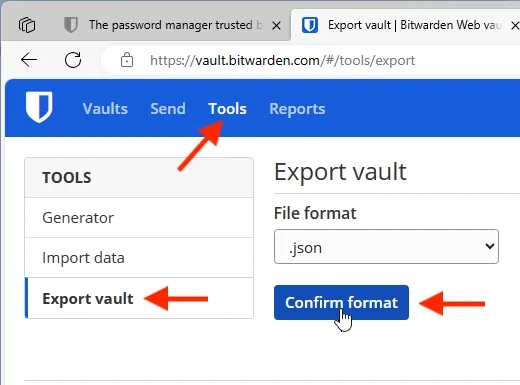
Go to the Bitwarden website and log in. Click the Tools menu, click Export vault and then click Confirm format. The default file format is OK. (You may see warnings about a bad download in your browser, but ignore them, this particular download is safe.)
Every little step from now on, you have to enter your master password. Be prepared!
Account menu
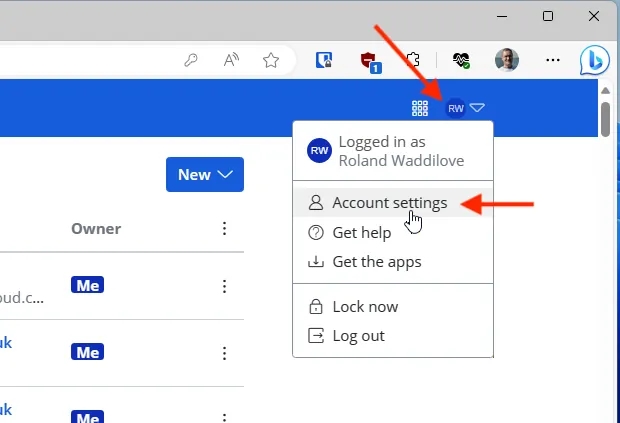
Click your account icon in the top right corner and then select Account settings. This is where all of the security options affecting your account can be accessed.
Two-step login
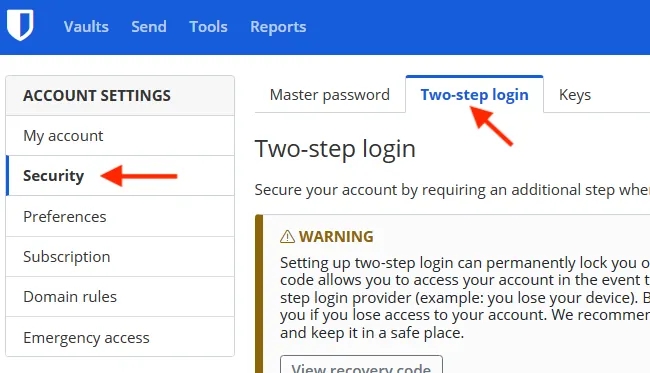
In the account settings menu, select Security. Three tabs are shown on the right and we will visit the Keys tab later. For now, click Two-step login if you have not already set this up for your Bitwarden account. Ignore the warning for now, we will return to it later.
Choose a 2FA provider
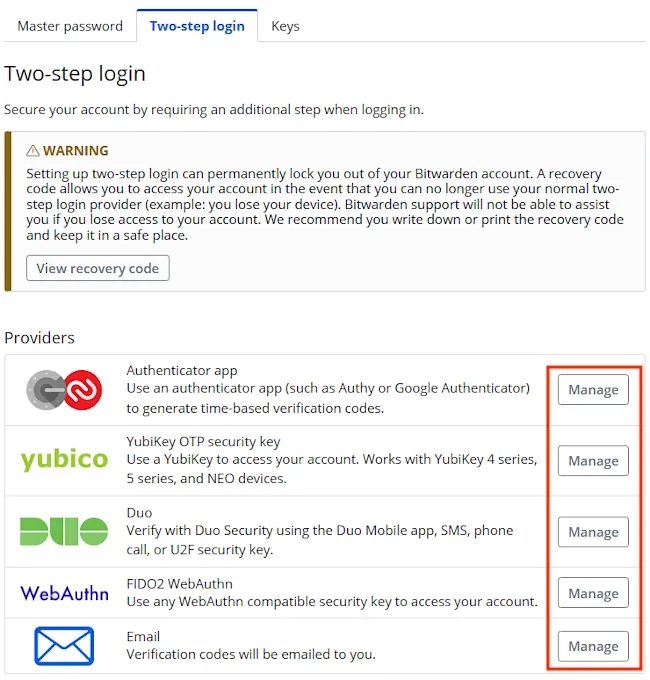
On the Two-step login tab is a list of different 2FA providers. Any can be used and more than one can be set up. I am going to use an Authenticator app, which is a free app you can install on an iPhone or Android phone. You may already have one for other logins. Click the Manage button.
Use an authenticator app
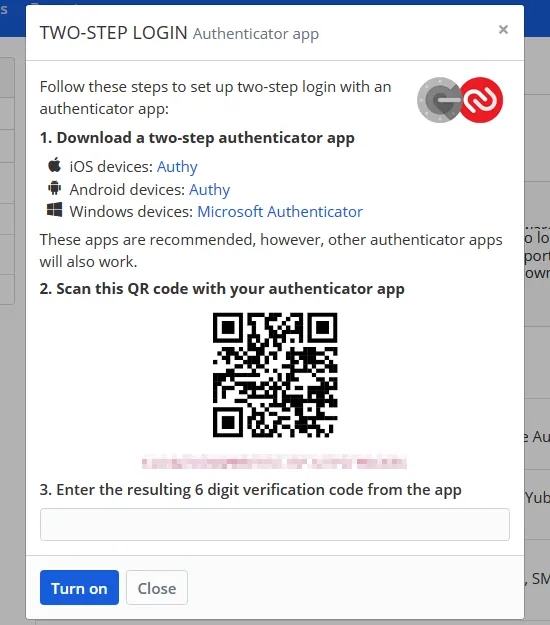
It says to download Authy for iOS and Android devices and Microsoft Authenticator for Windows devices. These will work, but you don’t have to use the ones specified. Other authenticator apps will work, so try them and see.
You need to scan the QR code displayed on the screen with the authenticator app on your phone. After adding Bitwarden to the authenticator app, enter the code it shows into box 3.
Add Bitwarden to an authenticator app
It says to use Authy on iOS, but other apps work, like Microsoft and Google authenticators. Install one if necessary, and open whatever authenticator app you use. Here is Microsoft’s. Press the plus button in the top right corner to add a new item to it.
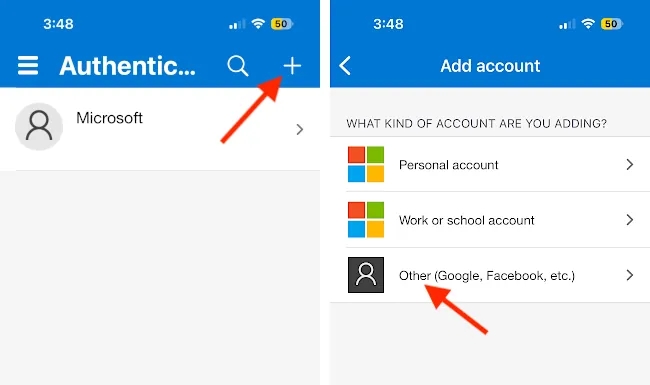
On the Add account screen, select Other (Google, Facebook, etc.). This activates the phone’s camera and you just point it at the computer screen with the QR code. It automatically adds Bitwarden and it now appears in the list.
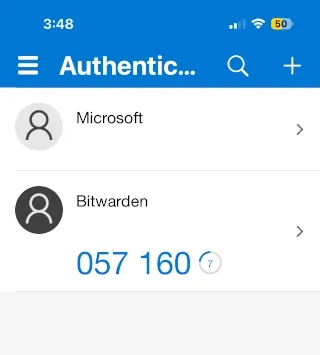
When you need to log into Bitwardem, open the authenticator app and Bitwarden shows a code that changes every 30 seconds. It counts down and if there is only a few seconds left, wait for the next number. Enter it into Bitwarden and two-step login is set up.
Use email authentication
If you use an authenticator on your phone, and you break or lose the device, you will not be able to log into your Bitwarden password manager. You will be locked out forever!
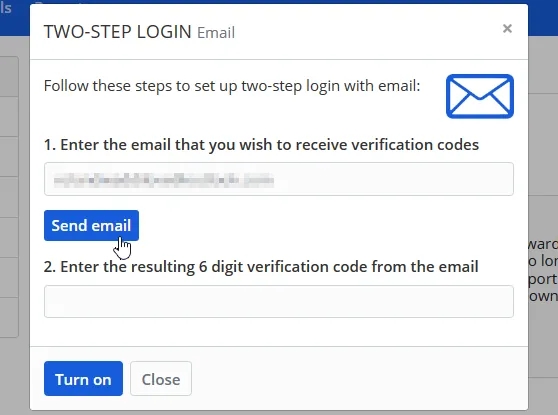
For this reason, it is useful to set up a second method. For example, add two-step login with email and it will send an email to the address regustered with your Bitwarden account. Read your email, enter the number, click Turn on and two-step authentication is set up.
When logging into Bitwarden you will be asked for an authenticator code, but there is a link to use alternative methods. Email will be listed if it is set up. It’s useful in case your phone is unavailable, but each additional method you add, adds another way a hacker could get in.
Get a recovery code
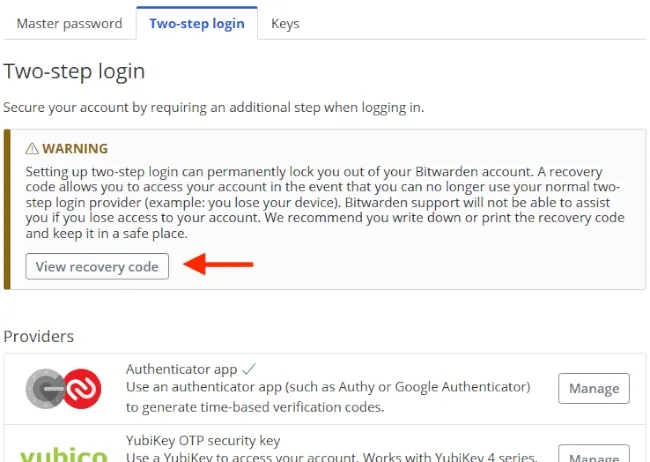
An alternative to adding a second two-step login method is to use a recovery code. If you only have an authenticator app on your phone and you lose it, a recovery code can get you into your account in an emergency. Click View recovery code in the warning box at the top of the Two-step login tab. Write it down and put it somewhere safe.
Increase KDF iterations
KDF interations is the number of times a mathematical formla is run to encrypt your password vault. If you have an old Bitwarden account created years ago, it will have a low number that is less secure than it could be.
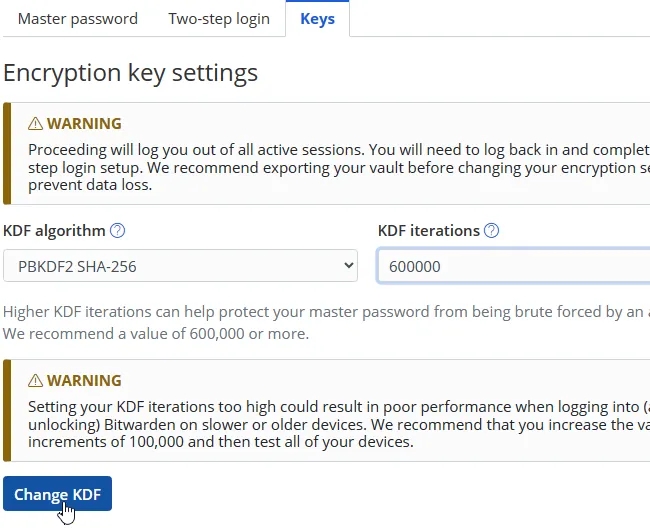
Select the Keys tab at the top, enter a number into the KDF interations box and click Change KDF. Bitwarden recommends 600,000 iterations. I find that 300,000 adds one second to the time to login to Bitwarden. The suggested 600,000 adds a two-second pause to logging in. It is a minor irritation and it adds a lot of security.
Login, logout, lock and unlock Bitwarden
You must login to Bitwarden in order to access your passwords and this requires a email address and passsword, and now a two-step login code from an authenticator app on your phone. It is a pain, but it is necessary,
The Bitwarden browser extension on a computer and the Bitwarden app on a phone can be set to lock instead of logout in the settings. Logout of Bitwarden and your local vault is deleted and you need two-step login to download it and access it the next time it is needed.
Add a PIN in Bitwarden extension or app settings and the vault is locked to prevent anyone but you from accessing it. It is unlocked by entering the PIN. This is quicker and easier than two-step login. The security is lower, but an iPhone, for example, is virtually uncrackable anyway, so no-one can access the app anyway.
 RAWinfopages
Leave a Reply