
Choose between two different styles of notifications for Microsoft Outlook on the Apple Mac and make sure you never miss another event. Customize Outlook to work the way you want it to.
This is a great way to customize the Outlook app and although it is only a small tweak, it is an important one. With the wrong style of notification, you might miss an important event, like an appointment or meeting. With the right style and the right options, Outlook events can be managed more easily.
Microsoft Outlook, for those that do not have it, is a free email and calendar app that can be installed from the Mac App Store, so if you have not yet got it, go and get it. It is very different to Apple Mail and Calendar and you may prefer its way of working. You don’t need a Microsoft 365 subscription, it is free for everyone.
Apple notification style

If you are a Mac user, you will be familiar with the style of notifications and Outlook can be configured to use system notifications like the one shown above. They appear in the top right corner of the display.

When a notification appears on the screen, or when you click the click in the top right corner of the menu bar to show notifications, you can interact with it and choose the Snooze or Dismiss options. Snooze can give you a few more minutes if you need it.
Outlook notification style
Outlook also offers its own style of popup notification when an event occurs or is about to occur. The information it contains is the same, but the presentation style is different. A small notification window appears in the bottom right corner of the screen.
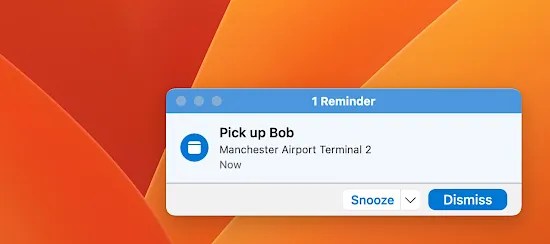
Click the arrow next to the Snooze button and there are many more options than with standard Mac notifications. You can snooze from 5 minutes to two weeks and the range of options is excellent.

Which style of notification do you prefer? There is a very easy way to choose and to switch between them. You can try both styles and see which one you prefer.
Configure Outlook notifications
To change the Outlook event notification style, open the Outlook menu and select Settings.

Outlook Settings are non-standard and a window appears that is reminiscent of the old macOS System Preference app. Click the Notifications & Sounds icon in the Personal Settings section.

A window is displayed with various options for notifications. Click Event Reminder Style and select either Outlook Built-in or macOS Notification Center. It’s your choice.

You might want to select one and create a calendar event for five minutes from now and see what it is like. Return here, select the other event style, create another event in five minutes, and see what it looks like. Then choose your favorite.
This popup notification is not used for new emails. Those appear in the usual macOS notification style. You don’t want popups appearing every few seconds as emails arrive, esepcially if they are unimportant. The style selector is only for calendar events.
 RAWinfopages