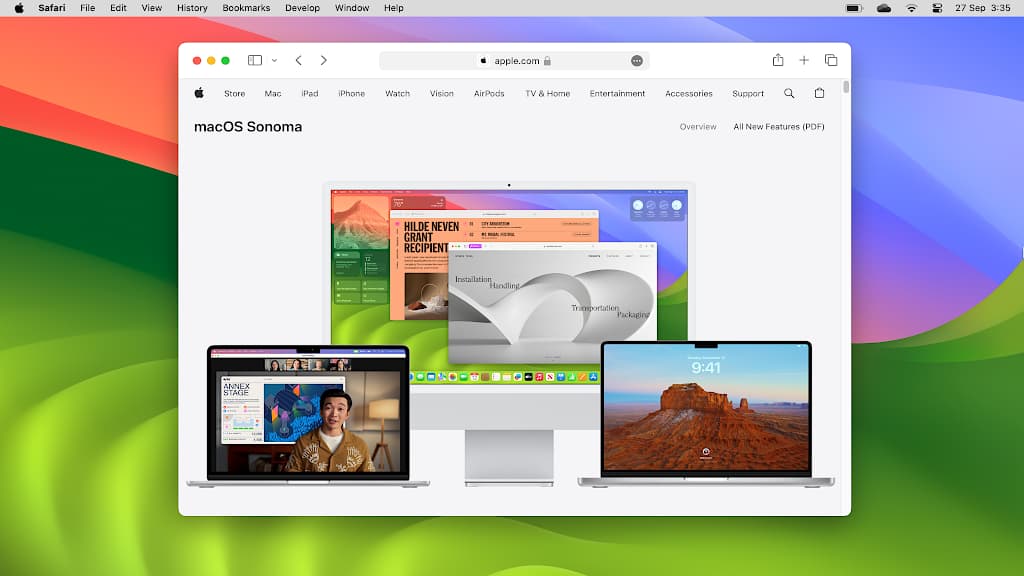
Browsers are under constant development and Apple’s Safari is no exception. If you want to try new features before anyone else, enable them in Safari flags. These turn new and advanced features on/off.
Chromium based web browsers like Chrome itself and others, including Edge Opera and so on, have hidden flags that enable you to enable or disable features. They can be used to preview new features that are coming to the browser, and to change how certain features in the browser work.
You may not have realised it, but Safari has flags too, and they enable or disable features in Apple’s browser. New features that are under development are often built into Safari, but they are hidden and are not enabled by default. If you know how, and I will show this in a minute, you can see these features and enable them.
Enabling features under development is a bit like being a beta tester and there may be bugs. However, if a feature does not work on a particular website, it can simply be turned off to return to normal. There is little risk and trying experimental features can be fun.
I am using the latest version of Safari in macOS and iOS to enable developer features. Menus and options are different if you are running an older version of Safari of your device. If you want to try the latest features, you’ve got to have the latest version!
Enable Safari developer mode on a Mac
- Open Safari on the Mac and click Safari > Settings.
- Select the Advanced tab in the Settings window toolbar.
- Tick the checkbox at the bottom, Show features for web developers.
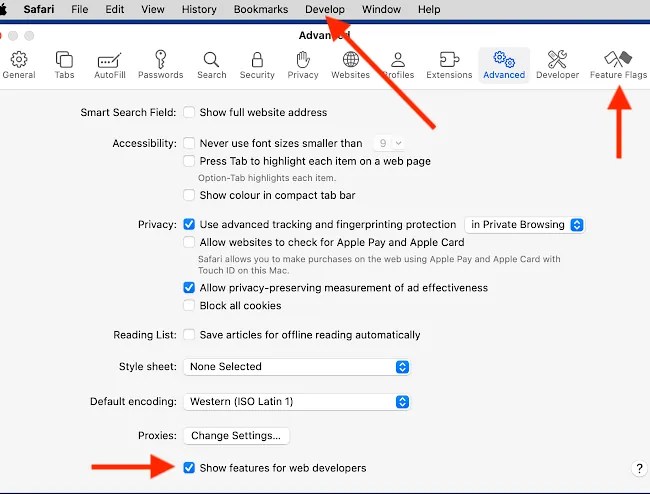
Two things happen when you this checkbox is enabled, and the first is a Develop menu is added to the Safari menu bar at the top of the screen. In addition to this, a Feature Flags icon is added to the right side of the Settings window toolbar. This is where Safari flags are accessed.
Customise Safari with flags in macOS
Select Feature Flags at the right side of the Settings toolbar and a very long list of configuration settings is displayed. Many of them are incomprehensible to most people, after all, they are aimed at developers.
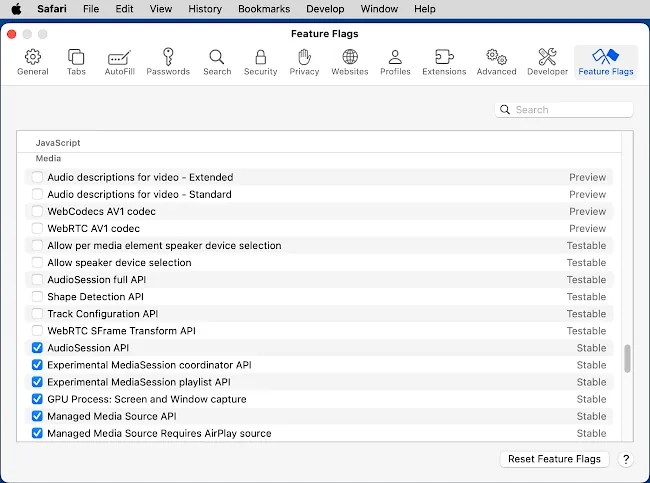
The name of each setting is on the left and there is a checkbox to enable it or disable it. On/off switches like this are often called flags. On the right is the status of each feature, and it can be Stable, Preview, Testable or Developer. Here’s what they mean:
- Stable: This means the feature has been tested and found to be working OK. Stable features are enabled by default and are available to everyone. If you have a problem with Safari, and you think it might be related to a particular feature, you could visit flags and disable it to see if it cures the problem. Mostly, you will leave stable features alone.
- Preview: Think of these features as the final beta before release, the last step before becoming Stable. They are disabled, but can be enabled if you want to try them. They should work fine, but remember that they may need more work.
- Testable: Think of these settings as early betas, new features at an earlier stage of development than those labelled Preview. They are more likely to have a bug or flaw than Preview flags. You can test them if you want, but most people should avoid them.
- Developer: These are special features for developers to try. Don’t enable them unless you are a developer and know what you are doing.
Developer flags in Safari on iOS
Safari on the iPhone and iPad also has flags and they can be turned on or off to enable or disable certain features in the browser.
Open Safari on the iPhone and go to Settings > Safari. Swipe up to go right to the bottom of the settings and press Advanced. Go to the bottom of the advanced settings and press Feature Flags.
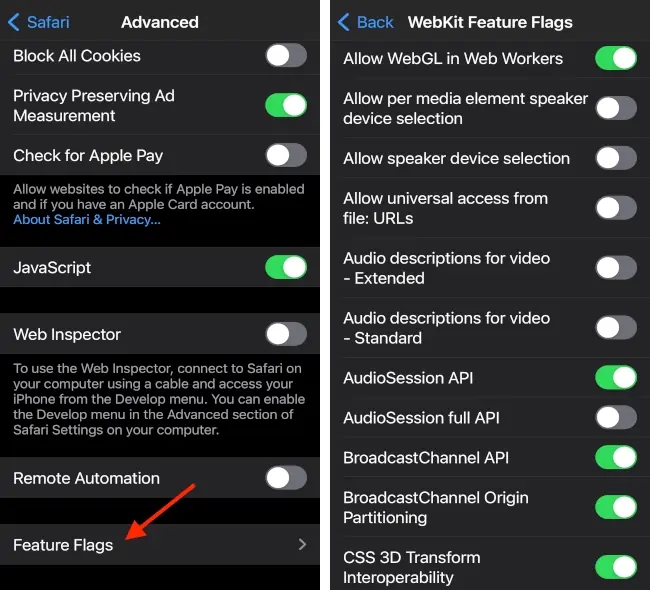
You will now see a list of flags like on the Mac. However, unlike the Mac, it does not show Preview, Testable, or Developer. If a switch is on, it is stable. Try the flags if you want, but remember that disabled ones are experimental. If you have problems, scroll right to the bottom of the flags list and there is a Reset All to Defaults link.
Which flags should you enable?
Stable features are enabled by default, but can be disabled if you think they might be causing a problem when browsing certain websites. Preview features are fairly safe to experiment with because they have been tested and will probably become Stable and enabled by default in the next Safari update. Try them.
Most flags are incomprehensible to ordinary folk, so read each one and if you don’t understand it, skip it. A small number of Preview and Testable flags are easy to understand and you might want to try them, like Audio descriptions for video, Allow speaker device selection, and a few others. If you enable a feature and there are problems with a website, return to the flags and disable any you changed.
 RAWinfopages