
If you have an Android phone and use Google apps, there is a useful widget you should add to your phone home screen. Get notifications of events, weather and status. Here’s how to add it.
What you need for this is the Google app and Google Calendar on an Android phone. Although the iPhone has both, and it also has widgets, it does not have the same capabilities. At least not at the moment, but you never know, an update could fix that.
The Google home screen widget reminds me a little of the iPhone dynamic island. It is a place where updates and notifications can be shown as and when needed. From severe weather alerts to travel and flights, to appointments and meetings, the Google widget keeps you up to date with what is important.
I am using a Samsung phone with One UI 4 and Android 12. Neither are the latest versions, but a lot of people have them. Other versions may have slightly different menus and options, but you should be able to work out how to do this.
Add home screen widgets
Press and hold on an empty part of the home screen until the customize options appear. Press Widgets in the toolbar at the bottom of the screen.

This displays a list of widgets. Look for Google (obviously you need the Google app installed), and expand the section to show the widgets it provides. The one at the top in this screenshot is the one that is neede.
Press and hold the widget, then drag it and drop it somewhere on the screen to place it. The best place is at the top of the home screen.
Select the widget style
You are then asked to choose between three different styles, which are basically three different transparency levels. I like the two dark ones best, but choose whichever one you want. The widget then appears at the top of the screen.

When there is nothing important to show, it displays the date on the left, and an icon on the right showing the current weather conditions. In the middle are three dots, and as usual these days, pressing it accesses a menu or options.
Configure Google widget notifications
The Useful, Not useful buttons enable you to provide feedback and I wonder if there is some AI here, so if you tell the widget something is useful, you will see more like it, but if it is not useful, you will see less.
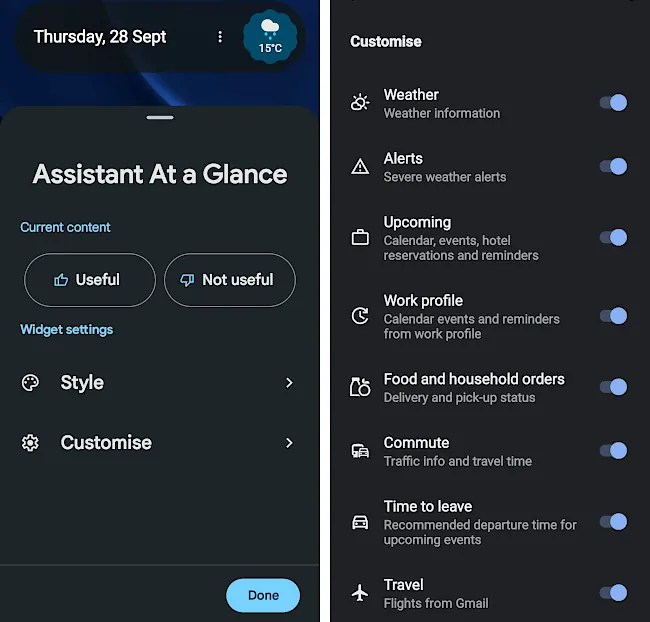
Style enables you to change the style, but we just set that in the last step, so press Customize. This lists all the events and statuses that the widget can show. Switches to the right of each one are to enable or disable them. All are enabled by default, but if there is something you don’t want to see, turn it off.
Example Google widget notification
Here is a one type of notification you might see in the Google widget. This is a meeting that was set in Google Calendar and other types of notification may be similar or different.
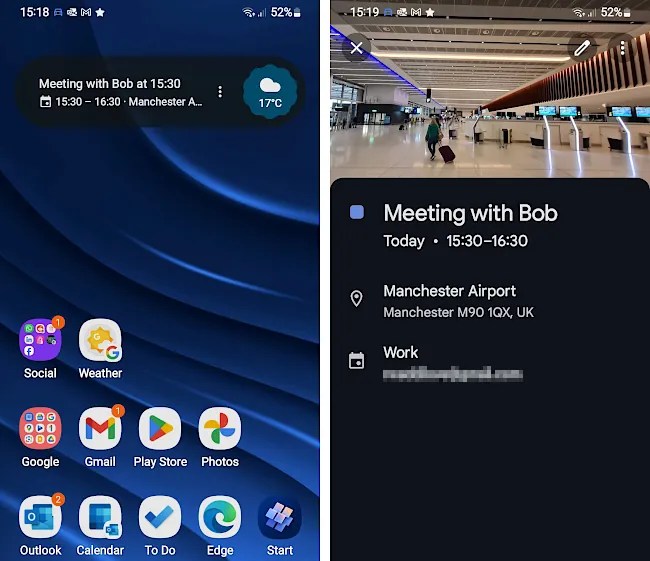
Before the event is due to start, the widget shows brief details to remind you and pressing it opens the full details. It even showed a photo of the location when I tried it, presumably pulled from Google Maps data. This is great, although you will only see photos of public places. Icons at the top enable you to dismiss the event notification, edit it, or show a menu with more options.
The Google widget has a weather icon on the right and a full screen weather forecast appears showing today and the next 10 days. It is one of my favorite weather forecasts and I use it instead of a regular weather app.
This is a great widget that provides useful information on a variety of topics. It takes up very little screen space and it looks good. You should try it.
 RAWinfopages