
Create a reading list of web articles you can read later, make them available offline so you don’t need mobile data, and show them as a widget in the iPhone home screen. Here’s how to do it.
Sometimes when you are browsing the web with Safari on your iPhone, you see an article you would like to read, but you don’t have the time at that moment. What do you do?
You could bookmark it so that you can return to it later, but bookmarks tend to get lost among hundreds of other bookmarks. You might also forget about it and not read the article.
You could open the article in a separate tab and continue browsing on the current tab. After a while you find that you have 50+ tabs open in Safari that you never got around to looking at.
The best way to save web articles for reading later, and to actually read them, is to add them to a reading list. One way this is better than other methods is because you can place a widget on the iPhone home screen that displays your reading list.
The widget is a reminder that you have articles to read, and it makes it easy to open articles with a single tap. You can also save reading list articles to read offline, which is useful if you want to read them when travelling, when you don’t have Wi-Fi.
Related: How to access advanced features in Safari using flags
1. Safari shares and bookmarks
Visit a web page in Safari that you want to read later and look at the toolbar at the bottom of the screen. The Share button is used to save a web article to your reading list, and the Book button is used to show the reading list (bookmarks and browsing history too), and open articles.

Right now, we want to add this article to the Safari reading list, so press the Share button.
2. Add articles to the reading list
The share options slides up from the bottom of the screen and you can see all the options for sharing this web page, or can you? No, many options are hidden. Swiping left and right over the two rows of icons does not reveal any reading list options.
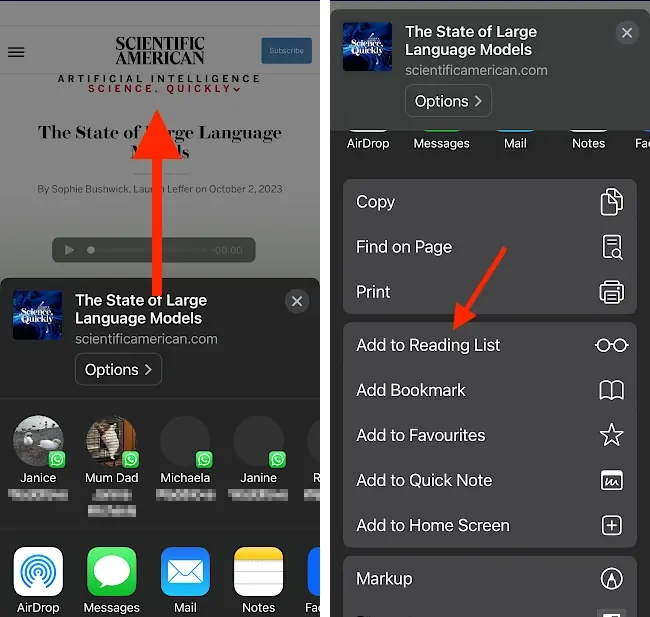
You must swipe up on the share options panel to reveal all the options. Among them is Add to Reading List. Press it to save the article. Note the glasses icon, which we will see later.
That’s it, the web article is saved. You can return to browsing the web in Safari. Add more articles to the list, but don’t go overboard and add so many that you will never get around to reading them. Keep your reading list short. A bookmark might be better for some things.
3. Add home screen widgets
Return to the iPhone home screen (second screen, third, whatever), and press and hold on an empty space until the icons begin to wiggle. To add a widget to the screen, press the plus button in the top left corner.
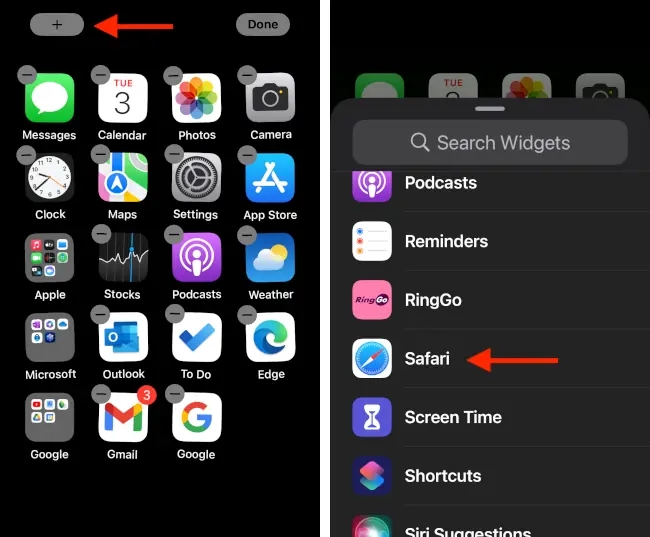
A panel appears that lists all of the apps that provide home screen widgets. Press Safari.
4. Add a reading list widget
Safari shows three reading list widgets: Small, medium and large. I find that the small one doesn’t show enough information, and the large one takes up too much screen space. The medium size one is best for me, but it is up to you which you choose.
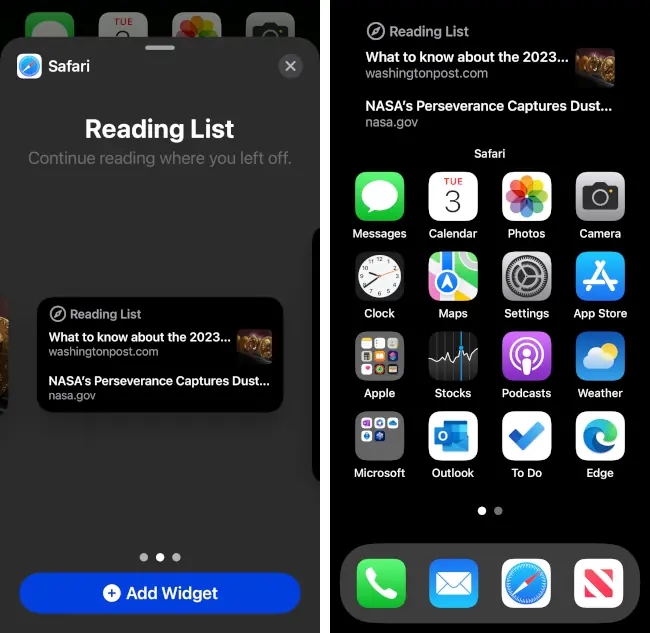
Press the Add Widget button of press and drag the widget onto the screen. It appears at the top of the screen and shows the top one, two or four reading list articles, depending on the size of the widget you selected.
The medium size widget shows two articles. Press an article in the reading list to open it in Safari or press Reading List at the top to open the full reading list and see all the saved articles.
Having this widget on the screen means that you will not forget that you have articles to read and it just takes one tap to start reading one. It is simple and convenient.
5. Manage Safari reading list articles
Press Reading Lisr in the widget or, if Safari is already on the screen, press the book icon in the toolbar at the bottom. There are three tabs and Reading List is the glasses icon in the middle.
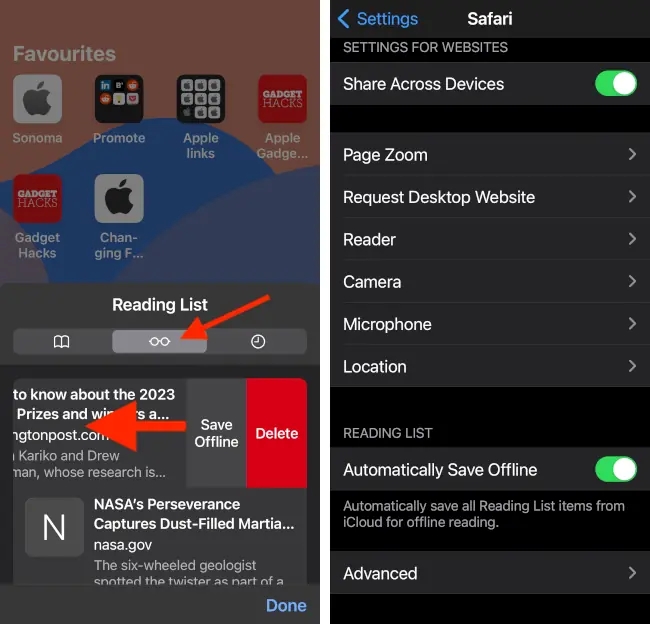
Swipe up and down to view all of the items in the reading list and press an article to read it. Swipe left over an article in the reading list to either save it offline or delete it and remove it from the list.
You don’t have to manually save reading list articles for offline viewing, go to Settings > Safari, swipe to get to the bottom of Safari settings and turn on the switch, Automatically Save Offline under READING LIST. Now you can save web articles when using Wi-Fi and read them anywhere without using mobile data.
 RAWinfopages