
Windows Snipping Tool has gained new capabilities and the most interesting of these is the ability to copy text from images. This is very useful and text recognition is built into the app.
You may not need to extract the text from images often, but when you do, it can be a great time saver. For example, you could take a photo of a business card using your phone, then later on your computer, use Snipping Tool to copy the text from it.
You could take a photo of a menu or other document or sign, and copy the text from it and paste it into a new document. This would save you having to type it in yourself. (OneDrive on your phone will automatically copy the photo to OneDrive on your computer.)
All the text from an image can be coped, or you can simply click and drag the mouse over the text in an image to select it as if it was a text document. Copy all of the text in an image or just selected text to the clipboard and then paste it into whatever document, slide or spreadsheet you want.
I am using Windows 11 with the 23H2 update for this. I can’t guarantee the feature is in older versions of Snipping Tool, so make sure Windows is up to date on your computer.
Related: How to change the color of the taskbar in Windows 11
Grab an image in Snipping Tool
Click the Start button on the taskbar, and as you type sni… Snipping Tool is suggested. Click Open to run it and a window appears on the desktop.

You can click the + New bitton in the toolbar to take a screenshot, and this is useful if you have an image on-screen in a photo editor or app, or there is an image on a web page in a browser. Grab all or part of the screen. I find the screen grab opens in a new window minimized to the taskbar. Click the Snipping Tool icon in the taskbar to open it.
Alternatively, click the three dots at the right side of the toolbar and select Open file from the menu. You can then open an image file on the disk, such as a JPEG or PNG that contains text you want to extract.
Use text actions
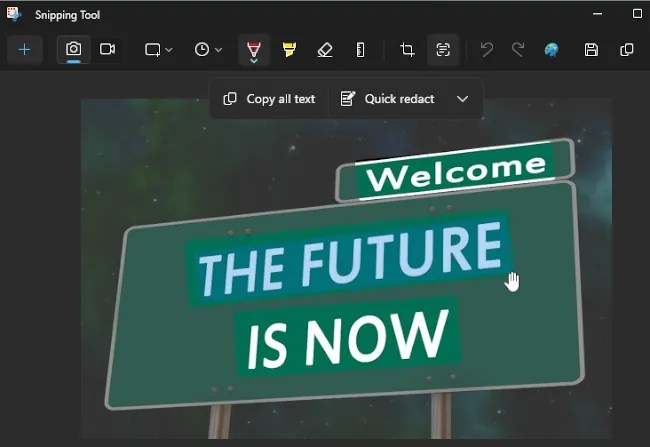
Here is an image containing text. It is obviously a trivial amount that you would not normally bother with, but I just want to show how the feature works.

Make sure the Snipping Tool window is wide enough to show all the icons in the toolbar and that none is hidden. Click the Text actions button.
Copy or redact text in images
It is not blindingly obvious in the screenshot, but the text in the image is highlighted to show that it has been detected. Click the Text actions button and then click Copy all text to copy everything to the clipboard.

We are not using it here, but there is an interesting Quick redact menu displayed and it can be used to hide email addresses and phone numbers in an image if you need to for privacy reasons.
Copy part of the text
Instead of copying all of the text in an image, which might include text you don’t need, you can click and drag over part of the text to select it. Press Ctrl+C to copy the selected text to the clipboard.
Whether you copied all or part of the text, you can now switch to another application, like Word for example, and paste it in. The image I used is a trivial example, but the text could be long and complicated, like a restaurant menu, or a document you took a photo of.
This is a great feature update for the Snipping Tool app and it is a tool that I am using more often these days.
 RAWinfopages