
Bing Chat is an AI powered search and chat that can produce anything from poetry to pictures. However, it speaks its answers out loud on a phone, which is annoying. How do you stop it?
If you have the Bing Chat app on your phone or Microsoft Edge browser, which has Bing Chat built in, it is great for generating long and descriptive content from almost anything you ask it. It can write poetry, tell jokes, provide information on a wide range of topics, and more.
If you have tried it on your phone, the way that it speaks the answers to your queries at maximum volume no doubt has had you fumbling for the volume
buttons on your device. It is loud and embarressing if there is anyone nearby. Actually, people don’t even need to be nearby because they can hear it from across the other side of the room, office or cafe.
It is enough to put you off using Bing Chat on your phone, so how do you stop it from speaking out loud? Where is the mute switch? Let’s see how to configure Bing Chat. The following works on Android and iOS, so it does not matter which phone you have.
Related: Why Microsoft Edge is the best browser for phones
Bing Chat is too loud
To see what the problem is, open the Bing Chat app or press the Bing Chat button at the bottom of the Microsoft Edge browser window. Press one of the suggestions or type in something of your own, like “Tell me a joke.”
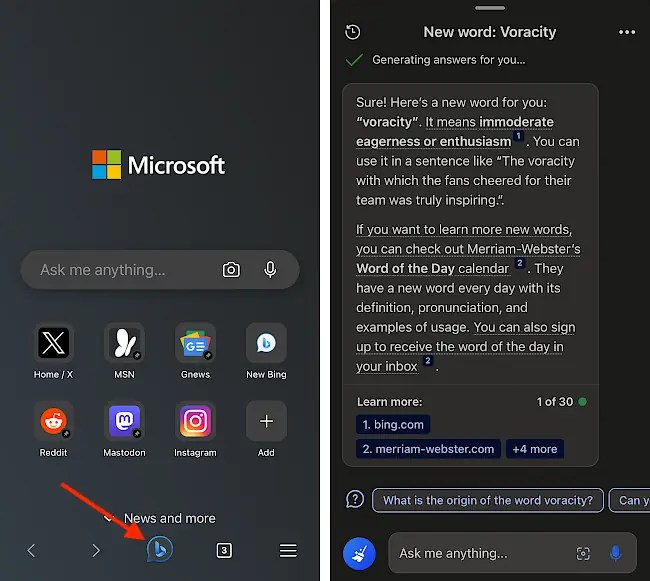
With the default settings, Bing Chat not only displays the result on the screen, it also speaks everything very loudly too. It’s embarassing if there are people around.
Configure Bing settings

To stop Bing Chat speaking, go to the Bing website and click the hamburger icon in the top right corner of the page to display a menu. Press the v to the right of Settings to expand the section.
Bing voice search settings
The settings are shown and pressing More will take you to the settings we need, but pressing Voice search takes you directly to the Voice search settings.
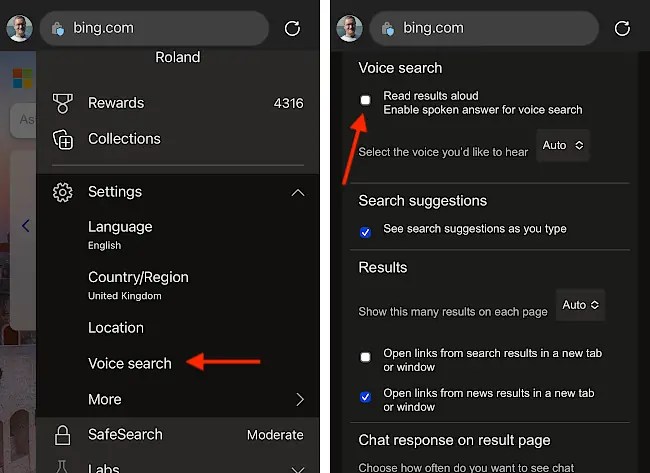
Clear the checkbox next to Read results aloud. (If you ever want to hear Bing Chat speak out loud, return here and tick the checkbox.)
Don’t forget to swipe to go down to the bottom of the settings page and press the Save button or your voice search choice will not be remembered. Now return to Edge or Bing Chat and try it again. It should be quiet this time.
Tell Bing Chat to stop reading out loud
I found that the voice search setting did silence Bing Chat and it displayed the results without speaking them. However, it only seemed to be temporary. If I quit Edge and swiped it away from the task switcher in the phone, the next time I opened Edge and used Bing Chat, it spoke the results out loud again.
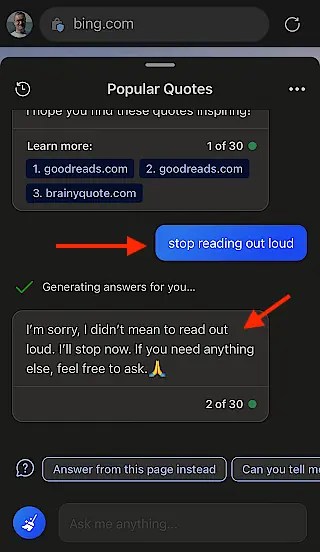
I am not sure if this is a feature or a bug. I then typed “Stop reading out loud” into Bing Chat and it appologuzed and said it would stop. It now seems to be permanently quiet, and therefore safe to use in public places with people around.
 RAWinfopages