
Apple is big on privacy these days, and new features in macOS Sonoma give you more detailed control over access to information in your calendars. Here’s how to limit third party app access.
The Calendar app on your Apple Mac might contain a lot of personal information, such as meetings, appointments, people, places, and events. There may be information about work colleagues and family and family and friends. Do you want other apps to have access to that information?
At first sight, you might not think that the only privacy control you need is an allow/block switch. You can either allow an app to access your calendar or prevent it. This means that an app either has access to everything or nothing.
In macOS Sonoma, Apple has provided an additional option that improves privacy by adding another option. Now, a third-party app can be given permission to create an event in the Calendar app without giving it any access to all the information it contains. Let’s see how to use this new privacy feature.
Related: How to delete a user in macOS and recover the disk space
Permission requests
If you install and run an app on your Mac that requires access to your calendar, a permissions box appears on the screen. I installed OneCalendar from the Mac App Store (a random choice to illustrate this article), and when adding a calendar source in the app, I chose iCloud. It then requested permission to allow full access to my calendar.

Click Allow Full Access, and it has access to everything in your calendar, and you might not want this for privacy reasons. I let it have full access to see what would happen, but you may want to click Don’t Allow instead.

Here you can see that it has accessed to contacts’ birthdays, iCloud, work meetings and planned events.
Limit calendar access in System Settings
Open the System Settings app and select Privacy & Security in the sidebar. Click Calendars on the right.
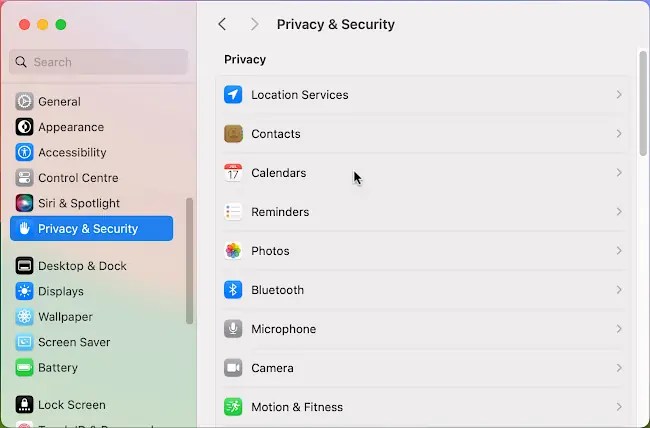
A list of apps that can access your calendar is displayed, and there are on/off switches that enable you to allow or deny access. There is also an Options button. Click it. Now you can decide between full calendar access and add only access.

Full calendar access obviously means that the app has access to every piece of information in your calendar. However, select Add Only Access and an app can create events in your calendar, but it cannot read your calendar and has no access to the information it contains. This makes your calendar contents private.

It is a great new privacy feature in macOS, but not all apps support it and if you set add only access, then some apps that interact with your calendar will not work. They require full access. You can see that the Apple Stocks app is in Privacy & Security > Calendar and if you click the Options button you can also see that it only has add only access.
Some Mac apps work with limited calendar access and some doi not. It depends on the app and the only thing to do is to try it. Initially block it, then set add only access, then full access if it still does not work.
As new apps are developed and old apps updated, we should see more support for this limited calendar access feature. After installing or updating an app, check your privacy settings and try it.
 RAWinfopages