
It is easy to make typing slips. A grammar and spelling checker highlights errors and suggests improvements to make your writing better. Here are two services that are free and great to use.
How many times have you typed in a post on social media, then 15 seconds afterwards, realized that it has a typo? Too often! Typing slips are easy to make, and they can be embarassing too. Autocorrect can help, but frequently makes things worse by changing a word you typed for a completely different one. It can make you look stupid.
Whether you use a computer, tablet or phone, there are spelling and grammar checkers that aim to detect typing slips, highlight them and let you change them. They can also suggest improvements to your writing, like avoiding repeating words, using cliches, finding alternatives for common words, and so on.
How many writing services can you name? Grammarly instantly springs to mind, but it is not the only service and because it is so well known, I will not cover it here. I tried a couple of alternatives and they have free and paid plans, (I used the free ones), and they work everywhere, including computers, phones and tablets.
LanguageTool
LanguageTool is a spelling, style and grammar checker that can be used in a variety of different forms. Visit the LanguageTool website and on the home page is a text box into which you can type or paste text and get immediate feedback. It highlights the spelling and grammar problems. There is no need to register and nothing to pay. It is free to use.
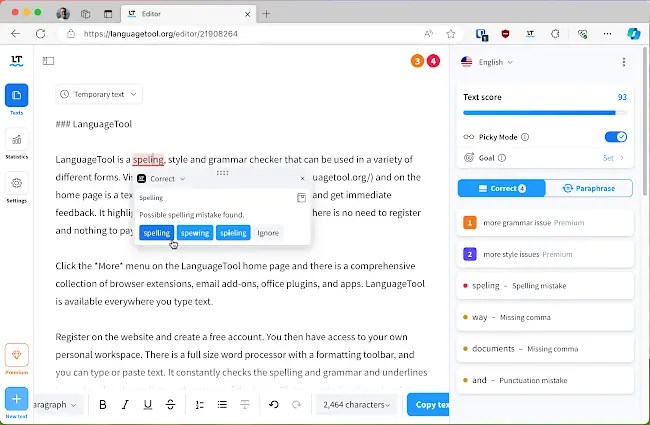
Click the More menu on the LanguageTool home page and there is a comprehensive collection of browser extensions, email add-ons, office plugins, and apps. LanguageTool is available everywhere you type text.
Register on the website and create a free account. You then have access to your own personal workspace. There is a full size word processor with a formatting toolbar, and you can type or paste text, or load a Word document. It constantly checks the spelling and grammar and underlines issues in color, depending on the nature of the issue. Click an underlined word and a box pops up with a correction or suggested improvement.
A panel on the right enables you to enable Picky Mode, which enables more writing suggestions, and you can set a goal, which is the writing style, like personal, professional, persuasive and so on. AI can be used to paraphrase text. It is very limited for free and is more for premium paying members.
Your documents are saved, so you can start writing today, come back to the website tomorrow and continue where you left off. I was initially confused by the lack of document management, like a delete button. LanguageTool works in an odd way and documents are either temporary or permanent. The default is to create a temporary document that is kept for seven days, then automatically deleted. However, you can make a document permanent to keep it forever. It is probably not intended as a place to keep your documents though.
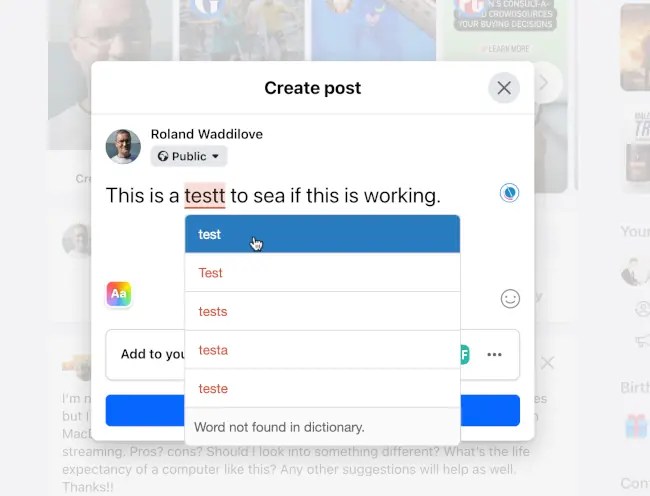
A web browser extension enables LanguageTool to provide its spelling and grammar corrections most places you type text online. It works in social media, forms, comments, web mail, and so on. It did not seem to check my WordPress posts in the Gutenberg editor though. Everywhere else, it checks as you type, highlights problems, and clicking them shows a popup box with fixes or suggestions.
I like LanguageTool and it provides a lot of features and functions for free. There are limitations, like a 20k character limit for free users, but I think that many people will probably be happy with it. If you need more, premium accounts are available for individuals and teams.
Scribens
Scribens is an alternative to Grammarly and there is a website and web browser extensions. It can be used for free and without creating an account. You gain a lot more features if you become a subscriber, but I used it in free mode.
Visit the Scribens website and a large text box dominates the home page. Click in it and you can start typing or paste text copied from elsewhere. There are no formatting features, and it works with plain text. Scribens can analyze your writing, suggest fixes, then you can copy it and paste it in whatever app you want, like Word.
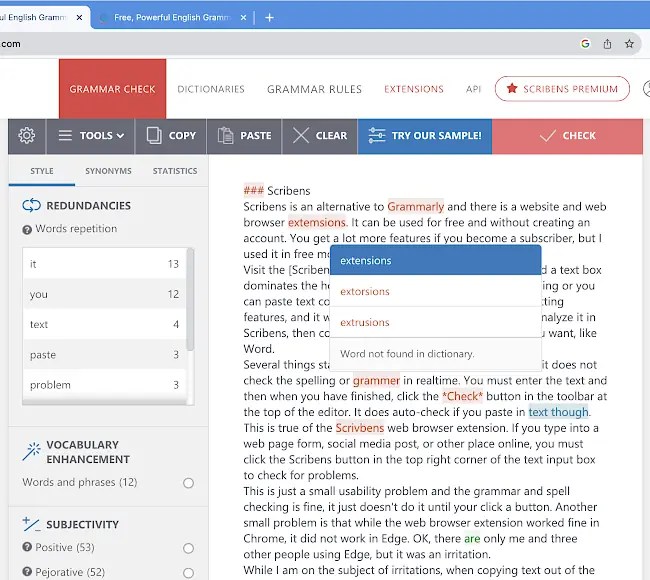
Several things stand out with Scribens and the first is that it does not check the spelling or grammar in realtime. You must click the Check button in the toolbar at the top of the editor on the website.
This is also true of the Scribens web browser extension, which is available for Chrome, Firefox, Safari and Edge. If you type into a web page form, social media post, or other place online, you must click the Scribens button in the corner of the text input box to activate it, from then on it checks in realtime.
The spelling, grammar and stye checkers are useful, even in the free version I used. Using the editor at the website, a panel on the left has vocabulary enhancement, subjectivity, sentences and redundancies. Select one of these and issues in the text are highlighted. Clicking a highlighted item displays a box with fixes or suggestions.
I write web articles using Markdown and Scribens highlighted Markdown text as errors. Technically they are, but LanguageTool did not flag them as errors.
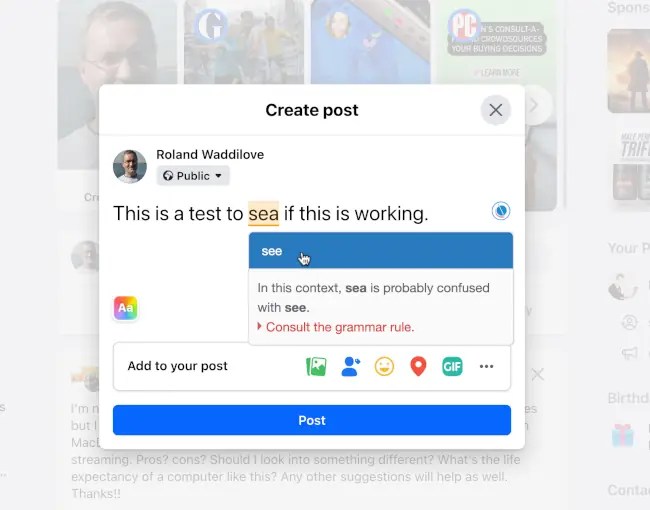
When checking text in forms, social media posts and other places in a web browser, problems are highlighted and clicking them shows fixes and suggestions. The web browser extension worked fine in Chrome, but I had some problems with Edge on the Mac. OK, there is only me and three other people using Edge, but it was an irritation. Chrome was fine.
One odd things was that sometimes it added an extra empty line between paragraphs when copying text out of the website editor. Sometimes it removed a line. Weird. It is not a problem with the browser extension because you type text into a web page, you don’t copy it out and paste elsewhere.
I had a few minor irritations with Scribens, like having to click a button to check text, but I liked its style panel when using the website editor. It made some interesting suggestions for vocabulary enhancement, repetetive words and subjectivity.
I used the website editor and browser extension, but there are add-ons for Microsoft Office, Google Docs, LibreOffice, Android and iOS.
Microsoft Editor
Microsoft Editor spelling and grammar checker started out as an add-on for the Microsoft Word web app, the version of Word that runs in a web browser. Go to onedrive.com or office.com in a browser and you have access to web versions of Microsoft 365 apps that run in a browser. Word is one of the best online word processors and it is good for most writing tasks. It is also free.
Editor later appeared as an extension for Microsoft Edge browser, and this meant that it could provide spelling and grammar checking on any web page that you enter text into, from forms to social media posts. The extension is now available in the Chrome web store and so everyone can use Microsoft Editor.
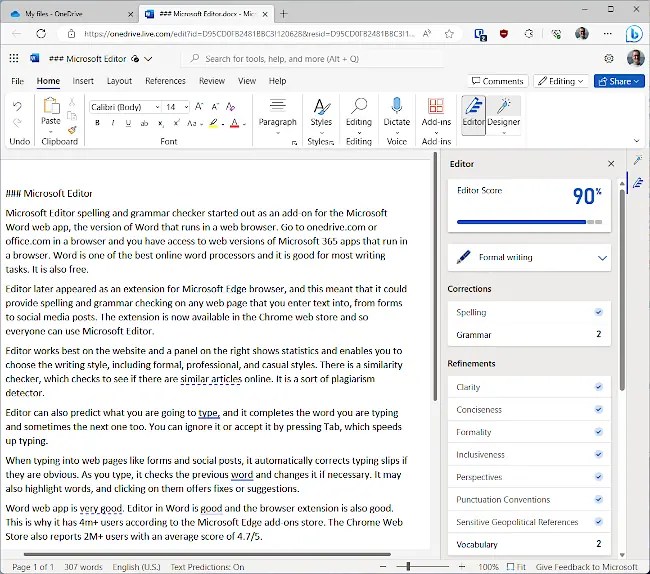
Editor works best on the website and a panel on the right shows statistics and enables you to choose the writing style, including formal, professional, and casual styles. There is a similarity checker, which checks to see if there are similar articles online. It is a sort of plagiarism detector.
Editor can also predict what you are going to type, and it completes the word you are typing and sometimes the next one too. You can ignore it or accept it by pressing Tab, which speeds up typing.

When typing into web pages like forms and social posts, Editor automatically corrects typing slips if they are obvious. As you type, it checks the previous word and changes it if necessary. A typing slip is fixed before you realize you made one. It may also highlight words, and clicking on them offers fixes or suggestions.
Word web app is particularly good. Editor in Word is good, and the browser extension is also good. This is why it has 4m+ users according to the Microsoft Edge add-ons store. The Chrome Web Store also reports 2M+ users with an average score of 4.7/5.
The only criticism I have is that sometimes its explanations of problems are short. LanguageTool and Scribens descriptions are often more detailed and informative, which can help you understand better.
Summing up
LanguageTool and Scribens are two very useful grammar and spelling checkers for PC, Mac and phone. Both are good alternatives to Grammarly. Scribens would be excellent if it could get rid of a few minor irritations I had.
LanguageTool just worked and I had no issues with it. It provided useful writing help in the editor on the website and on web pages using the browser extension. I like it a lot.
Microsoft Editor is excellent and it works everywhere. Word web app is excellent, and the browser extension provides spelling and grammar checking everywhere else.
As is often the case, all these writing tools are good in their own ways and make good alternatives to Grammarly. You can try all three for free as I did and choose your favorite. I think they are very close in features and performance and any of them would be good for most people. I have used Microsoft Editor the most, but I am not ready to delete the others and may try them a bit longer.
 RAWinfopages