
How do you choose the photos that the Photos widget shows on the iPhone Home Screen? Easy! Create a photo album, then set the widget to display photos from it. Here is a step-by-step guide.
The Photos widget comes in several different sizes from small to large, and it can show photographs from your Photos library. Instead of just showing random photographs or the ones you have marked as your favorites, choose the ones you want to display by putting them in an album. Restrict the Photos widget to display only that album.
You don’t have to create a new album and any album could be shown, such as an event like a wedding or holiday, or whatever albums you already have. However, these may contain some photos you don’t want to see on your iPhone Home Screen, especially if someone is sitting next to you or looking over your shoulder.
A specially created album for the widget only shows the photos you put in the album, so you may prefer it. Let’s see how to do it on an iPhone running iOS 17 or later.
Related: Add a Safari reading list widget to your iPhone home screen
Create a Photos album
Open the Photos app on the iPhone and press the Albums button in the toolbar at the bottom of the screen. Press the plus button in the top left corner of the screen and then press New Album on the menu.
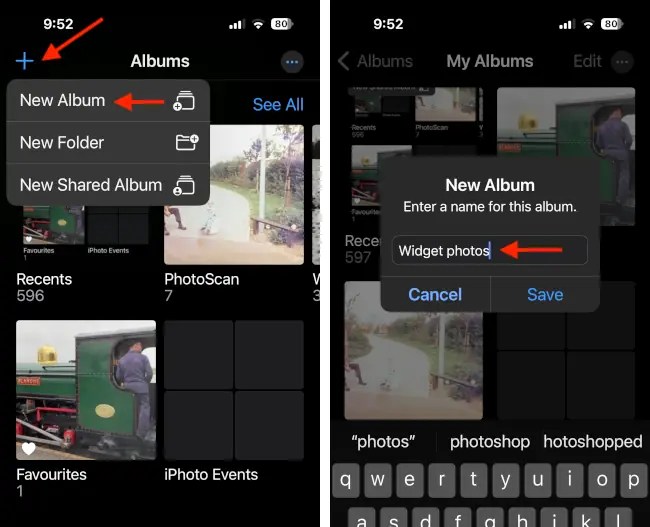
On the next screen, enter a name for the album. It can be anything, but I will use ‘Widget photos’ so it is obvious that photos in this album will be shown in the Home Screen widget. Press the Save button.
Add photos to the album
When your Photos library is displayed, tap the thumbnails to select the photos you want to appear in the widget. Press the Add button to add them to the album. The album is displayed as thumbnails.

Press the three dots button at the top or the bottom for a menu. The contents of the album are not fixed and photos can be selected and removed if you change your mind, or you can add more photos to the album, such as new photos you take next week or next month.
When you are happy with the album, you can leave the Photos app.
Add a widget to the iPhone
Go to the iPhone Home Screen and press and hold on an empty space until the icons wiggle. Press the plus button in the top left corner to add a widget and then select the Photos widget on the next screen.
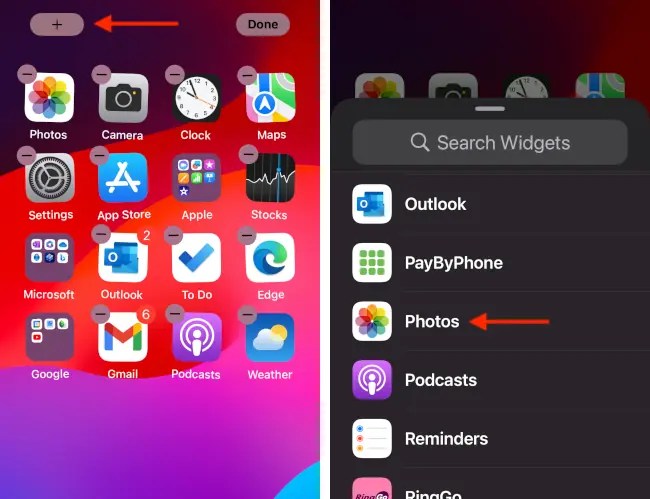
There are several widgets in different sizes. Swipe left and right to see them. Select one of the grey widgets titled Album. It says that there are no photos available, but press the Add Widget button anyway and position it on the screen. Don’t worry, it will be OK in the end.
Select a Photos album
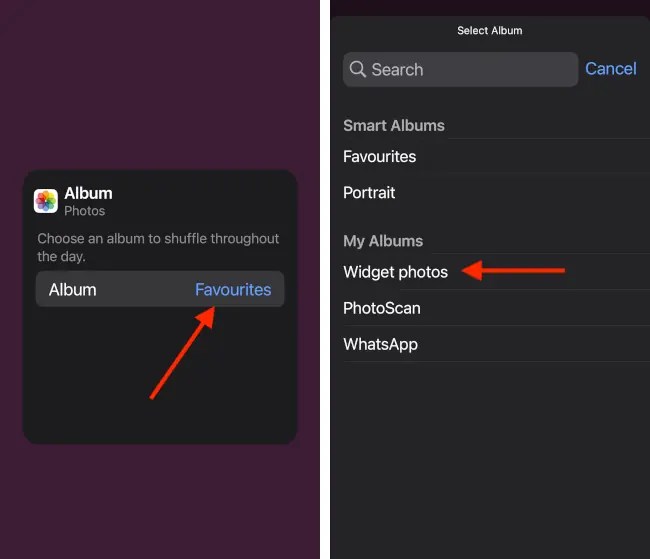
Press the dull grey rectangular widget and you can choose the Photos album that is used for this widget. It may currently be set to something or nothing. Tap the link to the right of Album and then select the album you created earlier for the widget. In my case, it is called Widget photos.
View your Photos widget

The album you select is set and tapping an empty part of the screen returns to the normal Home Screen. The widget shows the first photo in the album you created and at intervals throughout the day it will change it for a new one and cycle through the album.
 RAWinfopages