
Chrome and Edge on the Apple Mac have long had an advantage over Safari. They could turn websites into Mac apps that run on the desktop. Now Safari can do it. Which browser does it best?
Web browsers are more than just a way to view web pages on the internet and they are powerful applications and are able to run web-based applications. These are specially designed websites that run like an application in the browser window.
Notable examples of these are Outlook and Gmail email services, Microsoft Office, Google Docs, and Apple iCloud applications. If you use any of these or similar web-based applications, like Notion for example, you can turn them into desktop apps on the Mac. (PCs can do it as well, but I’m focusing on the Mac here.)
What happens when a website is turned into a desktop app?
- A shortcut in the Applications folder is created to open the website.
- A Dock icon may be added, but if not, you can easily add it yourself.
- When the app is run, a minimal stripped back browser window opens.
Some websites are designed for this, and creating the web app is easier and the result is better, but it can be done with any site. Sites like OneDrive and Google Drive, Gmail and Outlook work brilliantly as desktop apps. However, it would not be worthwhile to turn Google or DuckDuckGo search into apps.
A website as a desktop app still needs internet access. However, the usual web browser interface is mostly hidden. There is no address box with URL, no tabs, minimal menus, minimal toolbar icons, no favorites,bookmarks bar and so on.
What you see is a simple desktop window without the usual web browser interface clutter. The website looks like a desktop app and it is clean and distraction-free. Some websites look so good as desktop apps, I find I am using them more and more.
Safari, Chrome and Edge on the Mac can all turn websites into desktop apps, but which browser does it best?
Related: How to access advanced features in Safari using flags
Create desktop apps with Safari
- Open Safari and go to the website you want to turn into a desktop app.
- Click File > Add to Dock.
- Accept or edit the suggested name for the app.
- Close Safari and click the new app icon in the Dock.

Creating a desktop app from a website is easy in Safari. The Dock icon created has the website icon, rolling over the Dock icon shows the site name, and if you change your mind and decide you no longer require it, you can drag it off the Dock or Ctrl+click for a menu to remove it.
The app window has a title bar with forward and back buttons. On the right is the usual macOS Share button, which enables you to share the site via Mail, Messages, AirDrop and third-party apps on the Share menu.
Simplicity and ease-of-use is excellent with desktop apps created in Safari.
Create desktop apps with Chrome
- Open Chrome and go to the website you want to turn into a desktop app.
- Click the three dots to open the menu and select More Tools > Create Shortcut.
- Accept or edit the suggested name for the app.
- Tick the box Open as window and click Create.
- Open the app in your personal Applications > Chrome Apps folder.

There are a couple of irritations when creating desktop apps from websites using Chrome. One is that a shortcut is created in your personal Applications folder. Open Finder, go to your home folder, open Applications, open Chrome Apps and click the app to open the website as a desktop app. To add the app to the Dock, Ctrl+click the Dock icon when it is running and select Options > Keep in Dock.
The second irritation is that opening the desktop app opens Chrome first, then the app. This means that you have a normal Chrome browser window on the desktop behind the app window. If you don’t want Chrome, you cannot close it, and the window must be minimised.
The double window effect is annoying. I don’t know whether this is a limitation imposed by macOS or whether Chrome is simply doing it wrong. I suspect it is macOS.
After starting the web app and minimising Chrome, it looks good. An extensions button on the right enablers you to access extensions installed in the browser. A three-dots icon shows a minimal menu with Zoom controls, Find, Cast, cut,copy,paste, and uninstall options.
Create desktop apps with Edge
- Open Edge and go to the website you want to turn into a desktop app.
- Click the three dots to open the menu and select Apps > Install….
- Accept or edit the suggested name for the app and click Install.
- Open the app in your personal Applications > Edge Apps folder.

As with Chrome, Edge creates shortcuts to websites installed as apps in your personal Applications folder. Open your home folder > Applications > Edge Apps. It is not in ,Applications. The first time you open it, Ctrl+click the Dock icon and select Options > Keep in Dock to make it easier to run.
Like Chrome, when a website turned into an app is run, it opens the app, but also opens Edge browser behind it. This is very annoying. Minimize Edge browser and the desktop apps look good.
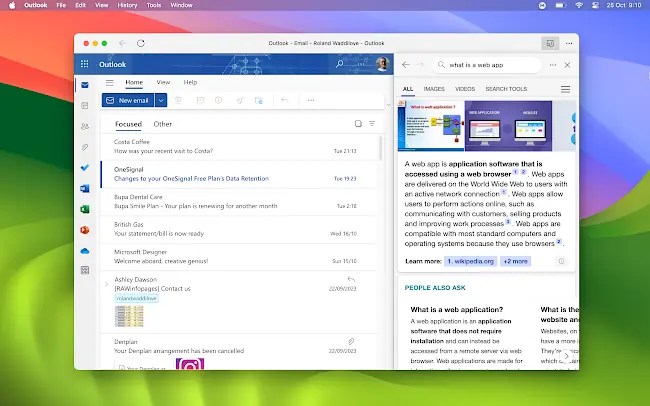
Edge apps incorporate an extra feature that Safari and Chrome apps don’t. Click the icon at the right side of the app window, and a Sidebar Search panel opens on the right. From here you can search the web, click links in search results to visit sites and pages, and so on. Click the close button, and the app fills the window again.
This is a great feature for looking up information on the web when you don’t want to switch away from the app to a full browser window.
Summing up Safari vs Chrome vs Edge apps
To use websites turned into desktop apps with Chrome and Edge, the browser must be open. It can be minimised, but it must be running in the background. This is an irritation. Desktop apps created by Safari do not do this. Open a website, and it just opens on the desktop like an app. It is cleaner and simpler.
Open Microsoft Edge and minimize it, and you can then open sites saved as apps in desktop windows without seeing the browser. The search panel is very useful, and it means that you will need to open the full browser less often because you can search and research without leaving the app window.
I find that Edge is best for desktop apps if you keep the browser minimised and running run the background, which it often is for me.
 RAWinfopages