The Apple Photos app secretly analyzes the quality of your photos using AI. View a report and see what it thinks about your photography skills on the Apple Mac using a free macOS app.
If you are a Mac user and you store your photographs in Apple Photos, the Apple Photos DB Explorer app analyzes them and assesses the quality using AI. It examines not only attributes like the exposure, but also whether the subject is interesting, the immersiveness, whether there are intrusive objects and much more.
For some strange reason, the Photos app does not tell you that it is analyzing your photographs in this way, it does not reveal its assessment of your photography skills, and it does not provide any way to access the information. It is there, on your Mac, but it is hidden.
The results of analyzing your photos is stored in an SQlite database in the Photos Library folder. It is not intended to be accessed by third-party software, but one developer has come up with a utility that can show the contents of the database, and the results are very interesting.
Related: Create a photo album for the Photos widget on the iPhone
Apple Photos DB Explorer requirements
Apple Photos DB Explorer is a free app for macOS that enables you to view the Photos database. Go to the website and click Latest in the Releases section on the right. There are Apple Slilicon and Intel versions of the app. Download the one you need, unzip the app, and move it to the Applications folder.
There are a few security hoops to jump through before it will start. Right click the app and select Open. It will fail to run because of macOS security features. You may need to do this twice. Then open System Settings > Privacy & Security and click the Open Anyway button.
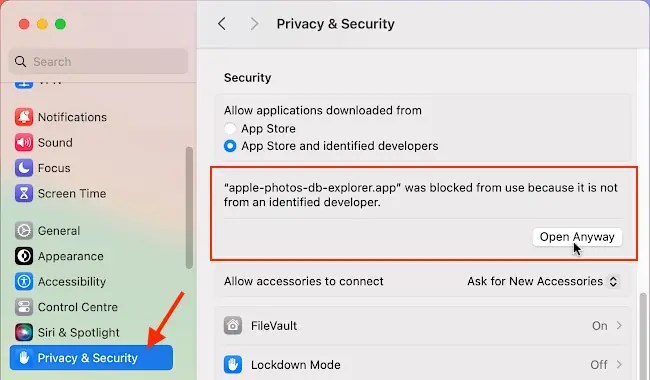
This is not unusual for apps outside of the Mac App Store, and the source code is on the site if you want to download it and check that it is OK. When the app runs, you will be asked to give permission for it to access the Photos library. It needs this.
The app also requires you to have named people in Apple Photos. Open the Photos app, select People in the sidebar and faces it has recognized in photos are displayed as thumbnail images. Make sure you have named some, if not all of the people. You are then ready to use the app.
Apple Photos DB Explorer report
After naming people in Photos and running the app, a report screen is displayed that shows an overall score for your photographs, a detailed breakdown, and a chart at the bottom showing the number of photos added over time.

You can see that the overall score for my photos is 60.1. In the top left corner is Hello Name. This may or may not be your name. The one that appears here is simply the most recognized person in your photos. Since you are the person holding the camera rather than appearing in them, it will probably be someone like a relative or friend, but it could be you if you take a lot of selfies.
Here is a close-up of the important bit in the report screen. Click Select a name and the list of people in the Apple Photos > People section is displayed. You can view the analysis for all photos or for a specific person.

Here you can see things like the Pleasant Composition Score, Pleasant Lighting Score, Well Framed Subject Score, Pleasant Symmetry Score and Tastefully Blurred Score. A score of 100 is best and 0 is the worst. How are your scores? Are they better than mine? My Well Chosen Subject Score is low, so perhaps I need to think about that more when taking photos in the future.
In the toolbar at the top of the app window is a timeline and you can select any date period by dragging the blobs at each end of the timeline bar. Click Play and it shows small sections of the timeline like a slideshow, and this enables you to see how your photography scores evolve over time. Maybe you get better over time, for example.
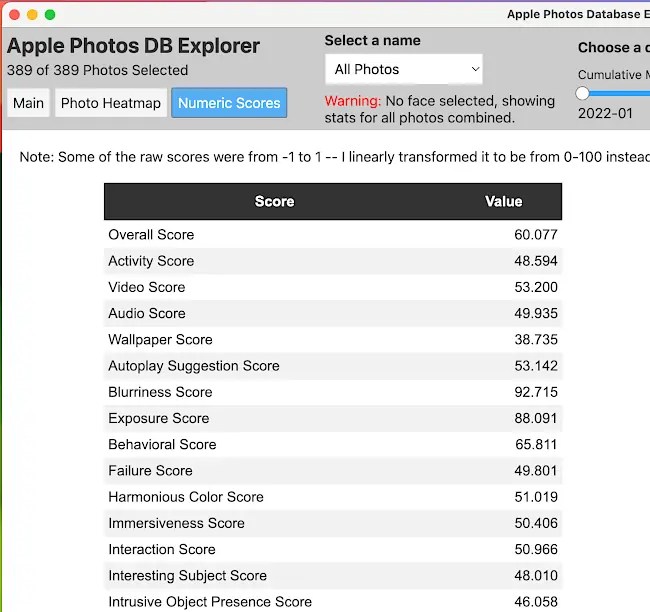
Click the Numeric Scores button in the toolbar and a long list of photo attributes is shown – more than fit in this screenshot. There are some interesting scores, like Intrusive Object Presence, Harmonious Color, Immersiveness and many more.
Final thoughts
What use are all these photography scores? I have no idea. Are they an accurate assement? Again,I have no idea. However, I do find it interesting to read through threm. Perhaps you should open Photos > People, select a person and compare the photos you took to the scores for that person in Apple Photos DB Explorer. Do you agree with the score? Think about what you could do to increase your score with your next photograph.
Don’t forget, this is just AI and it is not necessarily right or an expert, but maybe it will encourage you to put more care and thought into your photography in order to raise your scores.
 RAWinfopages