
If you are a Google Photos user on your phone, you will have seen the video slide shows it makes from photos. Why wait for the next? Create your own movies from photographs on your phone.
Every few days, there is a notification on my phone from the Google Photos app and it has created a video from my photos. It is usually based on a theme, like 10 years ago today, a trip, event, or person. These are great and it is one of the reasons I like Google Photos more than other photo managers and storage.
The automated production of these movies is useful, but you might want to create your own rather than leave it to Google Photos to create. Make your own and you can choose the subject, like a specific event, time, place, people or person. You can select whatever photos you want, you can choose the music to accompany it, you can set the photo order, and more.
It takes just a few minutes to create a slide show with animated effects and music from photos and videos. It is a great way to highlight events and memories. It works on an Android phone and an iPhone.
Related: See all photography articles
Utilities and movies

Open the Google Photos app and press the Library button at the bottom of the screen. Then press the Utilities button at the top. On the Utilities screen, press Movie to create a movie.
Theme and subject
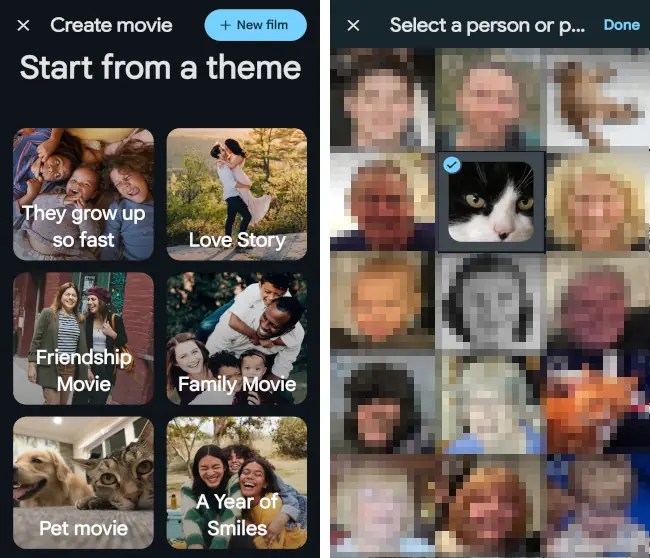
A collection of themes is displayed, like ‘They grow up so fast’, ‘Friendship movie’, ‘Family movie’, ‘Pet movie’ and so on. Android phones show real photos on the theme tiles, but iPhone show cartoon-like drawings. Some of the theme names are different too, with ‘Pet movie’ on Android and ‘Meow movie’ and ‘Doggie movie’ on iPhone. Why the childish names on iOS?
The theme you select does not make as big a difference as you might expect, so don’t think you have to use a particular one. Love story may be just as good for your pet movie as the ‘Pet movie’ or ‘Friendship movie’ theme.
After selecting a theme, thumbnails of faces and pets appears. If you choose ‘Pet movie’ you can choose only one thumbnail for the subject of the movie. If you choose ‘Family movie’ you can select multiple thumbnails, such as all members of your family however many there are. This is one of the differences the theme selected makes. Press Done in the top right corner afterwards.
The movie editor

The movie is quickly created and displayed in the editor. You don’t need to choose the photos to be included because Google Photos selects them for you by recognizing people and pets in your photos. Press the plus button to manually select and add more photos if you think it has missed any.
A row of thumbnails at the button of the screen shows the pictures and videos elected. Drag left and right over the white bar to quickly move forward and back through the video.
Press the first button in the toolbar under the video to set the size of the video, such as 16:9 or 3:4, and so on.
Select the music

Press the note icon in the toolbar under the video and there are options to select your own music, select from the theme music, or to remove the soundtrack.
Press Theme music and the music chooser appears. Swipe left and right over the music categories at the bottom, like Dramatic, Electronic, Reflective, and more. Press one and then swipe up and down to see all of the music in the selected category. Select an item and the music plays.
Save and view

Back at the editor screen, if the photos and videos are not in your preferred order, press and drag them to another place in the filmstrip, or even drag them out to remove them.
When you are happy with the video, press the Save button. It takes several minutes to create the video and you can switch to another app on your phone and do something else while it is processing. You will see a notification when it is done and ready for viewing.
The finished video appears in your Google Photos library like other photos and videos. Just open your photos feed and press it to view it, share it with others and so on.
 RAWinfopages