Some websites and services accept logins using Facebook, Google, and Apple sign-in. To help you remember which one to use at a site, add these no-password sites to your password manager.
You have probably noticed that some websites and web services provide multiple login options. Nearly all sites allow you to sign in using a username or email address, and a password. Some websites also allow you to sign in with a Google account, an Apple account, a Facebook account. Maybe there are others, but those are the most common.
The Wall Street Journal is an example of a website that offers multiple sign-in options. Take a look at the sign-in page at the wsj.com website:
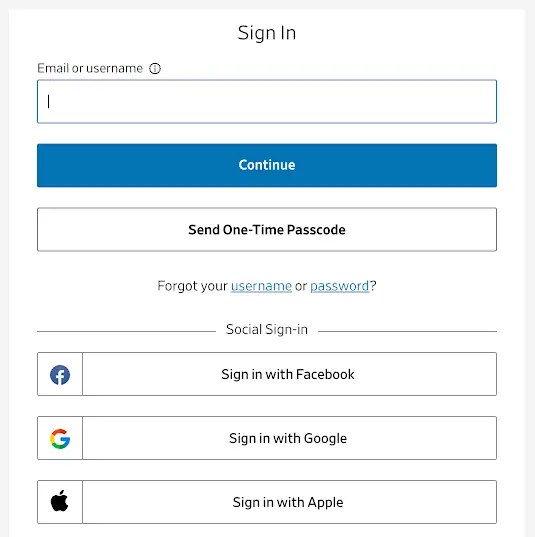
Which sign-in option should I use? When presented with multiple options like this, I can usually remember how I sign in, but if it has been some time since I last visited, I might have forgotten which option I used when signing up. When you have dozens of websites that offer multiple options, and you sometimes use a different sign-in with different sites, it can be hard to remember which one you use.
Choose the wrong sign-in option and your login might be rejected, even worse, the site might make a brand-new account based on the sign-in you selected. Then you have two accounts on the site.
There is an easy way to remember which way to sign in to a website, and it makes use of a password manager. You may be thinking that if you sign in with Google, Facebook or Apple, there is no password to store in a password manager, but bear with me and I will show the solution to remembering your login.
Use any password manager on a Windows PC or Apple Mac with any web browser. For the screenshots, I am using Bitwarden and Edge browser, but any combination can be used.
Related: Increase security with Bitwarden and keep passwords safe
Open your password manager
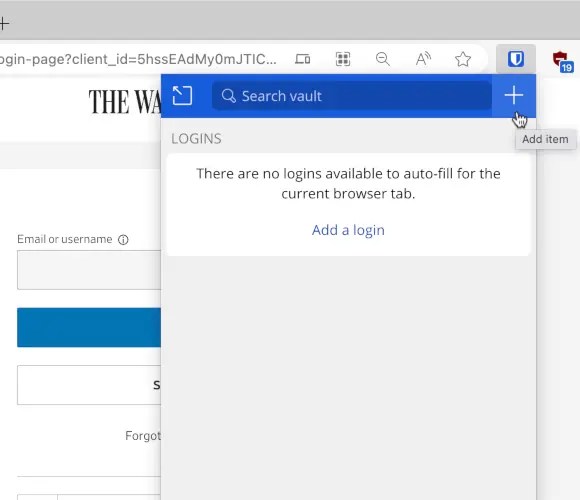
When faced with multiple sign-in options on a website, open your password manager in the browser and click the button to add a new login. I am using Bitwarden, but any password manager can be used.
Create a new login item
Here is Btiwarden’s new login form. Other password managers will look different, but they all have similar features. Enter a name for the login. The website name is usually best.
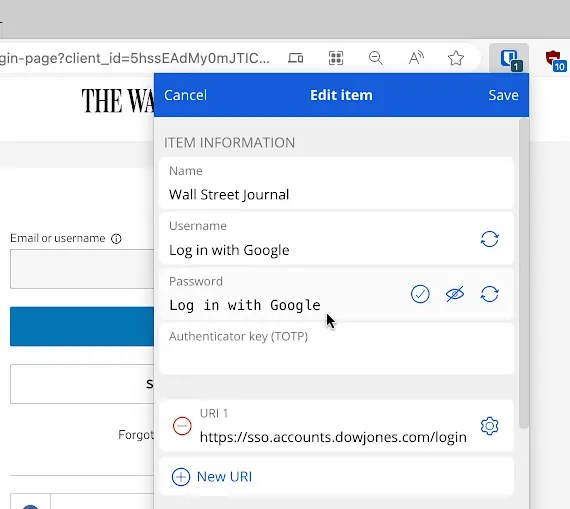
In the Username box, enter the method you use to sign in to the site. For example, if you sign in using Google, then set the username to something like “Sign in with Google”. Enter the same text for the Password box.
Copy the URL of the sign-in page on the website and paste it into the URL box in the login item in the password manager. You often don’t need a full URL, and just enough for the password manager to detect the site is sufficient. This can be seen in the screenshot, where I just have the first part of a long sign-in URL.
Save this login item in the password manager.
Test the new password login
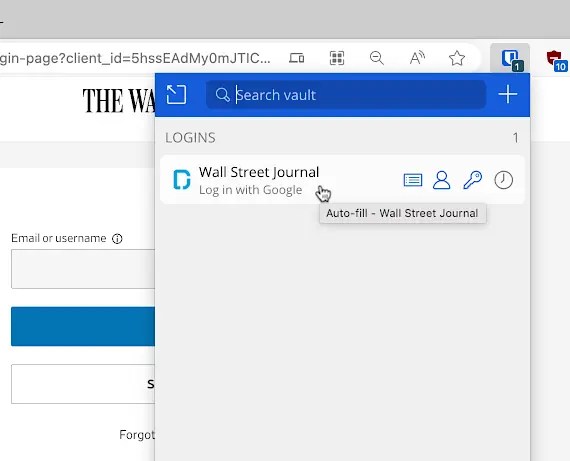
Now let’s see how this works. If I now visit the Wall Street Journal website, those multiple sign-in options are displayed. Bitwarden shows a badge indicating that there is a login saved for the site. I can then click the Auto-fill option to fill in the details.
A handy login reminder

When I use the password manager to sign in, in the username or email box it says “Log in with Google”. This is great for those occasions where I have forgotten which method I used to sign in to a site. My password manager reminds me which one to use and I can click the appropriate button.
It is such a simple thing, but it is useful to do if, like me, you have used different sign-in services with different websites over the years.
 RAWinfopages