Are your computer and phone passwords good, poor, or have they been leaked in hacks on the internet? If you have Chrome browser on an Android phone or iPhone, get a report and find out.
Web browsers can store the passwords you use to sign into websites and web services. A password manager is better because it can store more than passwords and is available in more places, but it is useful to also store passwords in a browser as a backup.
Web browsers often detect when you use a username or email address and a password to log into a website and they pop up a message asking if you would like to save it. It takes almost no effort to say Yes or OK, and the login details are saved.
Like a lot of people, I have a password manager, but I have also stored a few passwords in Chrome, which then stores them in your Google account. If you want to find out whether those passwords are strong or weak, or whether they have been leaked in a hack on the internet, here is how to find out on your phone.
This is a procedure that you should carry out frequently, such as once every week or two. Passwords are often leaked through hacks and the security of your online accounts is at risk if any of your passwords were included in the leaked set.
I will use screenshots using Chrome on an Android phone, but Chrome on an iPhone is very similar.
Related: Browse the web faster on your phone by preloading pages
1 Go to Chrome settings
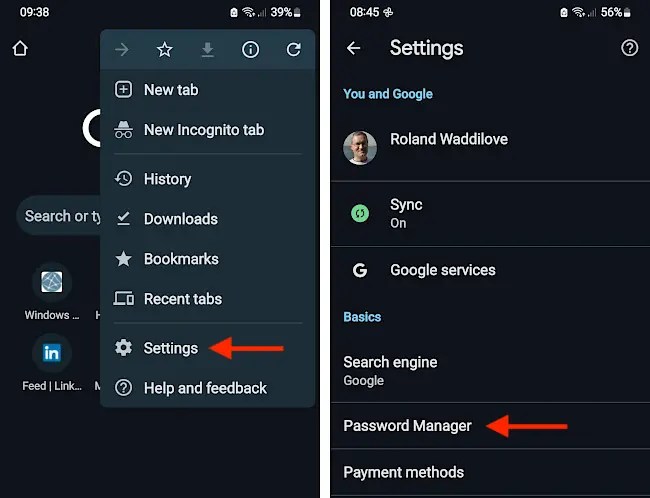
Open Chrome browser on your phone. Press the three dots in the top right corner to show the menu and then press Settings. When the Settings screen appears, press Password Manager.
2 Get a password checkup
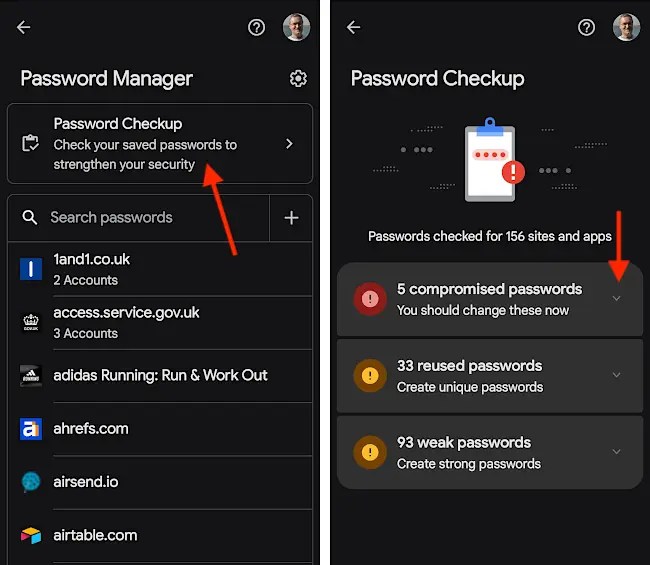
On the Password Manager screen, press Password Checkup. The password manager immediately begins checking all of your passwords against known leaks, whether they have been reused, or whether they are weak.
The time taken depends on how many passwords you have. It checked my 150 or so passwords in just a few seconds and the results screen is displayed.
If you have any compromised passwords, you should immediately deal with them. Reused and weak passwords are less of a problem, but in the long term you should consider changing them.
Press the compromised passwords section, or any other section if none are compromised.
3 Change, view, edit passwords
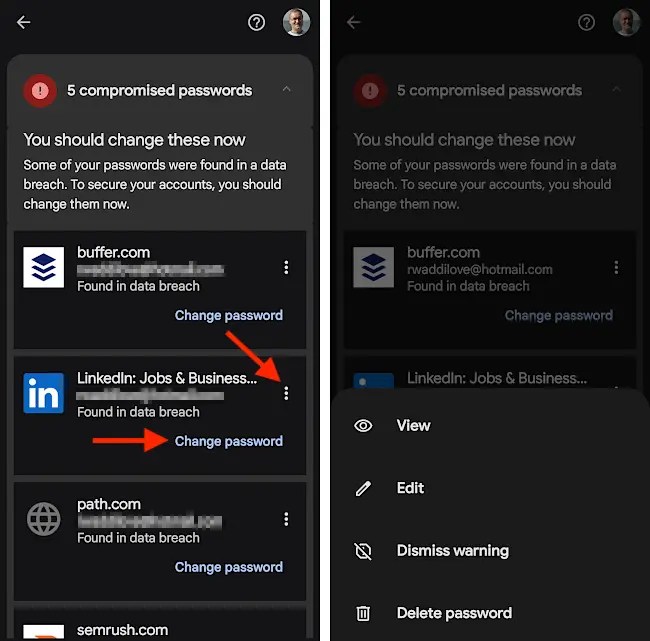
Each of the passwords is shown on a tile and there is a Change password link. You cannot actually change a password with it, but it opens a tab in Chrome and goes to the website. You can then log in, locate the change password option, and create a new password.
Press the three dots to open a menu at the bottom of the screen. Here you can view a password, edit it, dismiss the warning or delete the password.
I found passwords for websites that I had not visited in a log time, websites that no longer existed, and passwords that were out of date. Basically, my passwords are a mess!
One reason for this is that I use a password manager to store most passwords and Chrome has some old ones that I have already changed. They can be updated here or simply deleted as they are duplicates of passwords in my password manager anyway.
Although it is not vitally important for me, for some people Chrome might be the only place they store passwords.
 RAWinfopages